
This is the print version of this page. All content is copyright Indezine.com 2000-2025.
Explore the Slide Area, and tricks to make slide editing more productive in PowerPoint 2007 for Windows. Also, don't forget the Slide Workspace area which can be a convenient place to store stuff that you might want to use later.
Author: Geetesh Bajaj
Product/Version: PowerPoint 2007 for Windows
OS: Microsoft Windows XP and higher
Introducing Slide Area
The Slide
The Slide Workspace
The Scroll Bars
The Rulers
The Slide area comprises everything within the region highlighted in red, as shown within Figure 1. To learn more about the rest of the PowerPoint 2007 interface, see here.
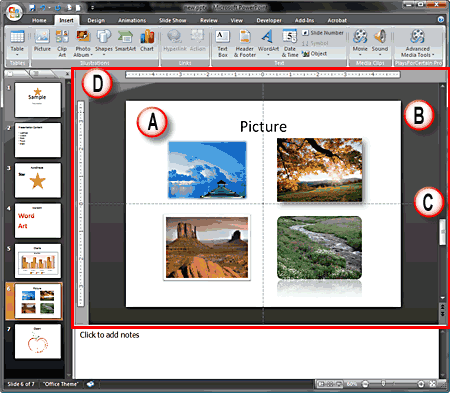
Figure 1: Slide area
This includes:
We discuss each of these individual interface elements in this article.
BackThis is the actual slide were you can add slide objects such as text, pictures, charts, etc. to create a presentation. When you present your PowerPoint presentation as a Slide Show, it only shows objects within this area.
You normally click on a text placeholder and type some text to replace the dummy text in the placeholder, as shown in Figure 2.
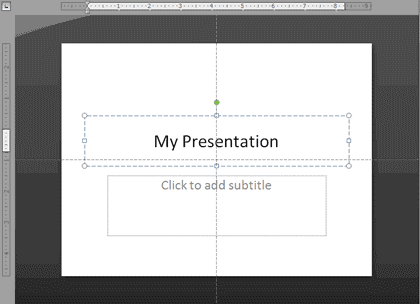
Figure 2: Add text in an existing text placeholder
This is the grey area behind the slide, although any objects you place here can be edited and animated, they won't show up in Slide Show mode.
This makes the Workspace a convenient place to store stuff that you might want to use later, or maybe a slide objects animates from the Slide Workspace into the actual Slide!
Figure 3 shows a slide that has objects both within the actual Slide and in the Slide Workspace.
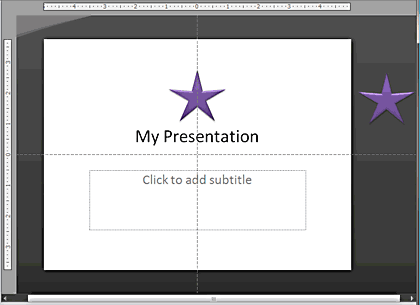
Figure 3: A slide object placed outside the Slide in the Workspace
There are two scroll bars, the horizontal and vertical scroll bars.
The vertical scroll bar, placed towards the right of the slide is always visible while the horizontal slide bar only shows up when you zoom your slide to a larger view.
The vertical scroll bar can be used to navigate from one slide to the other, to move forward and backward from one slide to the other, click one of the double-headed arrows at the bottom of the vertical scroll bar as shown in Figure 4.
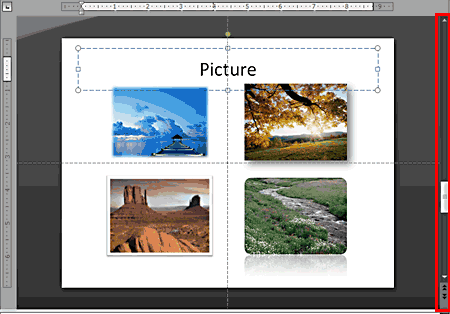
Figure 4: Scroll Bar
You can also drag the handle box in the vertical scroll bar and move up or down to navigate several slides at a time.
BackJust like the scroll bars, there are two rulers: the Horizontal ruler and the Vertical ruler.
While both rulers are used for positioning and creating guides, the Horizontal ruler can be used for working with tabs and indents as well.
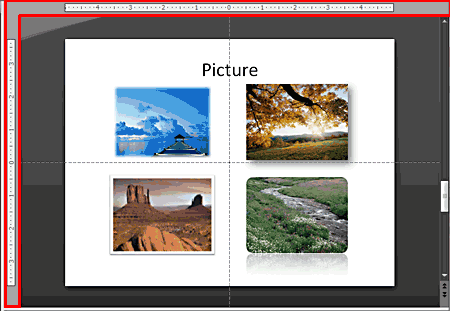
Figure 5: Rulers
01 05 06 - Interface Overview: Slide Area in PowerPoint (Glossary Page)
Slide Area in PowerPoint 365 for Windows
Slide Area in PowerPoint 365 for Mac
Slide Area in PowerPoint 2019 for Windows
Slide Area in PowerPoint 2016 for Windows
Slide Area in PowerPoint 2016 for Mac
Slide Area in PowerPoint 2013 for Windows
Slide Area in PowerPoint 2011 for Mac
Slide Area in PowerPoint 2010 for Windows
Slide Area in PowerPoint for the Web
You May Also Like: Does PowerPoint Compress Images? | Entertainment PowerPoint Templates




Microsoft and the Office logo are trademarks or registered trademarks of Microsoft Corporation in the United States and/or other countries.
