
This is the print version of this page. All content is copyright Indezine.com 2000-2026.
Learn about using rulers in PowerPoint 2010 for Windows. We also explore hiding and showing rulers.
Author: Geetesh Bajaj
Product/Version: PowerPoint 2010 for Windows
OS: Microsoft Windows XP and higher
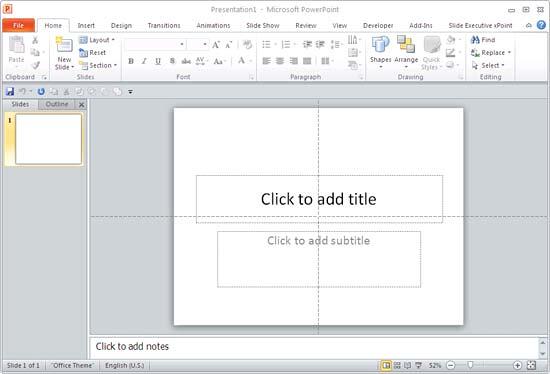
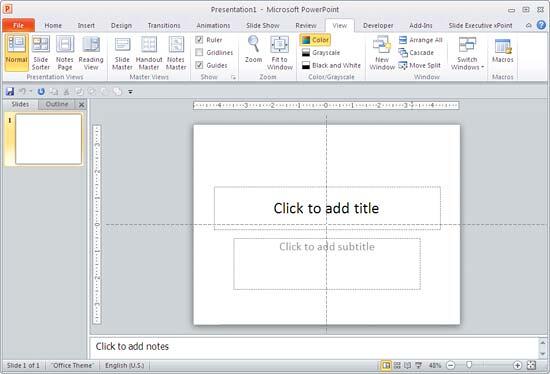
Rulers in PowerPoint are typically located on the top and left parts of the active slide. Also, by default, they might not be visible at all. However, it is a great idea to make them visible because not only do they provide you with a visual cue about where you are placing slide objects, they also let you use other PowerPoint features like the grid and guides more useable.
In this tutorial, you will learn how to show/hide these rulers in PowerPoint 2010 for Windows. You will also explore some of the settings that influence the measurement units in the rulers.
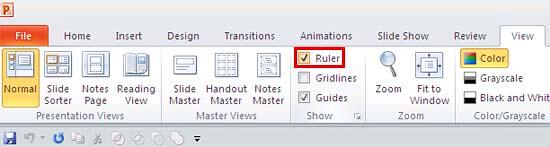
To turn on the visibility of the rulers, you can use the keyboard shortcut Alt + Shift + F9. Use the same shortcut key to toggle it away.

Do you want more keyboard shortcuts?
Explore our PowerPoint Keyboard Shortcuts and Sequences Ebook that is updated for all PowerPoint versions.
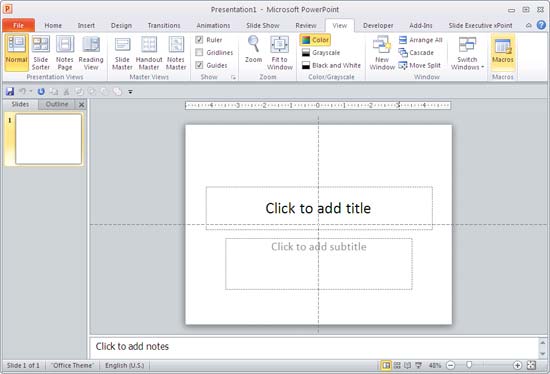

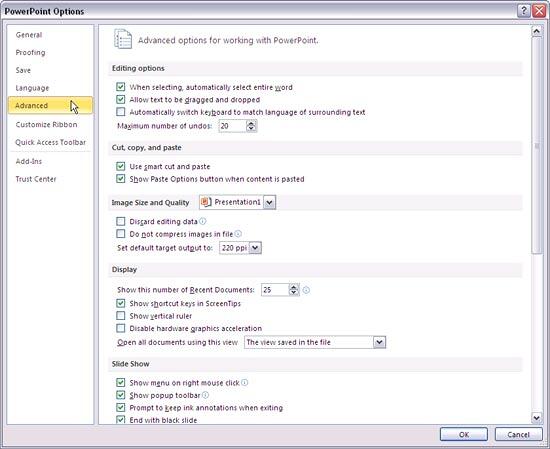

Does your ruler show inches or centimeters? The unit of measurement shown cannot be changed within PowerPoint. In fact, this setting is influenced by whatever you choose in your Windows Control Panel. Here are instructions to access these settings in Windows XP, Windows Vista, and Windows 7.
01 09 09 - Working with Slides: Rulers in PowerPoint (Glossary Page)
Rulers in PowerPoint 2016 for Windows
Rulers in PowerPoint 2016 for Mac
Rulers in PowerPoint 2013 for Windows
Rulers in PowerPoint 2011 for Mac
You May Also Like: Presentation Management Strategic to Enterprise Communication: Conversation with James Ontra | Diary PowerPoint Templates




Microsoft and the Office logo are trademarks or registered trademarks of Microsoft Corporation in the United States and/or other countries.
