
This is the print version of this page. All content is copyright Indezine.com 2000-2026.
Learn about the Developer Tab of the Ribbon in PowerPoint 2007 for Windows.
Author: Geetesh Bajaj
Product/Version: PowerPoint 2007 for Windows
OS: Microsoft Windows XP and higher
Introducing the Developer Ribbon Tab
Enabling the Developer Tab of the Ribbon
PowerPoint 2007 (and other programs in Office 2007) sport a new interface that contains a tabbed Ribbon instead of the usual toolbars and menus. Several tabs may be visible in the Ribbon, and your tabs might be different than the tabs, as shown in Figure 1, below.
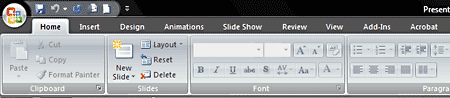
Figure 1: Ribbon and Tabs
As you can see, there is no Developer tab in the Ribbon. By default, this tab is not visible because most PowerPoint users really don't require any of the options in this tab. These options are related to working with macros, ActiveX controls, and VBA stuff.
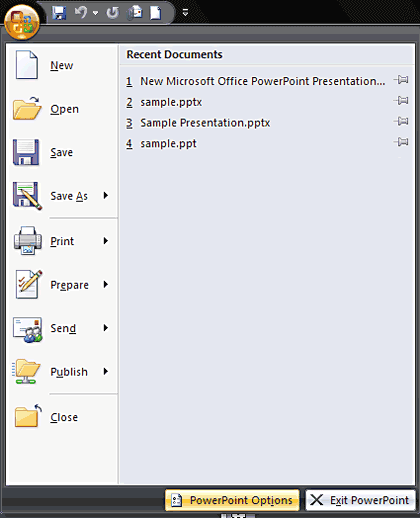
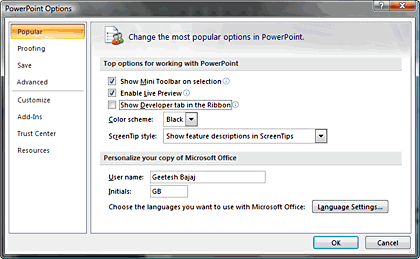
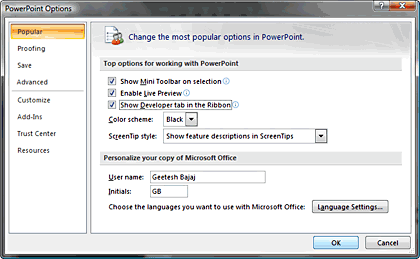
BackTo enable the Developer tab on the Ribbon, follow these steps:

See Also:
Customize Interface: Developer Tab of the Ribbon in PowerPoint (Index Page)
You May Also Like: PresentationXpert Video Interviews at the Presentation Summit | Romania Flags and Maps PowerPoint Templates



Microsoft and the Office logo are trademarks or registered trademarks of Microsoft Corporation in the United States and/or other countries.
