Quite often,all you want to do is send a PowerPoint presentation with all linked files to someone else. You want to be sure that the intended recipent can play the presentation as long as they have PowerPoint or the free PowerPoint Viewer installed.
It's fairly easy to accomplish - first follow these housekeeping steps:
- Create an empty folder and create a new presentation within that folder. Place all music and video files as well as any documents you want to link from the presentation within the folder, as shown in Figure 1.
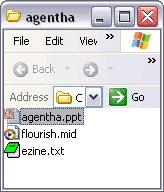
Figure 1: Presentation within a folder - Insert all sounds and videos as required within the presentation. If you have no sounds or videos, skip this step. If you want to span a sound across all slides in a presentation, look here.
- Link all documents as required from within the presentation. If you have no documents to link, skip this step.
Tip:
If you want your presentation to open in slide show mode, save your presentation as a PPS file rather than PPT. You don't even have to open PowerPoint - just rename the extension even before you zip up the folder.
Now we need to zip this presentation as a self executable EXE. You could use any of the zip archiving tools like WinZip or PowerArchiver - since I need to create a tutorial that all users can work with, I'm going to use ZipGenius, a freeware utility.
I'm assuming you have ZipGenius installed - during installation opt to include shell extension support, as shown in Figure 2, below.
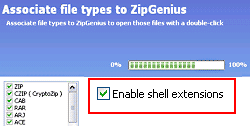
Figure 2: Enable shell extension support
Now, that we have ZipGenius instaled, let us proceed with the second part of this tutorial:
- Open the folder that contains the presentation and related files, select all the files and right-click. Then choose the ZipGenius option.
- This will open another flyout menu with several options. One of the options allows you to "Create a new archive". Choose this option, as shown in Figure 3, below. This will create a zipped archive of all the files within the same folder.
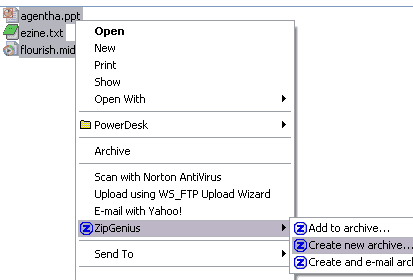
Figure 3: Create a new archive - Right-click the zipped archive, choose the ZipGenius option and choose the "Convert to EXE" option from the flyout menu, as shown in Figure 4, below.
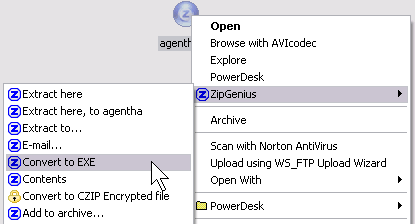
Figure 4: Convert to EXE - ZipGenius now leads you through a series of wizard screens. The first screen lets you provide a title for your EXE; we named it "My PowerPoint Presentation," as shown in Figure 5, below.
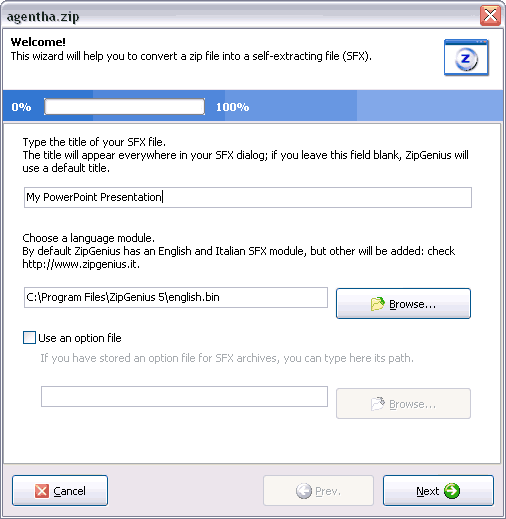
Figure 5: My PowerPoint Presentation- The next wizard screen asks you for a folder path to extract your files. Choose the "%temp%' option from the dropdown menu, as shown in Figure 6, below, and click the Next button.
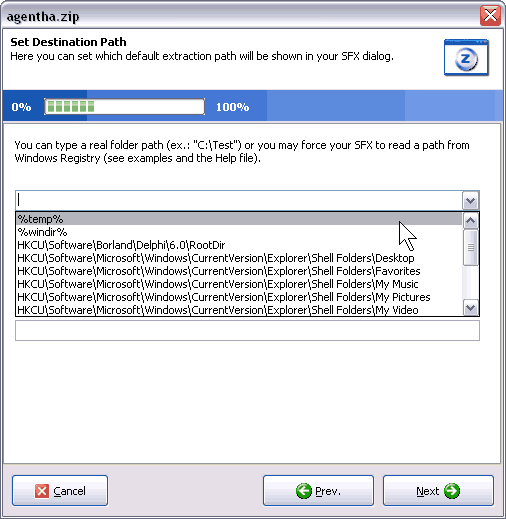
Figure 6: Set Destination Path- The next wizard screen asks you to include a message. We typed our message and chose the Standard message option and clicked the Next, as shown in Figure 7, below.
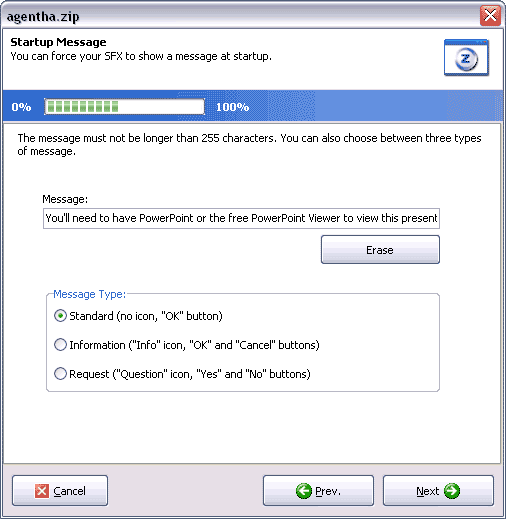
Figure 7: Startup Message- The next screen asks you if you want to execute any file - choose your PPT (or PPS) presentation file, as shown in Figure 7, below.
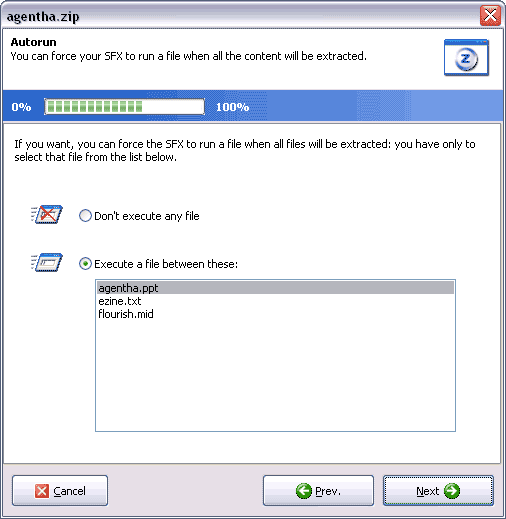
Figure 8: Autorun
Tip
- If you want your presentation to open in slide show mode, save your presentation as a PPS file rather than PPT. You don't even have to open PowerPoint - just rename the extension even before you zip up the folder.
- The final screen allows you to choose many more advanced settings. Since this is a beginner tutorial, we've left all options with their default settings. Just click the Start button, as shown in Figure 9.
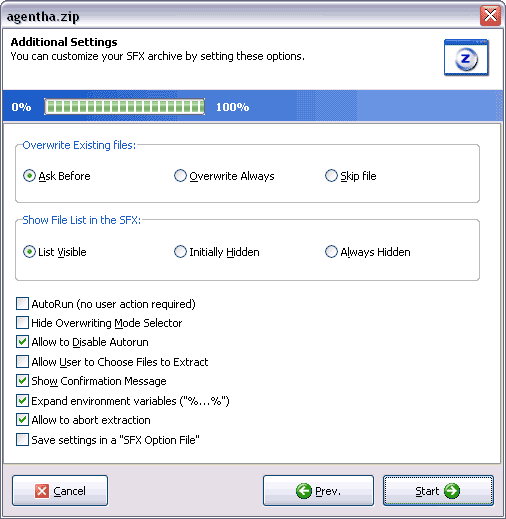
Figure 9: Additional Settings- ZipGenius will inform you that the self-extracting archive has been created, as shown in Figure 10, below.
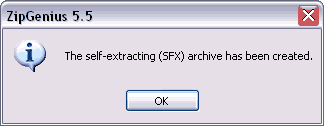
Figure 10: Your EXE is created - Run the EXE to test it.
On some systems, we found that the extracted PowerPoint files don't launch automatically. In that case, you can extract all files to a folder and manually run the presentation.
You can also use other zip compression tools like WinZip and PowerArchiver to duplicate the steps detailed above.

