This is the print version of this page. All content is copyright Indezine.com 2000-2026.
Create an animated book that opens inside PowerPoint.
Author: Julie Terberg
Product/Version: PowerPoint
OS: Microsoft Windows and Mac OS X
 Julie Terberg has more than 15 years of presentation-design and computer-graphic experience. She specializes in custom-designed presentations, including animation and multi-media applications.
And so begins a new chapter in our history...
Turn your workbooks to page...
Let me tell you a story...

These phrases share a common visual theme - an open book. I've designed more than a few animations where the cover of a book subtly appears on screen and then with a click of the mouse, the book cover opens to reveal a title page, a workbook lesson, an image, or a theme phrase.
This short tutorial will show you how to accomplish the open book animation for yourself with PowerPoint 2003's Custom Animation options. This technique will also work within PowerPoint 2002 (XP) but not in earlier versions. To view the example animation, download the read-only file here.
The animation sequence requires some initial preparation with an image editing program such as Adobe Photoshop or Corel PhotoPAINT. In this tutorial, I refer to Photoshop but the steps are quite similar using PhotoPAINT.
If you need to animate a particular book cover (textbook, workbook, manual, etc.) begin with a scan or digital photograph. If you're looking for a generic or blank book cover, you could scan or photograph a book, or try searching any of the major stock photo websites. The image used in the example was purchased at iStock.

Figure 1: Book cover
For a realistic animation, the cover and inside pages should be:
The image of the open book with facing pages can also be a scan or photograph you've taken of a specific page spread. The example image of blank pages was also purchased from iStock. Text or photos can be added to this stock photo as needed.
The open book image requires a bit more photo manipulation for the final effect to look realistic. Open the image in Photoshop. Then, double-click on the Background layer in the Layers palette. Click OK in the resultant New Layer dialog box. This becomes an editable layer, allowing you to remove pixels for a transparent background.

Figure 2: The open book
If the background color surrounding the open book contrasts well or is a different color from the book, you can use the Magic Wand tool to select and then delete. The stock image used in the example has a light gray background, which is quite like the book page color for selection using the Magic Wand. In this case, the area around the book was selected with careful use of the Polygonal Lasso tool, as shown in Figure 3, below. To get an accurate selection, it helps to Zoom in while using the Lasso, selecting, and deleting each side of the image separately. There are other methods to deleting unwanted pixels in Photoshop, and you can use the method that produces the best results for you.
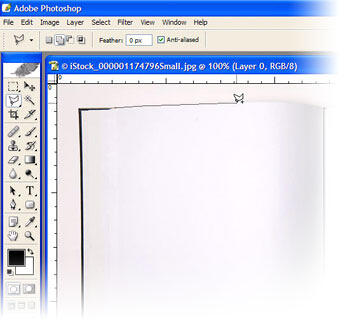
Figure 3: Outline the book pages with the Lasso Tool to select and delete for a transparent background.
After the background area is removed from your open book pages, resize the image to approximately the same height as your book cover. Remember to save your work often. Save the edited file as a .PSD for future edits.
The next step is to create PNG files for inserting into PowerPoint. The PNG format saves transparent information, allowing your images to "float" on any background in PowerPoint.
Select the Crop Tool and define the crop area around the right half of the open book (see Figure 4).
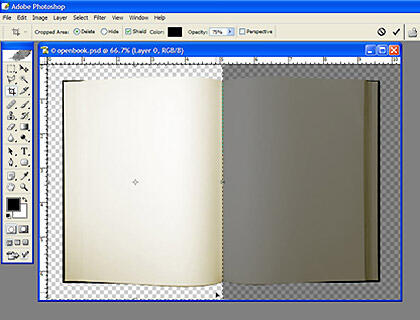
Figure 4: Crop each half of the book separately, Save for Web as a PNG-24
Double-click to accept the crop. Select File | Save for Web and save as a PNG-24, (right side.png). Next, type Ctrl + Z or select Edit | Undo to go back a step. Select the Crop Tool again and define a crop area around the left half. Double-click to crop and Save for Web as a PNG-24 (left side.png).
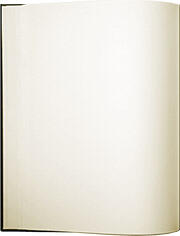
Figure 5: A PNG file with a transparent background
You should have three images ready to insert into PowerPoint: the book cover, the inside left page spread and the inside right page spread.
In PowerPoint, display the Guidelines (Ctrl + G) and make sure you have a guide down the vertical center of the slide. Insert both PNG files you created: the left and right halves of the inside book spread (see Figure 6).
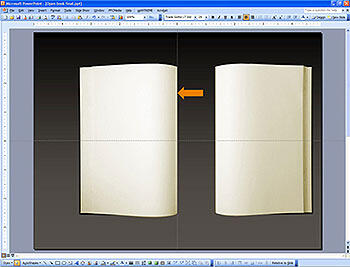
Figure 6: Align both halves of the page spread in PowerPoint, positioning the spine along a vertically-centered guideline
Move the images so that the spine lines up with the center guideline. Use the Alignment tools to ensure the halves are vertically aligned to each other.
Insert the book cover image and place it over the right half of the open book. The left edge of the cover should be aligned with the center guideline. If necessary, resize the cover image slightly, so that it is the same size or slightly larger than the right half of the open book image.
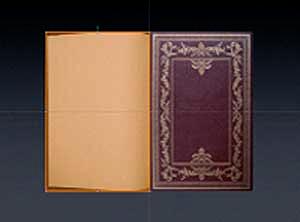
The book cover is the first object to animate. You want the cover to "open," revealing the inside pages. The easiest and most efficient way to accomplish is with an invisible rectangle. Draw a rectangle over the book cover, same width. Change the fill color to "No Fill" and the outline (if any) to "No Line".
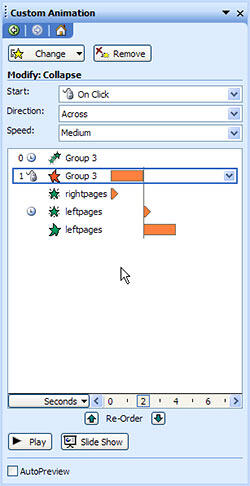
Figure 7: View the animation in Slide Show mode to check for any alignment or timing issues. Adjust timing speeds to best suit the needs of your presentation
Move this invisible shape to the left of the center guideline. It should mirror the book cover image. Select this shape and the book cover and Group together.
With the Group selected, open the Custom Animation Task Pane and choose Add Effect | Entrance | Ascend. Choose your Start Time (On Click, With Previous, or After Previous) depending on when you'd like the book to appear on the slide. Leave the Speed at Fast. With the group still selected, Add Effect | Exit | Collapse. Start: On Click and Speed: Fast.
Next, animate the inside pages. Hit the Tab key to select another object on the slide, until the "right side" is selected. Add Effect | Entrance | Appear. Start: With Previous. This will reveal the right side pages as the book cover opens.
Hit the Tab key until the "left side" is selected. Add Effect | Entrance | Appear. Start: After Previous. Add another Effect | Entrance | Stretch. Start: With Previous. Direction: From Right. Speed: Fast.
That's it! The book opens smoothly, and a new lesson in animation is complete.
You May Also Like: How to Remember What to Say | Color Pencils PowerPoint Templates




This is the original page. An AMP (Accelerated Mobile Page) version of this page is also available for those on mobile platforms, at An Open Book in PowerPoint.
Microsoft and the Office logo are trademarks or registered trademarks of Microsoft Corporation in the United States and/or other countries.