
This is the print version of this page. All content is copyright Indezine.com 2000-2025.
Read an exclusive book excerpt from Fixing PowerPoint Annoyances.
Author: Echo Swinford
Product/Version: PowerPoint
Paste the Whole Workbook with the Chart
Font Size Goes Wacky When I Resize
Create Separate Chartsheets
Fonts on Chart Not Visible
Excel Headers and Footers Don't Transfer
The Annoyance: I've copied Excel charts into PowerPoint for years, but I just realized that it pastes the entire workbook. Has PowerPoint always behaved this way?
The Fix: By default, when you paste Excel charts into PowerPoint, it embeds the entire workbook. This can cause problems — large file sizes, data being inadvertently included in presentations, etc. In PowerPoint 97 and 2000, if you do not want the entire workbook included in your presentation, you must select Edit | Paste Special and choose an image type from the list (see Figure 4-14). This pastes a simple image of the Excel chart, which is no longer connected to the data used to create it.

Figure 4-14. The Paste Special dialog box lets you specify what format you want to paste.
In PowerPoint 2002 and 2003, you can select Edit | Paste Special to choose an image, or you can simply click the Paste Options icon to paste a picture of the chart (see Figure 4-15). The Paste Options button appears when you paste an object onto a slide, and the available options depend on what type of object you've pasted. For example, pasting data cells from an Excel spreadsheet pastes a “PowerPoint-style table” by default. The Paste Options button lets you paste as an Excel Table (entire workbook), a Picture of Table (smaller file size), or Keep Text Only.
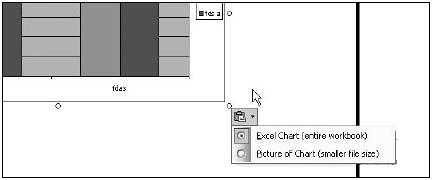
Figure 4-15. The Paste Options icon shows up immediately after you paste something on a slide. The options you see change with the type of object that you paste.
The Annoyance: When I try to resize the data I pasted by dragging the edges and corners on the slide, the font size goes crazy and gets distorted. How can I make this stop?
The Fix: Select Edit | Paste Special, choose the “Paste link” option, and then choose “Microsoft Office Excel Workbook Object” to link to the spreadsheet as opposed to embedding it in the slide. You can break the link later if necessary.
The Annoyance: I have a bunch of charts in a workbook, which I linked to my presentation. When I update the links, the different charts in the PowerPoint file all change to the same chart, so it looks like I just linked to the same chart over and over. This is not good.
The Fix: Put the charts on separate chartsheets in Excel, and then link them to the PowerPoint slides. To change a graph from a chart object to a separate chartsheet, right-click the chart in Excel, choose Location, and select “Place chart as new sheet.” Then reinsert them into your presentation. If the charts continue to change when updating, save the separate chartsheets as separate Excel workbooks.
The main difference between OLE linking and OLE embedding is where the data is actually stored.
If you copy a cell range in an Excel spreadsheet and paste it onto a PowerPoint slide, you have created an OLE embedded object. In this case, the entire spreadsheet is embedded within the PowerPoint file. OLE embedded objects increase your PowerPoint file size because they include not only all the data from the source file, but also the overhead that allows you to open the source application and edit the file from within PowerPoint. You can delete the Excel file and it will not affect the data on your PowerPoint slide.
To get the best of both worlds, create OLE linked objects using Edit | Paste Special | Paste Link while you’re working on the file, and then ungroup the object before finalizing the presentation and/or sending it to others. (Of course, do this on a copy of your presentation if you’re sending for review before the file is finalized.) This will break the “shortcut” OLE link to the object, leaving you with an image that’s easily displayed in your PowerPoint file and that doesn’t cause a huge file size hit.
This is known as OLE linking. The upside is that the size of your PowerPoint file will be much smaller than if you simply pasted the spreadsheet onto your slide, creating an OLE embedded object. The downside is that you must keep the Excel file readily available for PowerPoint. You must also make any changes to the data in the actual Excel file.
To get the best of both worlds, create OLE linked objects using Edit | Paste Special | Paste Link while you’re working on the file, and then ungroup the object before finalizing the presentation and/or sending it to others. (Of course, do this on a copy of your presentation if you’re sending for review before the file is finalized.) This will break the “shortcut” OLE link to the object, leaving you with an image that’s easily displayed in your PowerPoint file and that doesn’t cause a huge file size hit.
The Annoyance: My Excel chart uses black fonts, which makes it impossible to read when I paste it onto my slide with a black background. Do I have to reformat this stupid chart just so I can see what it says?
The Fix: Relax, you don't have to reformat your chart. Instead, recolor the chart to make it more readable.
Choose View-Toolbars-Picture to display the Picture toolbar. Select the chart and click the Recolor Excel Chart button (see the left side of Figure 4-16). Specify whether to recolor the entire chart, recolor only the text and background colors of the chart, or do nothing (see the right side of Figure 4-16).


Figure 4-16. The Recolor option on the Picture toolbar (left) lets you recolor portions of your Excel chart or the entire thing (right).
PowerPoint also has a hidden feature that lets you recolor slide background images (see www.indezine.com/products/powerpoint/cool/recolorimages.html for specifics).
The Annoyance: How do I import headers and footers from an Excel workbook onto a slide? I can get the Excel workbook onto the PowerPoint slide without any trouble.
The Fix: Headers and footers don't actually show up in Excel until you print the file. If you must transfer your headers and footers to the PowerPoint slide, add text boxes to the Excel worksheet, enter the appropriate header and footer text, and take a screenshot. You can hit the Print Screen button on your keyboard and Ctrl+V to paste the image onto the slide. Crop as desired using the Crop tool on the Picture toolbar in PowerPoint. Alternatively, you can add the headers and footers by adding text boxes to the PowerPoint slide
Copyright © 2006 O'Reilly Media, Inc. All Rights Reserved.
See Also:
Fixing PowerPoint Annoyances - 1 of 2
You May Also Like: How to Give a Short Speech at a Celebratory Festive Event | Bermuda Flags and Maps PowerPoint Templates


Microsoft and the Office logo are trademarks or registered trademarks of Microsoft Corporation in the United States and/or other countries.
