
This is the print version of this page. All content is copyright Indezine.com 2000-2026.
Read the Indezine review of VisualBee 2 for PowerPoint.
Author: Geetesh Bajaj
Product/Version: PowerPoint
Introduction
Using VisualBee 2
Pricing and Support
Conclusion
VisualBee 2 is a PowerPoint add-in with an easy to use wizard based interface. The add-in automatically analyses your PowerPoint presentation text and structure, and builds a new designed presentation with appropriate templates, images, and graphics.
VisualBee 2 is the new and improved version of an add-in that we have already reviewed -- read the review of the previous version of VisualBee here. In this new version, VisualBee designs and images database has been significantly enhanced.
VisualBee is a freeware, and you can use it for free to enhance your presentations. For additional capabilities such as access to a larger library
of design styles, a larger image bank, and the ability to brand presentations with your company logo, will need to be a premium user which will
entail an annual subscription, that comes at a cost.
This add-in is created by VisualBee.com, a company based in Israel. You can learn more about VisualBee
from their site.
My contact at VisualBee.com for this review was Motti Nisani - thank you, Motti.
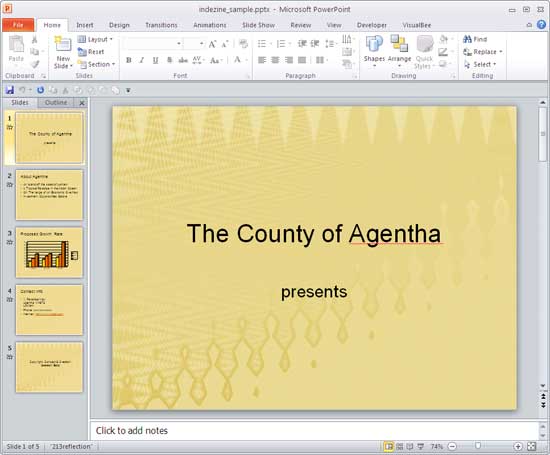
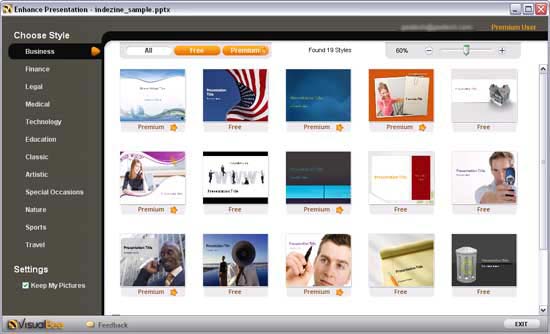
BackDownload the installer from the VisualBee site, run the setup routine, and follow the instructions. The add-in is for 32 bit versions of Microsoft PowerPoint 2007 and PowerPoint 2010 only. Follow these steps to use VisualBee 2 in PowerPoint 2010:
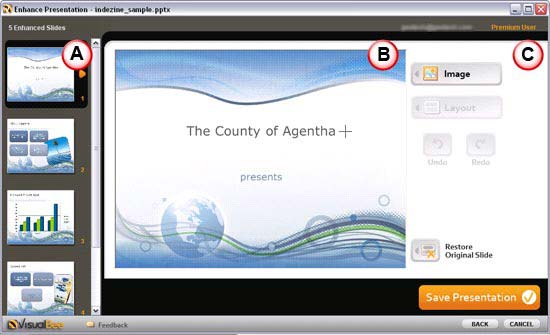
Contains all the slides of the presentation.
Displays the preview of the selected slide.
The options within this section are:
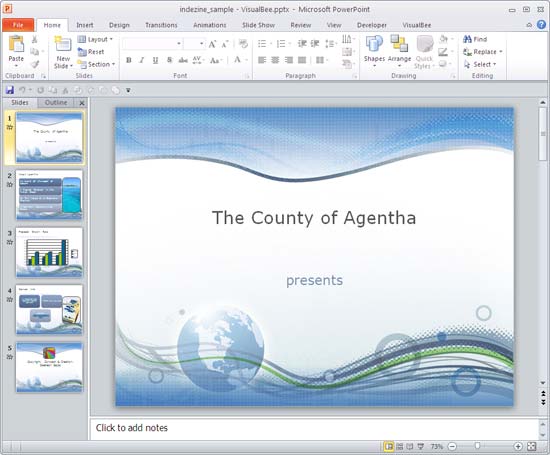
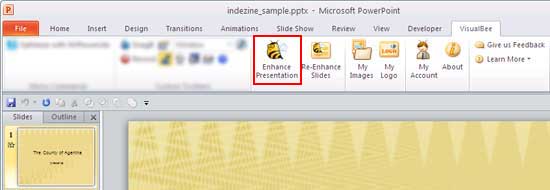
The options within the VisualBee tab on the Ribbon (refer to Figure 2) are explained below:
Although VisualBee 2 is a freeware, you still need to have a paid account to access the premium templates, premium images, to create your own image library for PowerPoint, and to get your own logo in all your presentations. You can opt for the monthly subscription which costs $9 per month and $75 for an annual subscription.
Support options are extensive and include email support, an online FAQ, forum, and user guides.
BackVisualBee 2 continues making the process of enhancing your presentations simple and easy -- and it does have a great price:performance ratio.
BackYou May Also Like: Guinea Bissau Flags and Maps PowerPoint Templates | Freepath 3.0


Microsoft and the Office logo are trademarks or registered trademarks of Microsoft Corporation in the United States and/or other countries.
