
This is the print version of this page. All content is copyright Indezine.com 2000-2026.
Read the Indezine review of FlashPoint and FlashPoint Professional.
Author: Geetesh Bajaj
Product/Version: PowerPoint
Introduction
About FlashPoint
Download and Installation
Using FlashPoint
How FlashPoint Fared
Pricing and Support
Conclusion
It's hard to believe now, but there used to be a time when PowerPoint to Flash converters were so expensive, and few are far in between. Some of those products were in fact hosted on the servers of the program vendors, and you had to use your browser to upload and download content all the time.
Nowadays, this capability is available in products that range from free to a hundred dollars whereabouts. And these products work on your desktop, not on some remote server.
FlashPoint is one such application -- and in this review I am going to see how the application performs using our new PowerPoint to Flash benchmark presentation.
BackFlashPoint is from FlashDemo.NET, a company based in China -- which is into interactive demonstrations, software simulations and e-Learning material, you can learn more and download a trial version of FlashPoint from their site.
The key features of FlashPoint are:
In this review, we are looking at both the regular and Professional version of the product. The main difference between both the products is that the Professional version supports linked videos, and WMA audio files. In addition, the Professional version supports adding lyrics to SWFs exported (we did not work with this feature).
My contact at FlashPoint for this review was Chris.W - thank you, Chris.
BackDownload the installer from the their site, run the setup routine and follow the instructions.
When installed, the add-in creates an FlashPoint Toolbar within PowerPoint as shown in Figure 1 -- if you don't find it there
choose View | Toolbars | FlashPoint Toolbar.

To see how well this application works -- I used a benchmark, evaluation presentation with slide transition, text, shapes and, picture animations, cliparts, flash SWF file, a video file, background music and a narration.
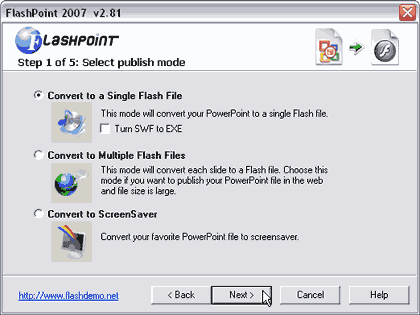
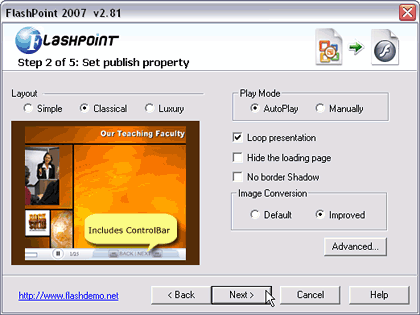
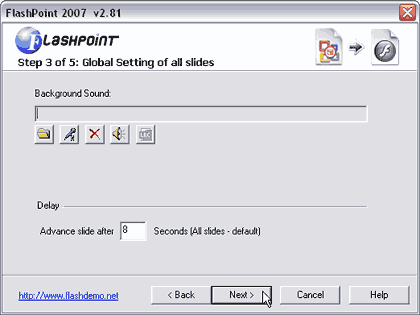
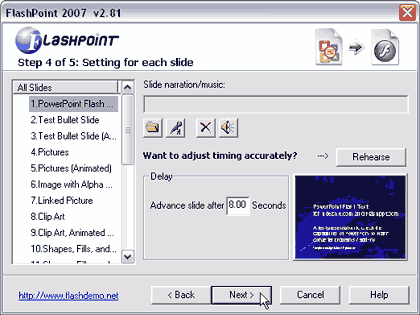
Follow these steps to convert a PowerPoint file to SWF using FlashPoint.

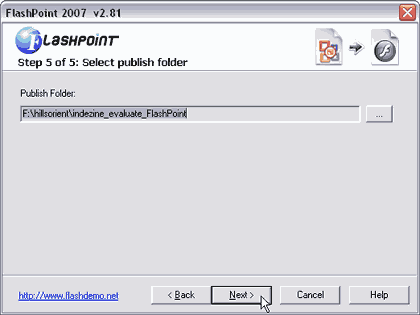
This benchmark presentation had 20 slides with content of various types: pictures, clip art, shapes, narration, music, Flash movies, videos, etc. Each slide was given between 0 to 5 points each for a total of 100 points, and 50 extra points were allotted to the program interface, support options, output, PowerPoint 2007 compatibility, and pricing.
FlashPoint scored a total of 104.5 points to get 70% ratings. FlashPoint Professional scored a total of 110 points to get 73.3% ratings.
FlashPoint gained in most areas except support for embedded Flash and linked videos. FlashPoint Professional scored higher in these areas. If you have embedded Flash content in the presentation, you have to reinsert the Flash movie using the options in the FlashPoint menu in PowerPoint -- and that can be troublesome if you already have Flash movies in your slides, and no way to extract them.
Both versions scored less in the sphere of support options, since FlashDemo doesn't even have anything remotely resembling a help page on their site.
BackFlashPoint costs $120 for the regular version -- they also have a personal version for $49 that's intended for education and non-profit use.The Professional version costs $180
Support is through e-mail.
BackFlashPoint is a capable product, and their $49 pricing for education and non-profit use is real value for the buck. If they improve their support options, the product could be a winner.
BackYou May Also Like: Turtle PowerPoint Templates | Edit Video using Adobe Presenter


Microsoft and the Office logo are trademarks or registered trademarks of Microsoft Corporation in the United States and/or other countries.
