
This is the print version of this page. All content is copyright Indezine.com 2000-2026.
Read the Indezine review of Techsmith Camtasia, Page 1 of 2.
Author: Geetesh Bajaj
Product/Version: PowerPoint
Introduction
About Camtasia and TechSmith
New PowerPoint Add-in
Download & Installation
Using Camtasia Conventionally
One of the coolest things you can do on your system is to perform a video capture of on-screen activity. This is a great way to create videos of presentations, browsing or any other desktop activity. One of the best tools to do any type of video capture is Camtasia from TechSmith.
In this tutorial and review, we'll explore Camtasia's abilities and focus on how it works with Microsoft PowerPoint.
Betsy Weber and Troy Stein have been my contacts at TechSmith for this review - I would like to thank them for all the assistance.
BackCamtasia, also known as Camtasia Studio is from TechSmith, a company that operates from Okemos, Michigan, USA. TechSmith also creates SnagIt, a screen capture tool with built-in editing and cataloging capabilities.
You can learn more about TechSmith, and their award winning products at the TechSmith website.
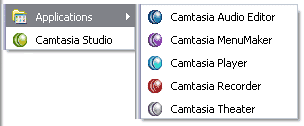
By itself, Camtasia is not just a video capture tool - it comprises several different products that work together:
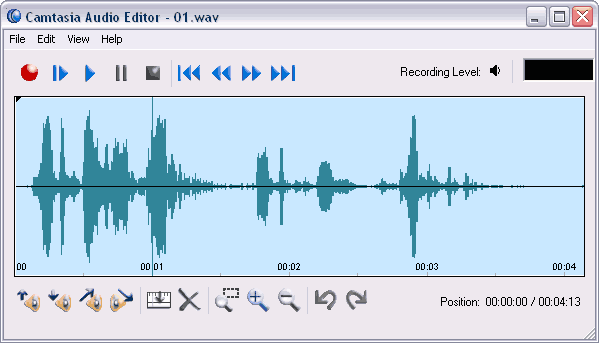
Camtasia Audio Editor is a basic audio editor that can add fades, insert silence and mix files among other tasks.
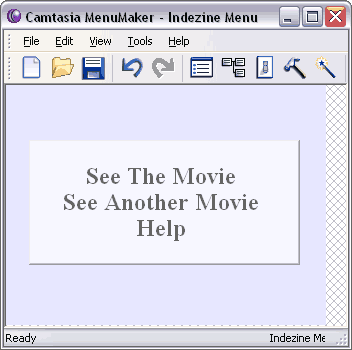
Camtasia Menu Maker creates menus for autorun
CDs with Camtasia movies and other files.
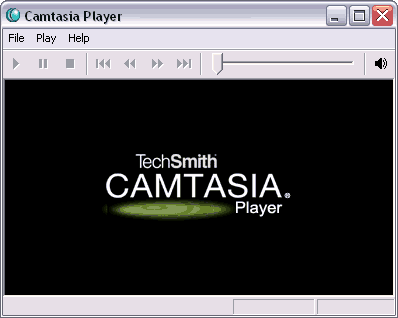
Camtasia Player is a media player eminently suitable for playing Camtasia captured video content.
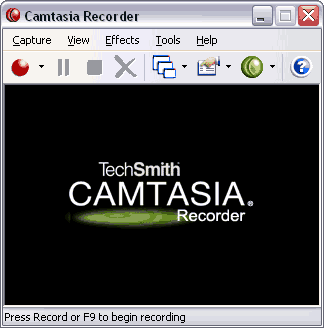
Camtasia Recorder is the actual video capture application.
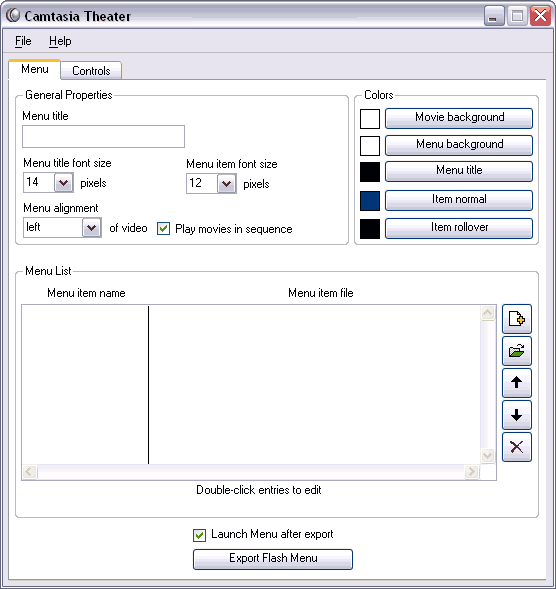
Camtasia Theater adds DVD-like navigation to your screen videos in Flash format.
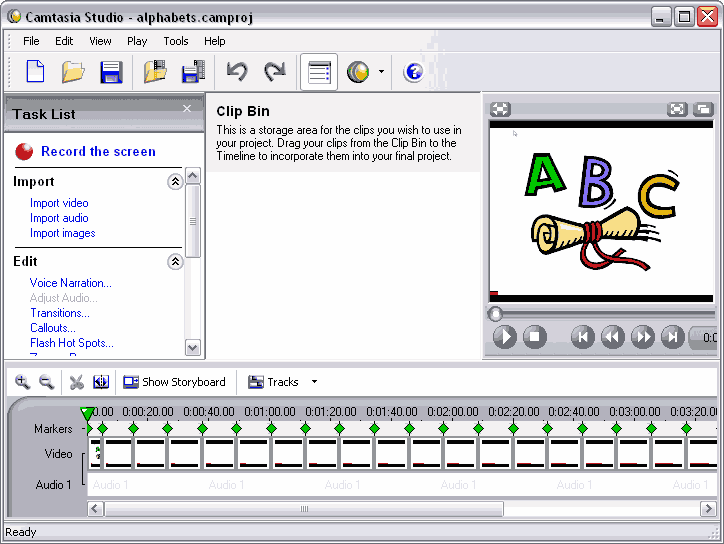
In addition to these five specialized applications, Camtasia includes Camtasia Studio, a fairly advanced video editor
that does not look very different from Windows Movie Maker.
The new 2.1 version update of Camtasia includes a cool, new feature - the Camtasia add-in for PowerPoint. More than a mere add-in, this feature provides a logical distribution enhancement for new and existing presentation content.
After an entire presentation is captured to a high resolution video, Camtasia allows you to output the video to an amazing assortment of formats including Flash, WindowsMedia, Quicktime, Real, etc.
BackYou can download a trial version of Camtasia from the TechSmith site to find out if you like the product. Beyond the trial period, you'll have to buy the product if you want to still use it.
Installation is a quick affair - do remember not to remove the check next to the option to install the Camtasia Studio add-in for Microsoft PowerPoint.
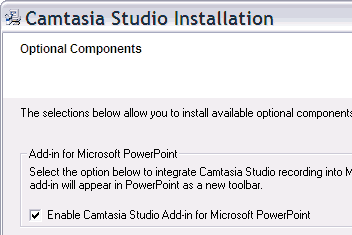
After installation, the Camtasia Studio add-in for PowerPoint showed up as a toolbar within my PowerPoint interface.
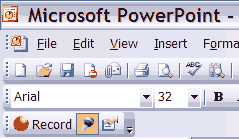
The three icons on the Camtasia toolbar within PowerPoint denote:
Outside of PowerPoint, Camtasia is a very "enriched" application that allows you to do all sorts of screen capture - my favorite is to capture Camtasia movies of browser activity and create Flash movies from them which I can share with visitors to my site.
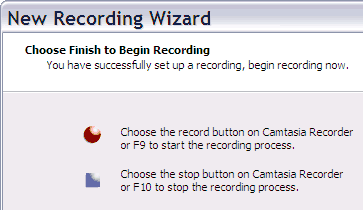
The TechSmith site has many tutorials on using Camtasia in several case study scenarios. Most of the time, you won't even need those tutorials or the help file since using Camtasia is actually very intuitive. A series of wizard screens asks you several questions and makes some choices based on your responses. Thereafter, capturing video from desktop activity is as simple as pressing a hotkey.
Once the capture is done, Camtasia opens the captured video in its own video editor interface that looks a lot like Windows Movie Maker.
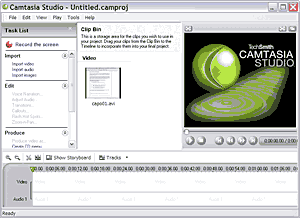
All captured movies are saved in Camtasia's own codec in the AVI format, but the video editor environment in Camtasia Studio allows you to output the captures to Flash, Windows Media, Real, QuickTime and several other formats.
BackYou May Also Like: Animals - G PowerPoint Templates | Cinematize 2.03


Microsoft and the Office logo are trademarks or registered trademarks of Microsoft Corporation in the United States and/or other countries.
