Introduction
AKVIS NatureArt is an Adobe Photoshop-compatible plug-in that contains 6 interspecific visual effects. With these effects, you can create natural phenomena on your pictures. Other than applying the effect on the pictures you can apply the effects directly on the blank background, for example convert a blank background into a sea view, sun, lightning bolt, rain, and snow. Effects can be saved as presets for future use.
NatureArt is from AKVIS, a company based in Russia that specializes in graphics programs. Apart from NatureArt, AKVIS also creates other Photoshop-compatible plug-ins like Retoucher, Chameleon, MultiBrush, Sketch, Enhancer, Decorator, Coloriage, etc.
You can download a free 10 day trial version of NatureArt from the AKVIS site.
My contact at AKVIS for this review was Kat Kharina. Thank you, Kat.
Back
How To Use
Follow these steps to use AKVIS NatureArt:

- Open an image you want to use inside Adobe Photoshop or a similar program.
- Choose the Filter | AKVIS | NatureArt option, as shown in Figure 1, below.

Figure 1: NatureArt
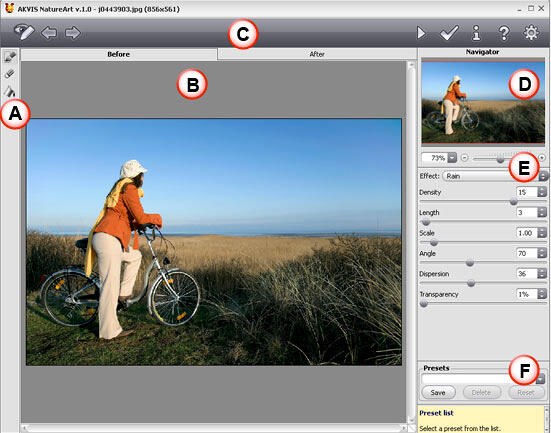
- Doing so opens the NatureArt interface, that you can see in Figure 2, below.

Figure 2: AKVIS NatureArt interface
- The interface is explained below. Each area corresponds to an area highlighted in Figure 2:
A. Tools
- Here you get options such as the convenient Selection Brush tool, which is used to highlight areas to which an effect will be applied. The Eraser tool erases selection areas, and the Selection Bucket fills an area outlined with the Selection Brush (helpful for selecting large areas).
- There are some tools which only work for a particular effect. For example, the Direction tool appears when Lightning effect is selected. Similarly, the Transform tool appears when the Sun effect is selected and the Move tool appears when the Water effect is selected.
B. Preview
- Preview has two tabs: Before and After, which show the original and changed images
C. Buttons
- The upper part of interface is the Control Panel with buttons located on both the left and right sides. Options are available to show/hide a selection or support lines, to undo/redo, to start processing the image, and to apply the result to the image. There are also buttons to launch the information dialog, help files, and the Preferences dialog box.
D. Navigator
- On the top right, you'll find the Navigator.
E. Effects
- This part of the interface provides 6 effects under the Effect menu and depending upon the effect selected, you'll get context-sensitive properties here that allow customization and fine-tuning of various parameters.
F. Presets
- Presets allows you to save the changes you made which can be used in future.
- Choose any effect from the presets, or create an effect of your own.
- Once done apply the changes within the plug-in by pressing the Run button.
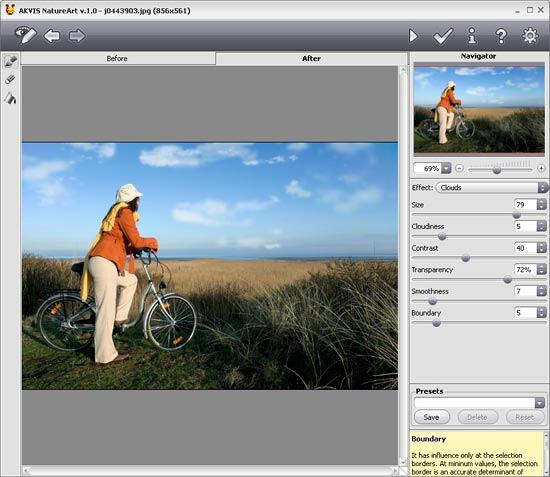
- This applies the effect and creates a preview of the changed image in the After tab, as shown in Figure 3, below.

Figure 3: Preview the changes
- Once you’re done, apply the result to the image by pressing the Apply button to return to the image editor.
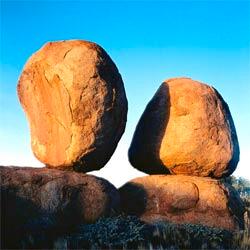
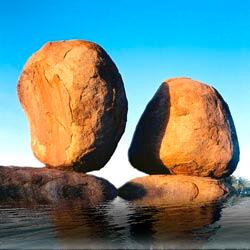
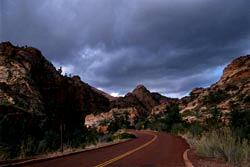
Here are some Before and After samples:

Back
Specifications
| Photoshop Versions: |
Photoshop 6 and higher |
| Platforms: |
Windows, Mac |
| Site: |
AKVIS |
| Price: |
USD $72 and above |
| Trial Version: |
Available for 10 days |
Back