|

|
 |

Home | Products | Other
Creating Spirographs with Adobe Illustrator
by Geetesh Bajaj , November 23rd 2005

Here's how you can make a spirograph in Adobe Illustrator:
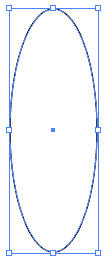
- Create a new document in Illustrator and draw any shape. For
this tutorial, I selected the Ellipse tool (keyboard shortcut
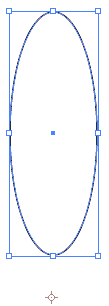
L) and drew a longish oval as you can see in Figure 1.

Figure 1
- Press the / key on your keyboard to make sure that the oval
has no fill attributes.
- Make sure your oval is selected, and them click on the Rotate
tool (or activate it with the keyboard shortcut R) from the tool
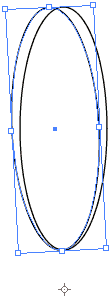
bar. Now click outside the oval area to set an anchor point as
you can see in Figure 2.
Figure 2
- Once this anchor point has been determined, select the oval
and Alt-drag it to create a duplicate. Since we want to create
a spirograph densely populated with lines, drag it very close
to the first oval, as shown in Figure 3.
Figure 3
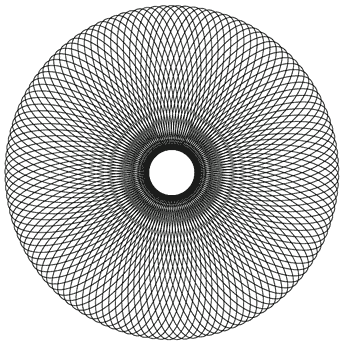
- Keep pressing Clrl+D to add more overlapping copies to complete
your spirograph. Figure 4 shows the completed spirograph.
- Save your spirograph to a file.


|  |