
This is the print version of this page. All content is copyright Indezine.com 2000-2026.
Explore the Thermometer add-in for PowerPoint.
Author: Geetesh Bajaj
Product/Version: PowerPoint
OS: Microsoft Windows and Mac OS X
This is an older PowerPoint add-in compatible with PowerPoint 2003 and previous versions. We are not updating this add-in.
Thermometer for PowerPoint (current version: 1.1) is a free add-in that creates a thermometer style bar in the bottom area of the slide that shows how much of a presentation has progressed and how much more is remaining.
It's a very simple add-in and using it is so easy: one click on an icon and you can add or update your thermometer; another click and the thermometer is gone!
The add-in installs a toolbar inside PowerPoint with four icons.

How do I install the add-in?
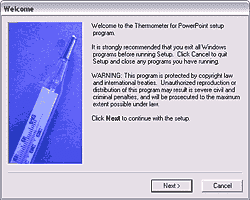
Download the setup routine for the add-in. It will create a Thermometer group in your Windows Start menu with details on how you can initiate the add-in within PowerPoint.
How do I change the color of my thermometer?
All thermometers are based on the active color scheme in your presentation. It is formed with a gradient between your fill and background colors. To change the color of the thermometer, you'll have to change the color scheme.
Where can I Download the add-in?
Here (400 kb) (works with PowerPoint 97 through 2003 for Windows)
Does this add-in work on the Mac?
It does! You can just copy the PPA file and follow the instructions to install it within PowerPoint. I haven't tested it extensively on the Mac though. Here's a link to the PPA file (StuffIt archive - 18 kb)
And here's a screenshot of the Thermometer toolbar from PowerPoint:mac 2004.

If You Cannot Install the Add-in
If you cannot install the add-in into PowerPoint, you probably have your Macro Security settings set to High or Very High. You will need to set the Security level to Medium. Once the add-in is installed, you can change the Security level back to High or Very High.
I wish to thank Steve Rindsberg of PPTools fame who helped me create this add-in. This would have certainly not been possible without his assistance.
Add-ins: Indezine Add-ins (Glossary Page)
You May Also Like: If You Can Hold a Conversation, You Can Ace a Job Interview | Animals - Z PowerPoint Templates


Microsoft and the Office logo are trademarks or registered trademarks of Microsoft Corporation in the United States and/or other countries.
