
This is the print version of this page. All content is copyright Indezine.com 2000-2026.
Learn about AutoShapes in PowerPoint.
Author: Geetesh Bajaj
Product/Version: PowerPoint
 Kathy Jacobs got into her first computer in High School and was never able to get back out. It was a build-it-yourself Heathkit at school. Yes, she did use the soldering iron. Quickly, it became apparent that software, not hardware was a better fit. College brought lots more computer time and a degree in Computer Science. From there, it was into the testing and training worlds, where she has lived ever since.
Right now, Kathy's professional time is spent writing, supporting her site, and answering PowerPoint and other questions. The rest of the time goes into email, Girl Scouts, and outdoor cooking (especially using Dutch Ovens). She has a husband who is also a computer nerd and outdoor cook. They live in Phoenix AZ and love the weather. Visit Kathy's site.
About AutoShapes
Using AutoShapes
Change Size and Orientation
Adding Text
Change Color and Edge
More Stuff
Ever wanted to insert a fairly basic shape into a presentation, but did not want to draw it yourself? PowerPoint has a built-in tool to do just this for you - the AutoShapes tool.
What are AutoShapes? When viewing your slides in edit mode, you should see a button that reads AutoShapes. This button will allow you to insert a number of basic shapes. Once you have created your shape, you will be able to change how it looks to be exactly what you want to see.
What shapes are available? The shapes have been categorized into nine basic categories, as illustrated in this screenshot:
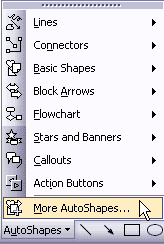
Each category of shape has several different optional shapes to choose from.
6 types of straight and curved lines, with and without arrows on the ends.
9 mechanisms for connecting shapes and lines to each other
32 shapes including squares, circles, faces, etc.
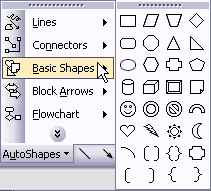
The full list of Basic Shapes is shown above.
28 different wide arrows including curved, straight, and corner arrows.
28 useful symbols for charting process and code flows.
8 different stars and 8 different banners for adding emphasis to your text.
4 thought balloons and 16 different boxes for marking information on a chart or diagram.
8 of the basic buttons, used on web pages.
Cool tip for using clip art as shapes. Covered at the end of this article.
But my menu doesn't show all the options you have described here! Do you see a double arrow pointing down? This arrow indicates that there are options you haven't used much. Hover your mouse over this arrow and the remainder of the AutoShape categories will appear.
To insert a shape, start on the slide you wish to enhance. Click and hold on the AutoShapes button. Slide up to the category desired. Slide right to the specific shape desired. Release the mouse button. Now, either click on the slide or click and drag on the slide to insert your shape. If you click, you will get the default-sized shape. If you click and drag, you can make the shape any size you wish.
You now have a basic shape on your slide. If you inserted the thought balloon callout, for example, your slide might look like this:
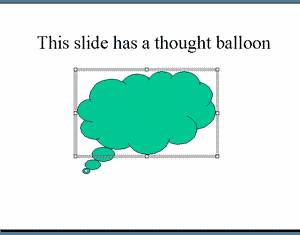
Your initial shape will be different than this one, as a green fill has been preset for this shape to allow it to stand out on your screen.
Next, you need to change the look of your shapes. This next section will address what to do to customize your shapes to look just the way you want them. These options include:
Check out the thought balloon in the picture above. Notice that it is surrounded by a grey box with eight small white boxes embedded in it? These boxes are handles. They allow you to adjust the size of the shape in each dimension. The handles on the corners do a proportional change in two dimensions, the handles on the sides change only one dimension.
Now, look for the yellow diamond in the bottom circle of the thought balloon. This diamond will show up somewhere on each AutoShape. It allows you to change the orientation of the shape. In the case of our thought balloon, it allows you to connect the thought balloon directly to the head of the character on your slide that is thinking. For example, you might want an effect somewhat like this:
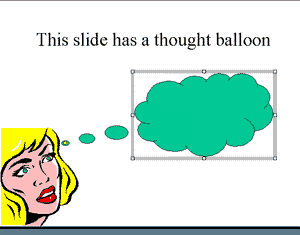
Now, we need to know what the person is thinking. One way to do this is to add text to the thought balloon.
To add text, right-click inside the thought balloon and select Edit Text. You can now type your text. The text will show up in your default text format. You can change the look of the text by selecting the text and choosing Font of the Format menu.
Did your balloon change its size as you typed? This happens when you have auto-resize turned on. To prevent this, right-click on the shape and select the Format AutoShape option. Click on the Text Box tab. Click in the Resize AutoShape to fit text checkbox. Notice that there are other options here you may want to change. For example, you can change where the text starts from the top of the shape to the bottom or middle of the shape.
Ready to complete the customization process? Next up is changing what is inside the thought balloon, behind the text. There are more fill and line options in PowerPoint than we could cover here. So, we will concentrate on the six options shown in this diagram:
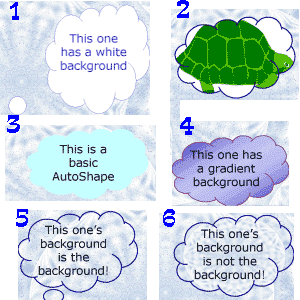
Each of these thought balloons was created by changing the options on the Colors and Lines tab from the right-click option Format AutoShape or the same choice on the Format menu.
Changes made for each shape are detailed in the following list:
What if I want to reuse a shape?
If you are going to use the same color and line style for many shapes, go to the properties page for the shape you wish to duplicate. At the bottom of the Color and Lines" tab, you will see a check box labeled "Default for new objects". Click this box and all future shapes will default to the setting on this tab. You can still customize them as you desire, but they will start one step closer to your goal.
What more can I do?
Remember that "More AutoShapes" option we mentioned at the beginning of the article? Well, that option lets you take the functionality you have just learned for AutoShapes and apply it to basic clip art pieces.
You will have the option of changing the background color or the line style of all clips. In addition, on simple clips, you will actually have the option of changing the color of the shapes themselves.
You May Also Like: To Close More Deals/Make More Sales–Avoid These Presentation Mistakes | Transport PowerPoint Templates



Microsoft and the Office logo are trademarks or registered trademarks of Microsoft Corporation in the United States and/or other countries.
