
This is the print version of this page. All content is copyright Indezine.com 2000-2026.
Explore the difference between Content and Picture placeholders. This difference helps you understand Picture placeholders better.
Author: Geetesh Bajaj
Product/Version: PowerPoint
OS: Microsoft Windows and Mac OS X
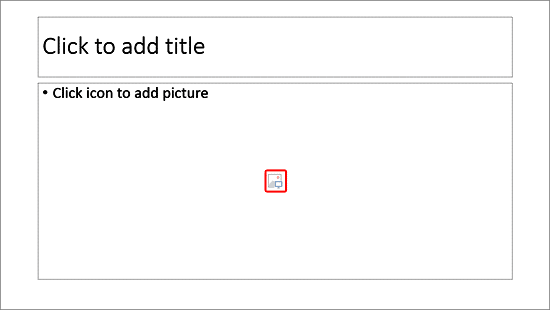
Placeholders in PowerPoint make it easy for the users to insert any media file such as pictures, video, audio, etc. For Pictures, PowerPoint provides two placeholders Content and Picture. Although both placeholders enable you to insert pictures, there is a difference in the way that pictures behave when inserted within these placeholders. In this tutorial we'll explore the difference in between Content and Picture placeholders.
Follow these steps to learn more:
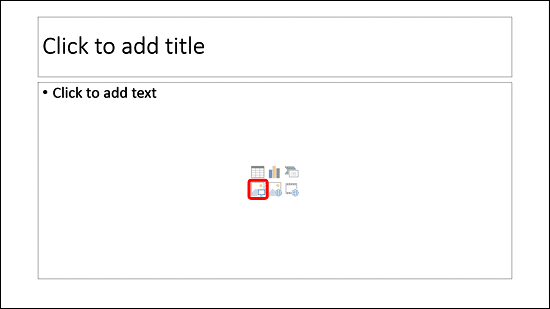
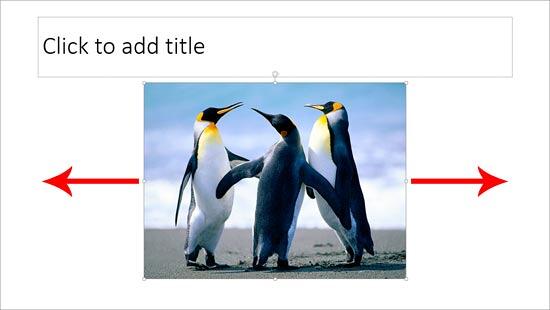
As soon as you insert the picture, the border outline of the placeholder disappears, as shown in Figure 2, below. To understand what the border looked like before inserting the picture, compare Figure 2 with Figure 1. Also notice the red arrows we added within Figure 2 to indicate "lost" areas of the placeholder.

See Also: Picture placeholders vs. Content placeholders by Echo Swinford (external link)
See Also:
Slide Master and Slide Layouts: Pictures in Content or Picture Placeholders (Index Page)
You May Also Like: To Close More Deals/Make More Sales–Avoid These Presentation Mistakes | Food - O PowerPoint Templates




Microsoft and the Office logo are trademarks or registered trademarks of Microsoft Corporation in the United States and/or other countries.
