
This is the print version of this page. All content is copyright Indezine.com 2000-2026.
Explore why you need a custom slide background in PowerPoint. Why not use a simple white or black background for your slides?
Author: Geetesh Bajaj
Product/Version: PowerPoint
OS: Microsoft Windows and Mac OS X
Think of a PowerPoint slide as your digital stage. Sure, you could leave it bare—like performing Shakespeare in a vacant parking lot—but most folks prefer a bit of visual flair.
That’s where slide backgrounds come in. They’re not just wallpaper; they’re identity badges. Just like superheroes have signature costumes (you wouldn’t mistake Batman for Superman, right?), your slide background signals who you are and what you stand for.
The term “PowerPoint” was coined back a few decades ago, but the concept of using backgrounds to boost storytelling goes way further—think cave paintings, but with fewer spears.
Want to showcase your brand? Choose colors, textures, or images that echo your company’s vibe. Want to express personality? Pick a background that says, “I’m bold and curious,” or “I like cats and spreadsheets.”
Bottom line: The background isn't just a backdrop—it’s a handshake, a welcome mat, and a billboard rolled into one.
To explain this better, look at the slide in Figure 1, below, (don’t worry, we’ll wait). What do you see? Just plain ol’ text sitting on a snowy white background. It’s readable—like black coffee in a paper cup—but not exactly something you'd Instagram. Now imagine giving a presentation with slides like that. While minimalism is a style, memorability needs a little more magic.
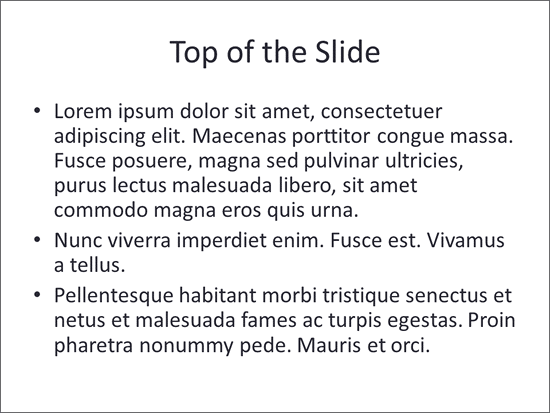
Figure 1: A slide bereft of branding
Your brain loves visual contrast. That’s why street signs use bold colors and fonts—you notice them even when driving at warp speed.
Remember that plain slide from Figure 1? It was like toast without jam—not offensive, but not making any taste buds dance either. Now, take a peek at Figure 2, below, starring our snazzy imaginary brand, El Rotate.
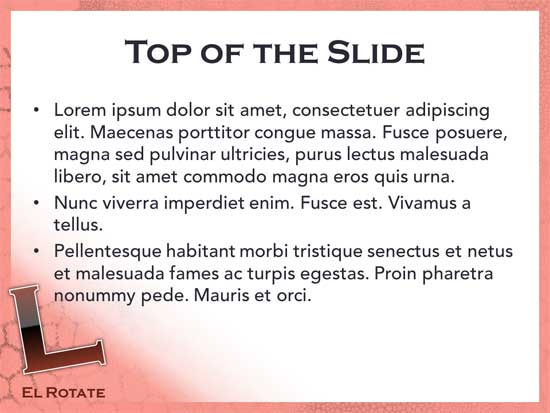
Figure 2: Branding can make a huge difference
This slide doesn't just show text—it struts onto the screen like it’s walking a fashion runway. It's rocking:
With the slide shown in Figure 2, above, El Rotate doesn’t just inform—it performs. It’s the difference between a plain cupcake and one with sprinkles, icing, and a tiny flag on top.
Studies show that people can recognize a brand just from its color palette—Coca-Cola’s red, McDonald’s yellow, or that unmistakable Tiffany blue. Your slides can tap into that same superpower.
In PowerPoint parlance, the background is just one choice that you must make to create that complete appearance. You will also need to explore fonts, colors, effects, slide layouts, and more. And all of these elements must work together to create and represent a cohesive brand. We cover all these other elements elsewhere on this site—but for now, do visit our Creating Slide Backgrounds in Photoshop for PowerPoint tutorial to learn how you can create backgrounds.
They set tone, create atmosphere, and visually reinforce the narrative flow of your presentation.
Good backgrounds add interest and clarity, helping the audience stay focused and engaged with your message.
Yes, distracting or cluttered backgrounds can confuse viewers and reduce message effectiveness.
04 10 01 - Other Template Tutorials: The Need for Slide Backgrounds in PowerPoint (Glossary Page)
You May Also Like: Beauty and the Beast: Eyeful’s Adaptation in PowerPoint | How to Create Custom PowerPoint Themes to Fit Your Brand


Microsoft and the Office logo are trademarks or registered trademarks of Microsoft Corporation in the United States and/or other countries.
