
This is the print version of this page. All content is copyright Indezine.com 2000-2026.
Learn how you can find out the substituted font in PowerPoint. Normally, it can be difficult to find out the actual name of the font.
Author: Geetesh Bajaj
Product/Version: PowerPoint
OS: Microsoft Windows and Mac OS X
The situation is familiar: you or someone else uses a non-standard font (not a PowerPoint safe font) in your presentation. You then open this same presentation on another computer, and PowerPoint uses another font to display the same text. Why does it do so? The reason is simple enough: the font originally used is not available on the other system. And that is not even half the problem.
So what exactly is the problem? There are multiple problems here:
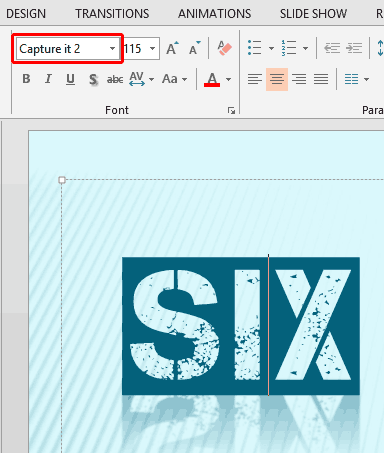
This problem and the solution can be understood better with an example. Look at the slide you see in Figure 1, below. You will notice that we have used a font named Capture it 2, highlighted in red within Figure 1. The text looks distinct, as shown in Figure 1.
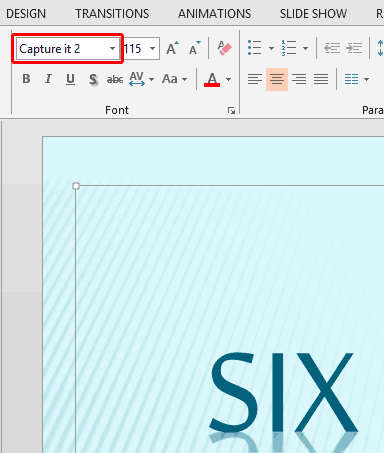
PowerPoint does not warn and just opens the presentation without a hiccup. Look at the font name again, highlighted in red within Figure 2, above. You will discover that PowerPoint inadvertently misreports the font with the same name and does not mention that:
If the recipient is seeing this presentation for the first time, he or she has no clue that any font substitution has happened.
There are some tell-tale signs that indicate missing fonts:
So what can you do to overcome this problem? There are two things you can do:
We will explore both these options.
You can report this problem to Microsoft. Even better, we already reported this issue. You can vote and raise the awareness about this issue so that they act to resolve this problem.
The workaround is to use PowerPoint's Save as PDF option to export your slides as a PDF. Once the PDF is created, open your PDF in one of the Adobe applications like Adobe Acrobat Pro or even the free Adobe Acrobat Reader. Then press the Ctrl + D keyboard shortcut in Acrobat to bring up the Document Properties dialog box that you see in Figure 3, below.
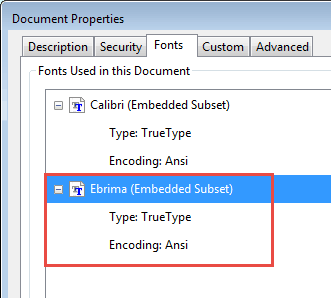
Make sure you select the Fonts tab in this dialog box (see Figure 3 again). You will see the name of the font PowerPoint used to substitute the original font, highlighted in red within Figure 3, above.
So at least you know now which font is being used to substitute the missing font!
PowerPoint MVP, Steve Rindsberg has a resourceful page on his site called Troubleshoot Font Problems that is certainly worth exploring.
Fonts: Find Substituted Fonts in PowerPoint (Glossary Page)
You May Also Like: Hypersay: Conversation with Paul Balogh, Cristian Dinu, and Brian Daly | Jeans PowerPoint Templates


Microsoft and the Office logo are trademarks or registered trademarks of Microsoft Corporation in the United States and/or other countries.
