
This is the print version of this page. All content is copyright Indezine.com 2000-2026.
Explore Research tools to connect with websites, translations, and more in PowerPoint 2013 for Windows. Some of these research tools can make a huge difference.
Author: Geetesh Bajaj
Product/Version: PowerPoint 2013 for Windows
OS: Microsoft Windows 7 and higher
Creating a slide deck, and you suddenly want to authenticate a figure or double-check a fact? Well, there's no need to open a web browser or even access a conventional dictionary. Research, a less explored option is available within most Microsoft Office applications, including PowerPoint. This option connects with various online and offline reference sources such as translations, dictionaries, and news services.
Available tools show within two broad categories, called sites:
These reference sites can be used in a group, or individually. For example, you can look up a word in the dictionary, thesaurus, or translator all at once, or you can just use the thesaurus.
Access these options within the Research Task Pane in PowerPoint 2013 for Windows. To bring up the Research Task Pane, follow these steps:


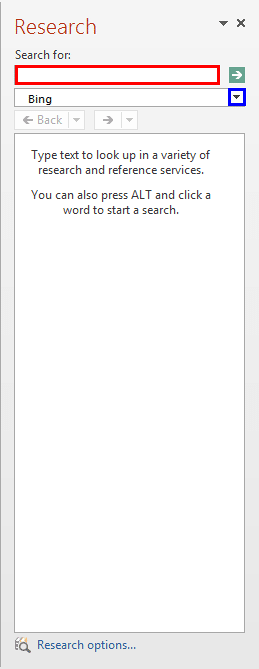
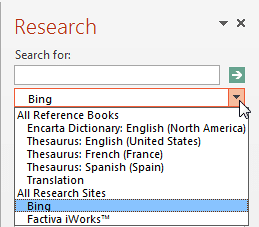
Although it is perfectly acceptable to choose an alternative word from the thesaurus and even copy a few difficult spellings, it is certainly not advisable to copy content from the Research pane to create a presentation. Remember that the Research tools are intended for "research" only.
05 08 21 - Spelling, AutoCorrect, and Reference Tools: Research Tools in PowerPoint (Glossary Page)
Research Tools in PowerPoint 365 for Windows
Research Tools in PowerPoint 2016 for Windows
Research Tools in PowerPoint 2010 for Windows
You May Also Like: Presentation Summit 2015: Conversation with Alexander Hanauer | Religions PowerPoint Templates


Microsoft and the Office logo are trademarks or registered trademarks of Microsoft Corporation in the United States and/or other countries.
