
This is the print version of this page. All content is copyright Indezine.com 2000-2026.
Get started with using Office Mobile on your iPhone or other iOS device.
Author: Geetesh Bajaj
Product/Version: PowerPoint
Now that you have finally bought an Office 365 subscription or are using an existing one, the next step would be to install Office Mobile and sign in! It’s now time to get started with this bunch of three programs. Yes, the programs are Word, Excel, and PowerPoint.
When you launch Office Mobile for the first time, you see the screen shown in Figure 1, below.
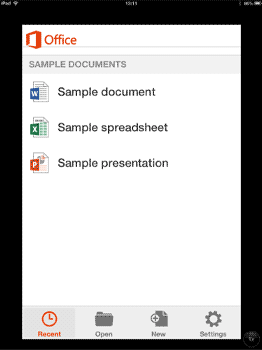
Figure 1: Want to play with these sample files?
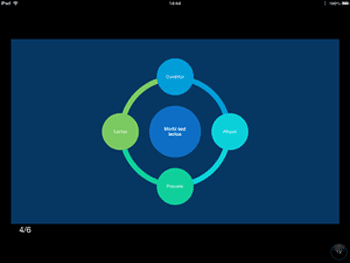
Do you notice the three sample files, one each for a Word document, an Excel spreadsheet, and a PowerPoint presentation? Do tap on each of them to open and play around. Figure 2 shows the sample PowerPoint presentation.
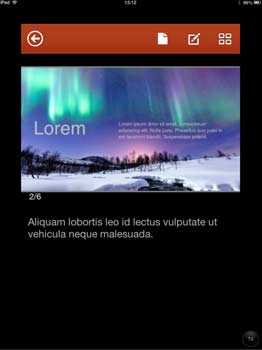
Figure 2: Yes, this is PowerPoint
Here are some tips that will help you navigate the slides:
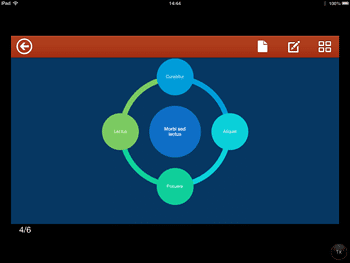
 The Back Arrow button gets you back to the opening screen as shown in Figure 1 previously on this page. If you made any changes to your presentation, then pressing the Back Arrow button will also prompt you to save your changes, as shown in Figure 3, below.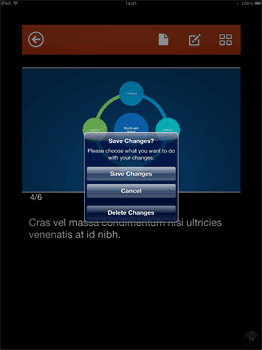
 The Page button brings up File Options as shown in Figure 4, below. Here you can share your presentation via email, save any changes, or save to a new file. Additionally you can access any Custom Shows you may have created. Do note that you cannot create these Custom Shows on the iPhone version of Office Mobile. However, you can only view Custom Shows already created for the open presentation. To go back to your presentation, click the Down Arrow button highlighted in red within Figure 4.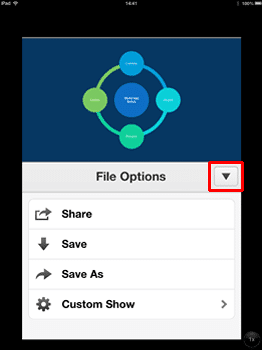
 The Page/Pencil button brings up Editing Tools as shown in Figure 5, below. Here, you can edit slide text, move the slide (reorder slides) and also hide slides. Hidden slides can also be unhidden. To go back to your presentation, click the Down Arrow button highlighted in red within Figure 5.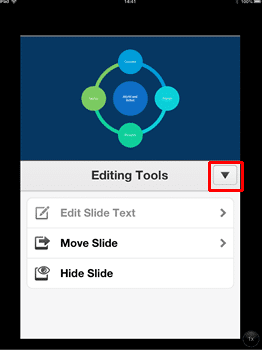
 The Slide Sorter button brings up Slide Sorter view as shown in Figure 6, below. This will be familiar to all regular PowerPoint users. However, you cannot reorder or delete slides here. Rather, you can only see the slides in your presentation within this view. To go back to your presentation, click the Done button, highlighted in blue in Figure 6.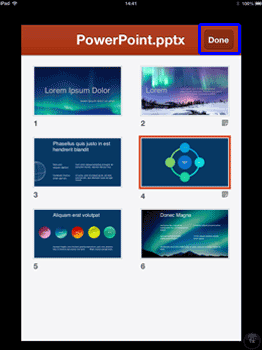
So, this is how you can work with PowerPoint files on Office Mobile. In subsequent tutorials we will explore more ideas and techniques.
You May Also Like: August 15th, Indian Independence Day PowerPoint Templates | Behind the Scenes of Building a Corporate Presentation Template




Microsoft and the Office logo are trademarks or registered trademarks of Microsoft Corporation in the United States and/or other countries.
