
This is the print version of this page. All content is copyright Indezine.com 2000-2026.
Send feedback to Microsoft about your experience of working within PowerPoint 365 for Windows. You can send likes, dislikes, and suggestions.
Author: Geetesh Bajaj
Product/Version: PowerPoint 365 for Windows
OS: Microsoft Windows 10 and higher
Are you super-delighted about a PowerPoint feature? Or are you so irritated that you are pulling your hair? Depending upon how you are feeling, you might want to reach out to the folks who create PowerPoint to tell them how you feel. And this is not difficult to do at all. You can accomplish this task right within PowerPoint, within the Feedback tab of Backstage view.
Follow these steps to access the Feedback tab and use the options available in PowerPoint 365 for Windows:
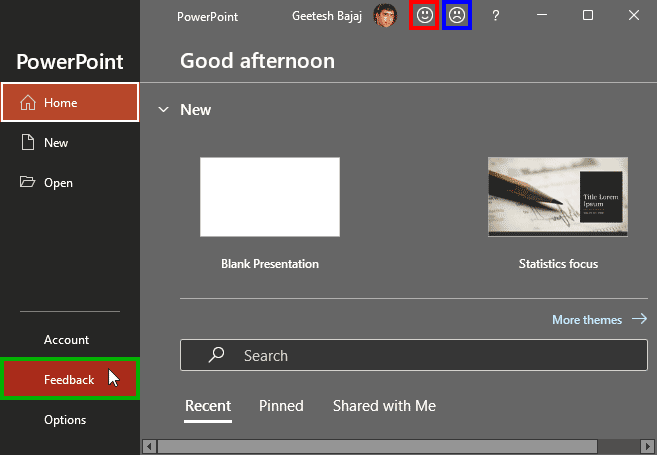
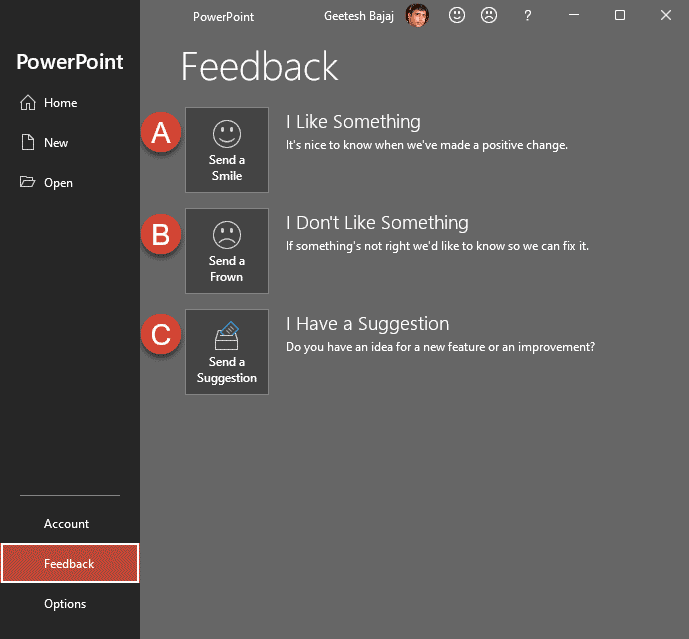
Clicking this button brings up the Feedback to Microsoft task pane, as shown in Figure 3, below.
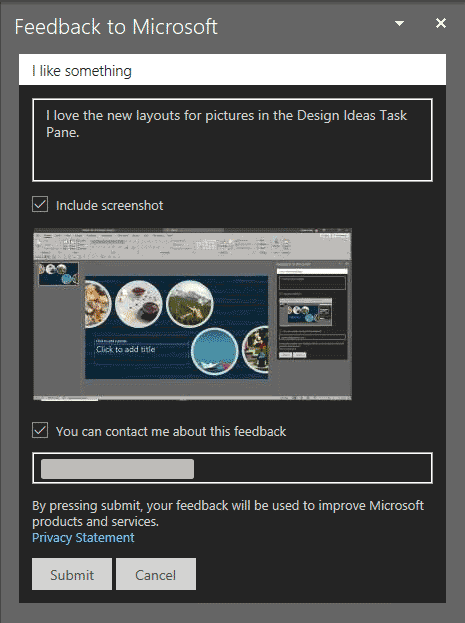
Figure 3: I like something
As you can see in Figure 3, above, you can type in some text as notes, include a screenshot, and agree to be contacted via email. All of these are optional choices. If you are done, press the Submit button to share feedback with Microsoft.
You can also click the Smile icon, highlighted in red within Figure 1, shown previously on this page, to bring up a window with the same options.
Once you click the Submit button, you'll see a confirmation that your message has been sent, as shown in Figure 4, below.
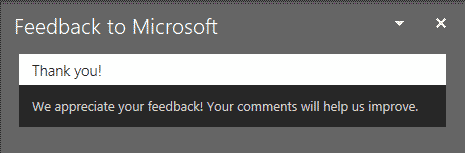
Figure 4: Your message has been sent
Clicking this button again brings up the Feedback to Microsoft task pane, as shown in Figure 5, below.
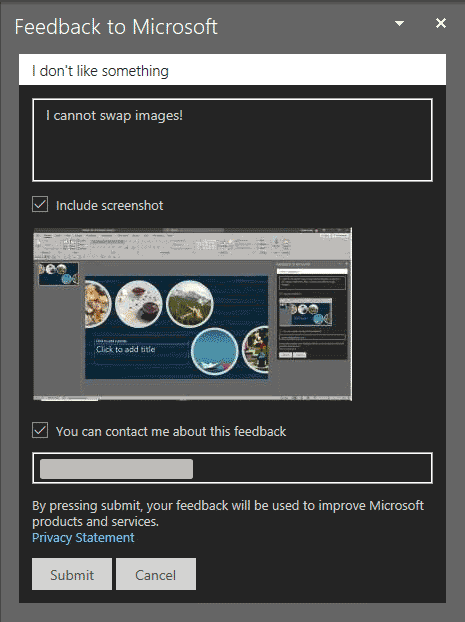
Figure 5: I don't like something
As you can see in Figure 5, above, you can type in some text as notes, include a screenshot, and agree to be contacted via email. All of these are optional choices. If you are done, press the Submit button to share feedback with Microsoft.
You can also click the Frown icon, highlighted in blue within Figure 1, shown previously on this page, to bring up a window with the same options.
Once you click the Submit button, you'll see a confirmation that your message has been sent, as shown in Figure 4, previously on this page.
Clicking this button brings up the Feedback to Microsoft task pane, as shown in Figure 6, below.
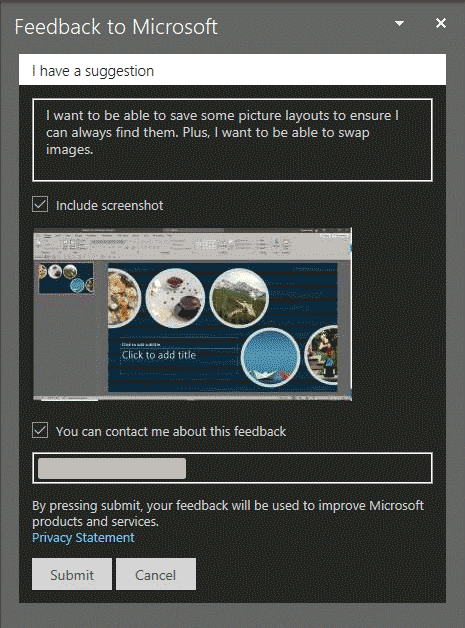
Figure 6: I have a suggestion
As you can see in Figure 6, above, you can again type in some text as notes, include a screenshot, and agree to be contacted via email. All of these are optional choices. If you are done, press the Submit button to share your suggestions with Microsoft. Once you click the Submit button, you'll see a confirmation that your message has been sent, as shown in Figure 4, previously on this page.
Yes, signing in with your Microsoft 365 or personal account ensures your feedback is submitted properly. Feedback is linked to your signed-in account.
Feedback is sent to Microsoft’s product team for analysis and may influence future PowerPoint updates.
Check your internet connection and sign-in status; some corporate networks block feedback submission for security or policy reasons.
01 08 16 - File Types, File Menu, and Backstage View: Feedback Tab of Backstage View in PowerPoint (Glossary Page)
You May Also Like: How to Make Long-Lasting Change | Wave PowerPoint Templates


Microsoft and the Office logo are trademarks or registered trademarks of Microsoft Corporation in the United States and/or other countries.
