Archived Content
Content on this page is not recent and has been retained for historical reasons.

Naresh Nichani is a Most Valuable Professional (MVP) for Microsoft Access based in Chennai, India. Naresh runs a software development firm that specializes in Visual Basic development and Office integration.
He enjoys programming with Microsoft technologies as they are fairly easy to use and developers can
build fairly complex solutions for customers with visually appealing interfaces quickly.
 Brian Reilly is President of Reillyand, a Milford CT-based company, that develops custom solutions typically integrating several of the Office applications for output into PowerPoint.
Brian is also a Most Valuable Professional (MVP) for Microsoft PowerPoint. He often creates customized solutions for clients that involve taking PowerPoint and other Microsoft Office applications to the limit.
Microsoft Excel has a cool data visualization option called PivotTables, which allows you to view and work with your data in an intuitive and interactive style while leaving your actual data unchanged. This data can be within an Excel sheet or linked from an external data source. PivotTables can capture and analyze data from any data source including Microsoft Access, Microsoft SQL Server, Microsoft Excel and even CSV files.
It's no surprise that many Excel users create PivotTables of their data all the time.
We can use this visualization tool within a Microsoft PowerPoint slide to display and also interactively manipulate data while a presentation is running.
Assuming You Know PivotTables
This tutorial is not an introduction to PivotTables although it does explain some basics.
Before we begin:
- Download the accompanying sample files here.
- Unzip all the downloaded sample files to your C:\PPT Pivot Demo folder.
Remember, it is important that you unzip these files to a C:\PPT Pivot Demo folder only -- for this demo to work, you must have a Pivot demo.ppt and a Pivot demo.mdb in the C:\PPT Pivot Demo folder.
- The Pivot demo.ppt files is the container presentation.
- The Pivot demo.mdb file contains some sales data in an Access database table, as shown in Figure 1, below.
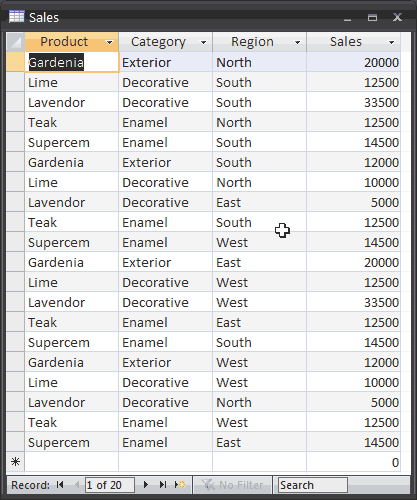
Figure 1: Access database- Note: this data could be in any other relational database or a spreadsheet as well.
Follow these steps to get started -- do download the accompanying sample files here.
- Create a new presentation in PowerPoint, or add a new, blank slide to an existing one. Change the layout of the slide to either Blank of Title Only.
- PowerPoint 2003 and earlier users can choose Format | Slide Layout, and apply the new layout within the relevant dialog box or task pane.
- PowerPoint 2007 users need to select the Home tab on the Ribbon, and then click the Layout option to bring up the Layout gallery, and then choose the relevant layout option.
- Now, you will add an Excel spreadsheet object to this blank slide.
- PowerPoint 2003 and earlier users need to make the Control Toolbox toolbar visible. Make sure that there is a checkmark next to Control Toolbox on the View | Toolbars menu option, as shown in Figure 2, below.
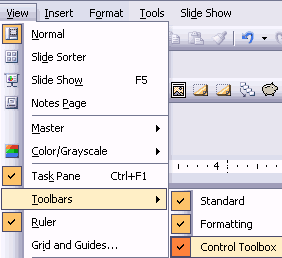
Figure 2: Make the Control Toolbox visible- On the Control Toolbox toolbar, click the More Controls icon to bring up the list of controls that you can add to your slide, as shown in Figure 3, below. Scroll down the list till you get to the newest version of Microsoft Office PivotTable in your system -- we chose Microsoft PivotTable 11.0.
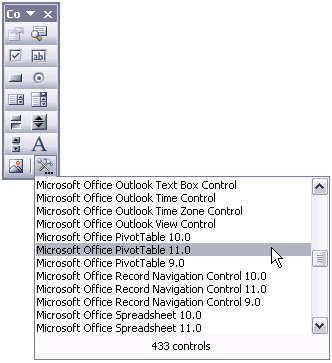
Figure 3: Choose the Microsoft Office PivotTable Object- This causes the cursor to change into a cross-hair -- draw a rectangle roughly in the center of the slide, as shown in Figure 4).

Figure 4: The inserted PivotTable object- PowerPoint 2007 users will need to enable the Developer tab on the Ribbon if it is not already visible. To do that, choose Office Button | PowerPoint Options, and select the Popular tab on the left. Then check the option that says Show Developer tab in the Ribbon.
- Now, select the Developer tab of the Ribbon, and click the More Controls option within the Controls group to bring up the list of controls that you can add to your slide, as shown in Figure 5, below.
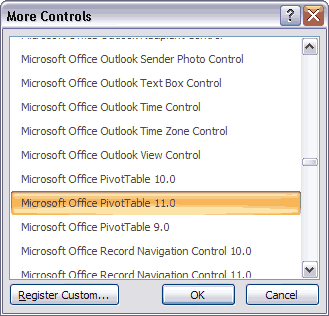
Figure 5: More Controls- This causes the cursor to change into a cross-hair, draw a rectangle roughly in the center of the slide, as shown in Figure 4, previously on this page.
- Right-click on the PivotTable object in the slide and click Microsoft Office PivotTable 11.0 Object | Commands and Options, as shown in Figure 6, below.
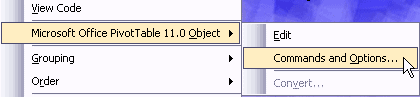
Figure 6: Edit PivotTable Object- Doing so brings up the Properties dialog box, as shown in Figure 7, below.
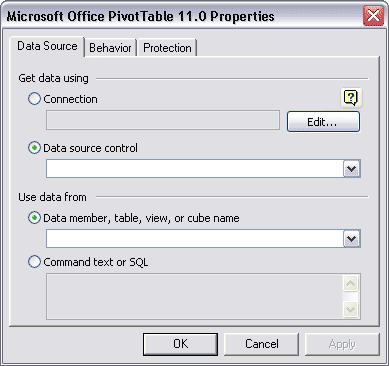
Figure 7: Properties- Click the Edit button next to the Connection option. Doing so opens the Select Data Source dialog box, as shown in Figure 8, below. This dialog prompts you for a named data source. Since we do not have a named data source with a connection to our Microsoft Access database, we first need to create a new data source.
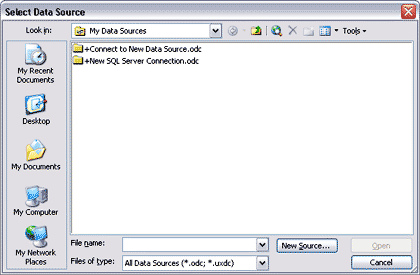
Figure 8: Select Data Source- To do that, click the New Source. button to summon the Data Connection Wizard, as shown in Figure 9, below. Here you will find various data source types that you can connect to.
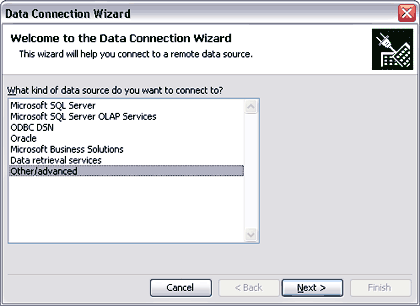
Figure 9: Data Connection Wizard- Click the Other/Advanced option and then, click the Next button.
- This opens the Data Link Properties dialog box, as shown in Figure 10, below. select Microsoft Jet 4.0 OLE DB Provider as the data option, and click the Next button.
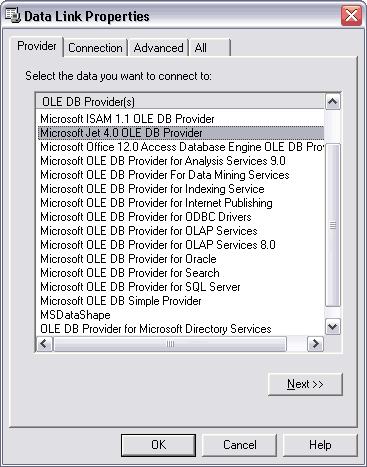
Figure 10: Data Link Properties- Specify your Microsoft Access database path and click Test Connection to check the connection to the database, as shown in Figure 11, below.
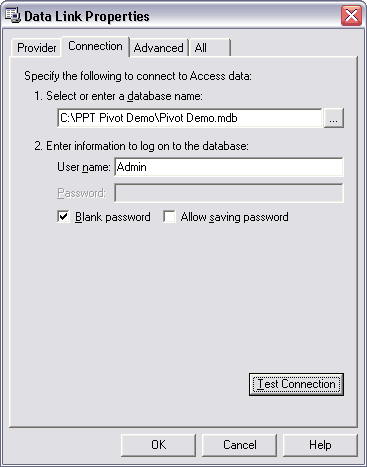
Figure 11: Test Connection- If the connection tested fine, you'll see the message box, as shown in Figure 12, below. Click the OK button to dismiss this message box, and then click the OK button again in the Test Connection dialog box, as shown in Figure 11, above.

Figure 12: Test connection succeeded- You will now see all the tables and queries in your Microsoft Access database. Any table or query can be the data source for your PivotTable. My sample database has only one table named Sales and no queries, as shown in Figure 13, below. Select the Sales table, and click the Next button.
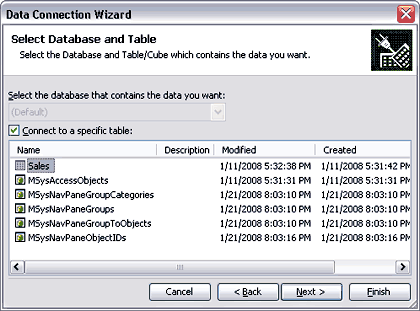
Figure 13: Data Connection Wizard- This brings up the dialog box, as shown in Figure 14, below. Give your data source a name and description so you can reuse it, and click the Finish button.
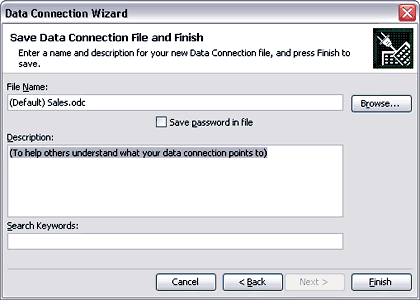
Figure 14: Data Connection Wizard- You'll get back to the Select Data Source dialog box from which we branched out earlier, as shown in Figure 8, previously on this page. Click the Open button to get back to the Properties dialog box, as shown in Figure 15, below.
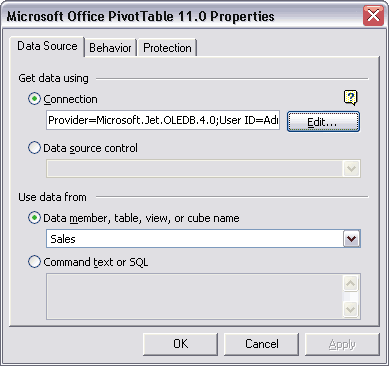
Figure 15: Save data source- You have now connected to the data source for the PivotTable and can now design the PivotTable. Click the OK button to get back to the embedded PivotTable control on your slide.
- Right-click the PivotTable and choose the Microsoft Office PivotTable 11.0 Object | Edit option. Doing so brings up a toolbar within the control area, as shown in Figure 16, below. Click the Field List icon on this toolbar.

Figure 16: Field List- This will bring up the Field List window, as shown in Figure 17, below. This contains a list of fields in the connected data source.
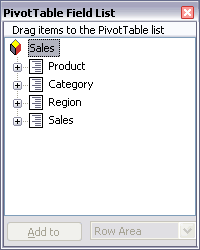
Figure 17: Field List- A field in the Field Chooser can be any of these types:
- Row
- Column
- Filter
- Data
- Detail
- You must either drop fields in the appropriate area within the PivotTable or you can select the field, and then choose the appropriate area within the drop-down list in the bottom right of the Pivot Table Field List dialog box, as shown in Figure 17, above, and then click the Add to button.
- Drop or Add to the following fields:
- Region field into the Row
- Products field into the Column
- Sales field into the Detail
- Category field into Filter
- Your PivotTable should now look like what you can see in Figure 18, below.
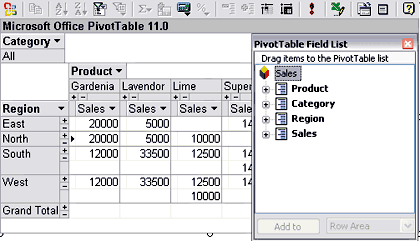
Figure 18: The PivotTable- Set a caption or title for the PivotTable. Right-click the PivotTable and select Command and Options, as shown in Figure 19, below. In the Captions tab, type a Caption/Title for the PivotTable. I have typed XYZ Company Sales Data, as shown in Figure 19, below.
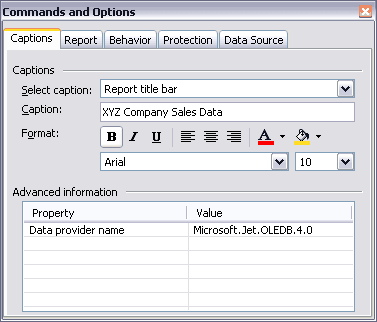
Figure 19: Caption- Run the PowerPoint presentation and you can edit the PivotTable with presentation running now!
Tips:
- You can do anything with the PivotTable with the presentation running. Try setting the Category Filter and presentation will refresh.
- You can also change fields in the PivotTable with simple drag and drop all while the presentation is running. Swap the fields within the Row and Column positions.
- The best part is the PivotTable can refresh with any changes to the database (data source). To refresh data from data source right click the PivotTable and click the Refresh Data option.




