
This is the print version of this page. All content is copyright Indezine.com 2000-2026.
Leverage Excel's capabilities while running in PowerPoint 2007, 2003, and 2002 for Windows.
Author: Naresh Nichani and Brian Reilly
Product/Version: PowerPoint 2007, 2003, and 2002 for Windows
OS: Microsoft Windows XP and higher

Naresh Nichani is a Most Valuable Professional (MVP) for Microsoft Access based in Chennai, India. Naresh runs a software development firm that specializes in Visual Basic development and Office integration.
He enjoys programming with Microsoft technologies as they are fairly easy to use and developers can build fairly complex solutions for customers with visually appealing interfaces quickly.
 Brian Reilly is President of Reillyand, a Milford CT-based company, that develops custom solutions typically integrating several of the Office applications for output into PowerPoint.
Brian is also a Most Valuable Professional (MVP) for Microsoft PowerPoint. He often creates customized solutions for clients that involve taking PowerPoint and other Microsoft Office applications to the limit.
Although you can copy and paste an Excel sheet inside a PowerPoint slide, there's so much more you can do to make the entire Excel-in-PowerPoint thing more useful. Microsoft Excel possesses an amazingly intuitive and powerful calculation engine, and tons of formulae. We would like to leverage these capabilities of Excel while running a PowerPoint slide show.
Let us say you need to present some financial projections and also do some "what-if" analyses on these financial projections. Ideally, you would like to:
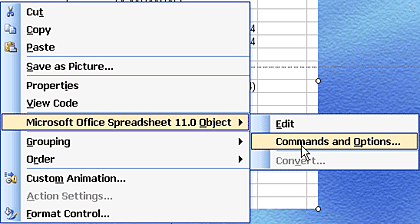
Follow these steps to get started. You might also want to download the accompanying sample presentation here.
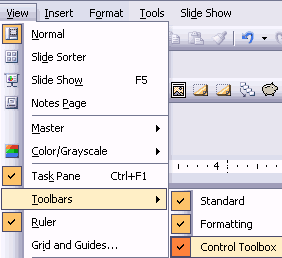
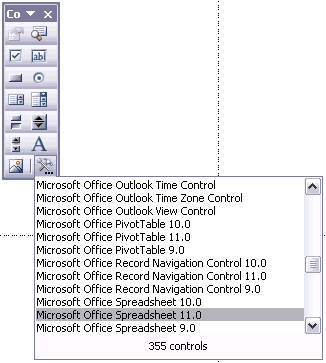

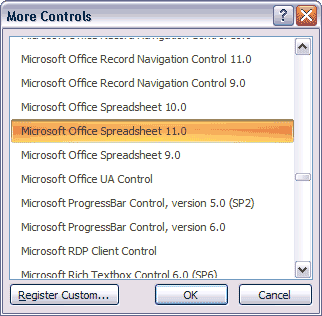
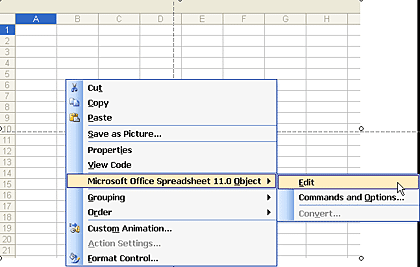
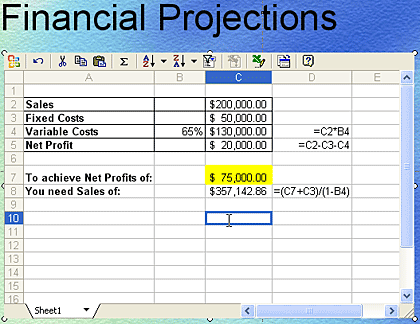
You can enter a profit goal with presentation running. For example, we entered $75,000 and the spreadsheet recalculates with the sales we need to achieve this profit goal.
This technique can be used for any Excel sheet or formulae. The "what-if" analysis shown in this tutorial is only such a scenario.
Compatibility considerations include File Formats. Ensure both Excel and PowerPoint files are in the Office 2007 format to maintain functionality.? Some advanced Excel features may not be supported in PowerPoint.? Relative links might break if files are moved; use absolute paths when possible.? Being aware of these factors ensures seamless integration.
To embed an Excel worksheet, select the desired data in Excel and copy it.? In PowerPoint, navigate to the target slide.? Go to the Home tab, click the Paste dropdown, and choose Paste Special.? Select Microsoft Office Excel Worksheet Object and click OK.?
To create a dynamic link, copy the chart in Excel.? In PowerPoint, navigate to the desired slide.? Use Paste Special and select Paste Link with the appropriate Excel object type.?
19 05 02 - More Cool Ideas: Excel Content in PowerPoint (Glossary Page)
You May Also Like: Overcoming the Challenges of Staying Connected | Violet PowerPoint Templates


Microsoft and the Office logo are trademarks or registered trademarks of Microsoft Corporation in the United States and/or other countries.
