
This is the print version of this page. All content is copyright Indezine.com 2000-2026.
Read an exclusive book excerpt from Visual Quickstart Guide: Microsoft Office PowerPoint 2003 for Windows.
Author: Rick and Rebecca Altman
Product/Version: PowerPoint
Stopping a Print Job
Printing the Outline
Adding Speaker Notes
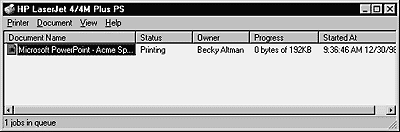
If you choose the Print command and then decide you want to cancel the print job, you can delete the job from the print queue.
To stop a print job:

Tip
You can print an outline of your presentation exactly as it appears in Outline view. For instance, if only the slide titles are displayed in Outline view, only the slide titles are printed (Figure 19.11). If the outline is completely expanded, all the slide titles and bulleted items are printed (Figure 19.12). If formatting is hidden, the text and bullets are not formatted.
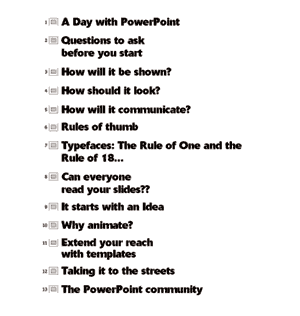
Figure 19.11 This printed outline shows only the slide titles.
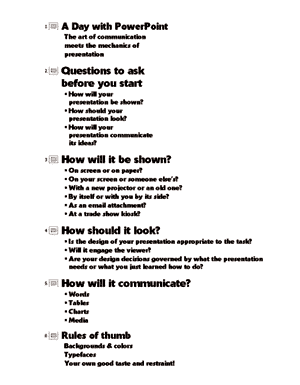
Figure 19.12 This printed outline shows slide titles and expanded text.
Remember that text boxes which were added manually (in other words, not a text placeholder) will not show in Outline view.
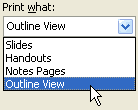
To get the results you want, set the options in Outline view before printing your outline.
To print the outline:
To help remind you what to say when you present each slide during a slide show, you can refer to speaker notes saved on notes pages.
When printed, each page of notes consists of the slide on the top half and any speaker notes you have for that slide on the bottom half.
You can enter your speaker notes in Notes Page view (Figure 19.14) or in the notes pane in Normal view (Figure 19.15).
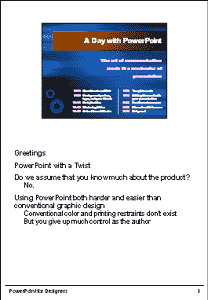
Figure 19.14 Use Notes Page view to enter speaker notes.
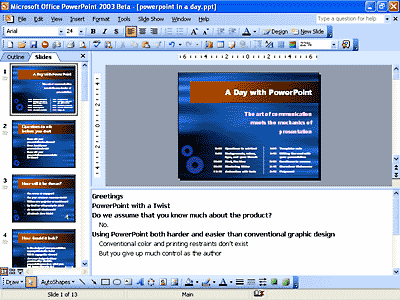
Figure 19.15 You can enter speaker notes in the notes pane in Normal view.
To enter speaker notes in Notes Page view:
Tips
To enter speaker notes in Normal view:
Tips
Altman/Altman, MICROSFT OFFICE POWERPT 2003 WIN: VISUAL QUICKSTART, ©2003 Reproduced by permission of Pearson Education, Inc. Publishing as Peachpit Press. ALL RIGHTS RESERVED.
You May Also Like: 3D Content Guidelines for Microsoft: Conversation with Michelle Maislen and Jeremy Kersey | Flags and Maps - A PowerPoint Templates


Microsoft and the Office logo are trademarks or registered trademarks of Microsoft Corporation in the United States and/or other countries.
