
This is the print version of this page. All content is copyright Indezine.com 2000-2026.
Read an exclusive book excerpt from PowerPoint 2007 for Windows: Complete Makeover Kit.
Author: Geetesh Bajaj
Product/Version: PowerPoint
Consolidate the Slides
Add More Slides
In the previous steps of this makeover, all the bullets were promoted to slide titles, and the Slide Layout for all the slides in the presentation was changed. Yet, there's always some housekeeping left that cannot be done automatically with a click or two. If you are following the steps in this makeover, or doing another makeover on your own, remember to look out for any problem areas that need attention. The sooner you spot these problems in the makeover process, the easier they are to resolve.
There are several ways to find out whether there are problem areas in a presentation, but two of them are time-tested and indispensable:
You are sure to discover a few things that you want to correct after you review the presentation. In the case of our current makeover, I discovered many empty lines in the outline between slides 26 and 35 (see Figure 8.8). I also discovered that slide 34 had two titles!
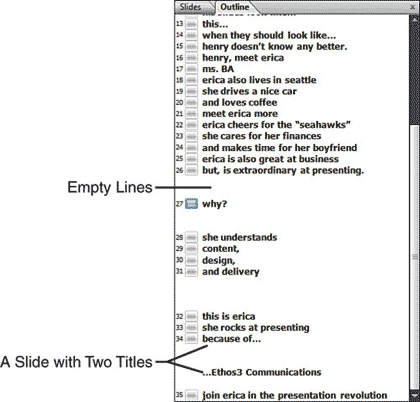
Figure 8.8 The outline makes it easy to spot goof-ups.
If you are following the makeover step by step, continue using your saved presentation. If you just stepped in, you can use the nobullets_03.pptx presentation from the Makeover 07\Steps folder on the CD.
Follow these steps to sort out the issues:

Now that you have consolidated the slides, it's time to add some more! I'll be showing you how you can divide one slide into two. Even after these two slides are separated, they maintain a link because they share a text-to-visual relationship. That might sound very impressive, but in fact, it is something so simple that even a kindergartener could probably understand it.
Let's look at this title: henry lives in seattle.
Now break this into two slides:
Now remove the word "seattle" altogether from the second slide, and insert in its place a large picture of the Seattle skyline that includes the Space Needle. Now even if you don't put the word "Seattle" in the title, everybody still knows that Seattle is what the picture portrays. The before and after of this concept can be seen in Figure 8.10.
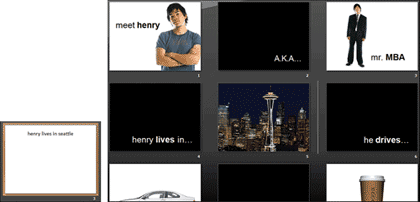
Figure 8.10 One slide becomes two slides.
We'll put in all those pictures later; for now, let's start splitting the slides. If you are following the makeover step by step, continue using your saved presentation. If you just stepped in, you can use the nobullets_04.pptx presentation from the Makeover 07\Steps folder on the CD.
Follow these steps:
You May Also Like: think-cell 10: Now works on Office for Mac | Comoros Flags and Maps PowerPoint Templates



Microsoft and the Office logo are trademarks or registered trademarks of Microsoft Corporation in the United States and/or other countries.
