
This is the print version of this page. All content is copyright Indezine.com 2000-2026.
Introduction
About Signage24
Register
Using Signage24
Pricing and Support
Conclusion
Signage24 is a hosting service through which you can distribute your presentations as digital signage worldwide—almost like an automated billboard. This is a huge thing, and this sort of service can change the way digital signage is pushed to multiple output streams. More importantly, Signage24 allows anyone to do so. Imagine someone working out of a garage or a multinational conglomerate office has the same options to publish their digital signage!
We asked Kurt Dupont of Signage24 about how this works. Read his interview here.

Signage24 is an online service from PresentationPoint, a Belgium based company. Our contact at PresentationPoint for this review was Kurt Dupont. Thank you, Kurt.
You can learn more about Signage24 from their site.
BackTo use Signage24, you first need to register as a user:
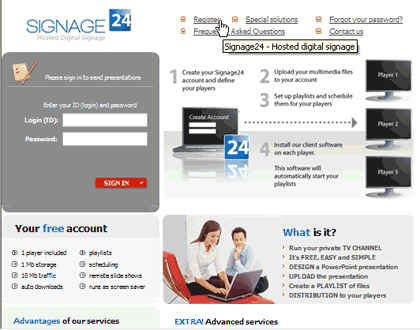
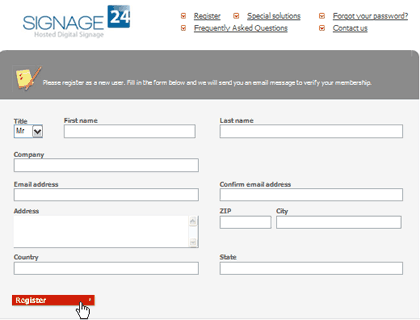
Once you join Signage24, you'll discover that there are various subscription levels. The basic subscription level is free, and we'll use that in the rest of this article. Remember, other subscription levels offer far more options.
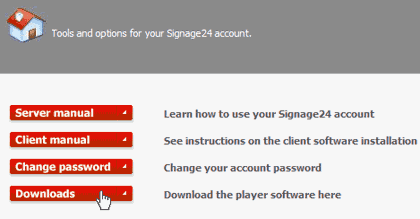
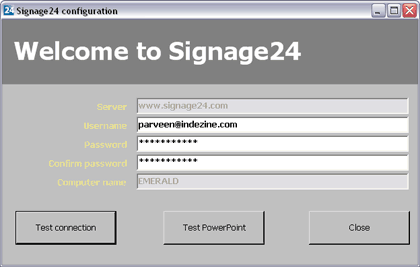
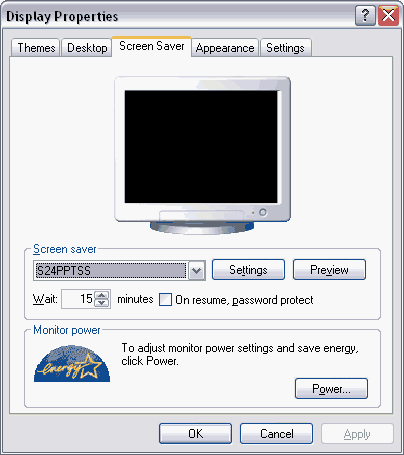
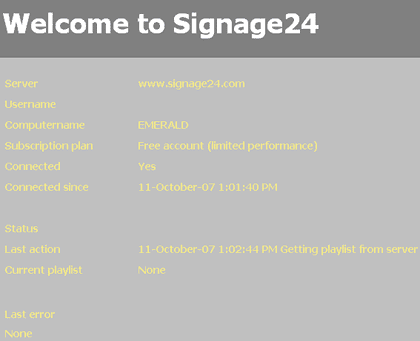
Follow these steps to use Signage24:

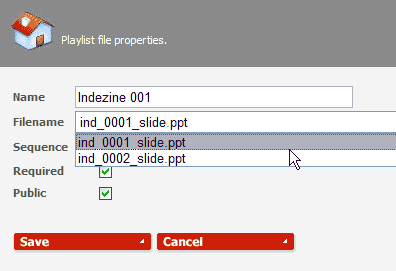
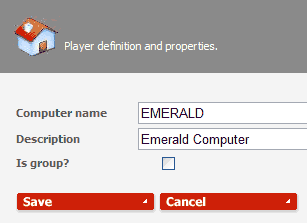
Various pricing options are available depending on the number of presentations, members, and traffic. Depending upon the options you choose, you could be paying anything from $37 to $58 per player. And the free accounts work well too—although, you'll soon run into limitations.
Support is through an online FAQ, and you can also get in touch with support through phone and email.
BackSignage24 is a great service, but we found that their documentation was not too friendly. The price performance ratio is great, and if they provide a more detailed help document, this is a fantastic product. We also like the fact that this works as a screen saver, thus if the computer is unattended for a while, the presentation starts on its own.
BackYou May Also Like: Nepal Flags and Maps PowerPoint Templates | MathType 6 for Mac




Microsoft and the Office logo are trademarks or registered trademarks of Microsoft Corporation in the United States and/or other countries.
