
This is the print version of this page. All content is copyright Indezine.com 2000-2026.
Lean how to use stamps in Techsmith Snagit.
Author: Geetesh Bajaj
Product/Version: PowerPoint
Stamps in SnagIt are our current fascination. We love the way TechSmith has implemented them in the program, and how intuitive they are to use. Yet, we have hardly used this amazing feature all these years, considering they have been part of SnagIt since version 6?
So, what woke us up to them? Simple TechSmith had free stamps available for download from their site and those cute graphics on their site looked so good that to knew we had to try this one. So, we downloaded the free stamps, and installed them into our copy of SnagIt.
To begin, you need to take a screenshot with SnagIt. We snagged a screenshot of the Indezine homepage and sent it to the SnagIt Capture Preview window, as shown in Figure 1, below.
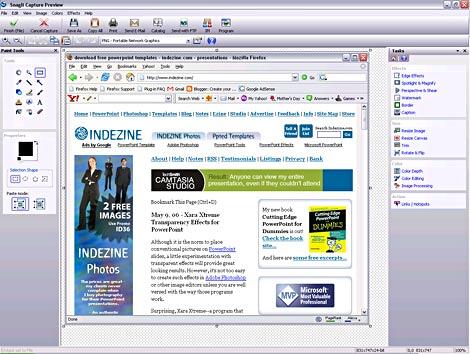
Figure 1: The SnagIt Capture Preview window
Next, in the Tools palette of the Paint area, select the Stamps tool. This will activate the Stamps Properties area just below the Tools palette, as shown in Figure 2, below. Select the Stamps category you want and click the Stamp preview area to open a fly-out menu that shows the stamps available in that category.
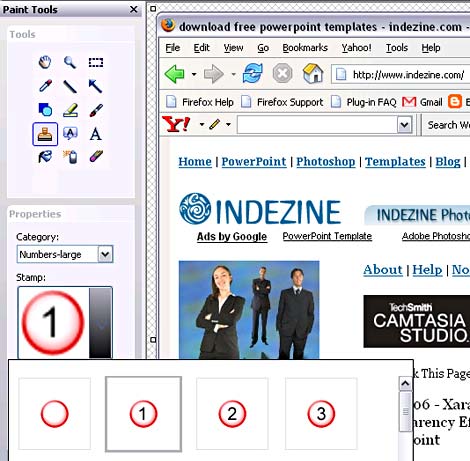
Figure 2: SnagIt Stamp Categories and Previews
Choose one on the various categories (we chose Numbers-large), and then select the stamp you want (we chose the number 1). Next, click anywhere on your capture! It's that simple, as shown in Figure 3, below, for how it looks.

Figure 3: See how the stamped capture looks
Of course, you have so many more options. By default, SnagIt puts a nice drop shadow for each stamp, but you can opt not to have drop shadows. And you can even have transparent stamps. For example, you can place a stamp that's just 50% transparent so that the area under the stamp is also visible, as shown in Figure 4, below.
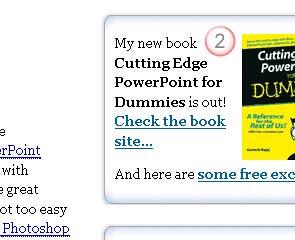
Figure 4: That's a semi-transparent stamp with no drop shadow
It's so much fun using these stamps. Also, it's so practical if you want to stamp number digits all over your captures and then explain why you placed each number in a particular place.
Do remember that you can find more stamps on the TechSmith site. These can also be downloaded from inside the SnagIt interface. To do so, follow these steps:
Also you can create your own stamps and create/reorganize stamp categories. This is something that we'll cover in a subsequent tutorial.
Thanks to Betsy Weber of TechSmith for coordinating with us for this tutorial.
You May Also Like: Better Data Visualizations: Conversation with Jonathan Schwabish | Democratic Republic of Congo Flags and Maps PowerPoint Templates


Microsoft and the Office logo are trademarks or registered trademarks of Microsoft Corporation in the United States and/or other countries.
