
|
PowerPoint and Presenting News
|
think-cell version 9: Conversation with Markus Hannebauer

Markus Hannebauer is co-founder and CEO of think-cell, where he is in charge of Marketing, Sales, Operations
and Finance. He is a Computer Scientist by training and holds a PhD in Artificial Intelligence from Technical University Berlin.
In this conversation, Markus talks about think-cell 9, a PowerPoint add-in that uses AI to help you create amazing charts.
Read the conversation here.
|
|
Last Chance to Join Us Live, in Virtual Reality

Last week, I was amazed by what Lia (more famously known as P-Spice) shared with me. And yes, while what she showed was amazing,
the real 'amazing' part was how easy she has made it for anyone to play with Virtual Reality, and then use it in presentations
and elsewhere, to inform and impress your audience.
If you are interested in setting yourself apart with the latest technology, you are in for a treat!
That’s because I’m inviting P-Spice to hold a 1.5 hour training teaching you. Learn more now.

You won’t believe what’s now possible in VR - using only your phone and an internet connection.
|
|
Possibilities 02: Dashboards in PowerPoint

Before we proceed further, do understand that this article is not a step-by-step tutorial for you to make sure that PowerPoint gets
comfortable with dynamic data. Rather, this article will take you into the realm of possibilities. Imagine creating a digital dashboard
in PowerPoint that gets data from various sources. And then imagine seeing it all on one slide that gets dynamically updated, as you
read the rest of this article!
Read more here.
|
|
Build A Better Mousetrap And Presentation

In Silicon Valley, the Eleventh Commandment is Build a Better Mousetrap. Almost every day produces another announcement about a new way
to drive, work, shop, eat, play, pay, and, if Mark Zuckerberg fulfills his future vision, to read minds with “optical neuro-imaging
systems.” At the heart of this quest is the need to design world-class products.
Read more in this post by Jerry Weissman.
|
|
Zeetings Acquisition by Canva: Conversation with Robert Kawalsky

Robert Kawalsky is the CEO and Cofounder of Zeetings, a software company changing the way people present their
ideas to the world. Zeetings was founded with the simple idea that presentations could be transformed from one-way monologues
into two-way conversations, giving everyone in the room an opportunity to participate. Launched in 2015, Zeetings has been used by
1 million people in over 50 countries. In 2018, Zeetings was acquired by Canva. Robert talks about what this acquisition means
for users.
Read the conversation here.
|
|
Presenting Quotes
We’re All Going to Experience Bloopers: by Lisa Braithwaite
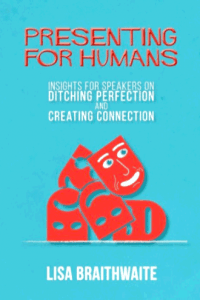
Lisa’s book is so easy to read. Just open any page, and there’s so much wisdom that will help you become a stellar presenter. She provides tips and ideas on every presentation related topic from visuals and props to bloopers and humor.
|
|
Learn PowerPoint 2016 for Windows
Rulers

When working with multiple slide objects, you should have a visual cue about where you are placing them. You can get exact
coordinates of your slide objects using the positioning options in PowerPoint, but most of the time, you just need an approximate
idea of where your objects are placed, and this can be easily obtained by using the Rulers option available in PowerPoint. By
default, the Rulers may not be visible, but when made visible, they are located on the top and left parts of the active slide.
Gridlines

PowerPoint’s Gridlines help you position your slide objects more precisely. Along with Rulers and Guides, Gridlines let you
position and snap slide objects in place so that you can easily line a set of slide objects uniformly. We will learn more about
how you can work effectively with gridlines in this tutorial.
Guides

Like Gridlines, Guides also allow you to position and snap your slide objects in place. For most professional slide designers,
creating slides without guides would be very worrisome! When guides are enabled for the first time within PowerPoint, you can just
see two guides by default. These guides are two dotted lines, one horizontal and the other vertical. They span to intersect exactly
at the center of the slide.
Smarter Guides

Do you notice that any object you move, resize, or align in PowerPoint 2016 actually helps make your task easy! Move it a little
closer, resize a wee bit, or even try spacing slide objects and the screen shows all sorts of helpful indicators in the form of
dotted lines. The red, dotted lines that show up and then disappear are Smart Guides. These made their debut in PowerPoint 2010
and allowed you to position objects easily. More improvements were added in PowerPoint 2013 that enabled you to see how much
further you need to drag so that one object on the slide is as wide as another adjacent object. In fact, you can also evenly
space out objects without accessing any Ribbon tabs or typing a number within a dialog box!
Snap to Grid Settings

Once you make Gridlines visible on your slide in PowerPoint 2016, you may wonder if there’s any benefit using the Gridlines
other than the obvious benefit of possessing a visual grid that lets you place slide objects? The answer can be both Yes and No.
Yes because you may believe that is all that happens on the surface. Moreover, no because unless you explore how the Snap to Grid
option works, you will not realize the real benefit. Worse, this incredible option is not active by default!
|
|
|
|
|
|
|
|
|
|
|
|
|
|
|


