|
PowerPoint and Presenting News
|
WonderFox HD Video Converter Factory Pro Giveaway

WonderFox is giving away a copy of their HD Video Converter Factory Pro product that lets you convert normal and HD video to over
150+ formats. There are presets for iPads, iPhones, Android devices, and TVs. Also, you can convert YouTube video for offline
viewing.
To get a copy, go to their special landing page.
Do note that this is a full version, although WonderFox lets you upgrade to the Lifetime upgrade version at an extra cost. That
upgrade is optional, and you are free to use this fully-functional software.
|
|
Here’s How President Obama Gave Stellar Inspirational Speeches

Love him or hate him, I think we can all agree that President Obama served an unforgettable term as the leader of the free world.
Let’s not get carried away though, this isn’t about politics. This is about how President Obama gave the most inspirational speeches
of our time.
Read more in this guest post by Yousef Abu Ghaidah.
|
|
Udemy Courses: Learn Something New

Want to learn a new skill, a new program, or do you
want to look into self-improvement? You are in luck. Why? Because our friends at
Udemy, the leading provider of online video courses
has slashed the rates of many of their courses to just $10.99. Many courses that cost more than $200 are now only $10.99.

And even better, you can just buy these courses now, and decide to view the courses whenever you want - maybe today, maybe next week,
or next year, or when you retire! How is that possible? Because
Udemy courses do not expire, and you can access
them for a lifetime.
Get these Udemy courses at slashed prices!
|
|
Slides with Countdown Timers in PowerPoint 2016 and 2013 for Windows

Imagine that you are about to give a presentation that contains a certain number of slides, and you’ve got 15 minutes in all to
complete the whole presentation and wrap up every detail. All in those 15 minutes! Or maybe, you have only 10 minutes? What will
you do? Did you know that you can set up a small timer in your slides that shows a countdown as you present? Although this can be
a little distracting, you can make it work if you place it discreetly, as we will show you in this tutorial.
Learn how to use countdown timers in PowerPoint 2016 and 2013 for Windows.
|
|
Illuminate: Conversation with Nancy Duarte

Nancy Duarte is CEO of Duarte, Inc. and the author of Resonate, Slide:ology, and the HBR Guide to Persuasive
Presentations. Her latest book, Illuminate: Ignite Change Through Speeches, Stories, Ceremonies, and Symbols, co-authored with Patti
Sanchez, shows how the world’s greatest leaders use powerful communication to move people and ideas forward. She has a passion for
teaching others about the power of persuasive presentations to drive change in the world. In this conversation, Nancy talks about
Illuminate.
Read the conversation here.
|
|
Self-Promotion for Introverts: An Interview with Nancy Ancowitz

Nancy Ancowitz is the author of Self-Promotion for Introverts®, which was picked as one of the best books of 2009
by Publishers Weekly. She is a business communication coach specializing in career advancement and presentation skills. Her clients
range from CEOs to emerging leaders in the business and creative worlds.
In this interview, Nancy talks about her book, about being an introvert, and about how introverts can become better presenters.
Read the conversation here.
|
|
|
|
Learn PowerPoint 2016 for Windows
Motion Path Animations

The three basic animation types in PowerPoint: entrance, emphasis, and exit animations are something we have already explored.
The fourth animation type is called Motion Path animations, and this is something more advanced in nature than the basic animation
types explored so far. Motion Path animations determine the route (path) and the direction in which the animated slide object moves
across or around on the slide. For example, you can move a slide object up, down, right, or left, on a preset or created motion
path, or possibly anywhere you want.
Export Option in Backstage View

PowerPoint's export options come into play after you have created your slide decks, and are looking for ways to share your slides
with others in the most effective way possible. PowerPoint allows you to save your presentation in different forms, that allows you
to view and share your slides on almost any device. Did you know you can create a PDF from your presentation, or export all slides to
a video? If you need an old-fashioned way to share, you can burn your slides to a CD. You can also create Word document handouts.
Finally, PowerPoint lets you save in so many other file formats.
Getting Started with Motion Path Animations
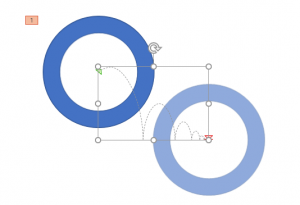
Motion Path animations in PowerPoint enable you to make any slide object move within or outside the slide, and also make it move
anywhere within the slide in a particular path! PowerPoint provides dozens of Motion Path presets, in every shape that you can
imagine. To add a Motion Path animation to any object on a PowerPoint slide, follow these steps.
|
|
Learn PowerPoint 2013 for Windows
Account Option in Backstage View

In PowerPoint 2013, and in other Office 2013 programs, you typically need to sign in to a Microsoft Account so that you can access
saved settings, customizations, and even some files off the cloud. You typically do this by managing your Account, right inside
PowerPoint or another Office 2013 program such as Word and Excel. The Account tab in Backstage view allows you to sign in to your
Microsoft Account, and automatically connect to your OneDrive account. In this tutorial, you’ll learn how to access PowerPoint 2013’s
Account Management options.
|
|
Learn PowerPoint 2016 for Mac
Change Slide Layout
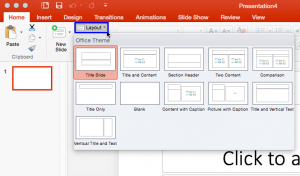
A PowerPoint presentation comprises a bunch of slides and we like to think of these slides as akin to a blank canvas. You add
content to the slides in almost the same way as you use brushes to create strokes of paint to color a canvas. However unlike a
canvas, in PowerPoint, you don't have a non-structured freedom, and this can be good in many ways. Primarily, PowerPoint
categorizes each slide type into one of its prescribed layouts.
|
|
|
|
|
|
|
|
|
|
|
|
|
|
| |
| |
|