
This is the print version of this page. All content is copyright Indezine.com 2000-2026.
Robert Lane and Bruce A. Olson work with pictures effectively. Adding pictures with hyperlinks was an effective strategy.
Author: Robert Lane and Bruce A. Olson
Product/Version: PowerPoint
Building Showcase Navigation
Best Practices
Try converting some of your own content into Showcase navigation. To do so, follow the steps below.
Make the (or open the existing) presentation.
If you are using an existing show, simply add a blank slide at the beginning to be the switchboard. If building a new show, add a slide for each content topic and one additional slide for the switchboard. Note that a showcase presentation is a traditional linear slide show in all respects—except for the extra slide at the beginning and the internal hyperlinks that allow random slide selection.
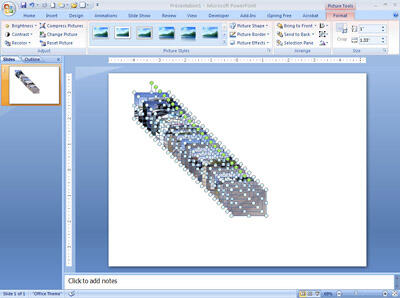
Figure 7: Building Showcase Navigation
If your show contains pictures on its content slides, as in the example above, place a copy of each picture on slide 1 and downsize all the pictures to be small images (thumbnails: Figure 7). Arrange the thumbnails on the slide as desired, ideally in organized patterns.
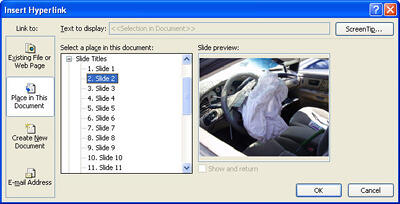
Figure 8: Insert hyperlinks in PowerPoint
Hyperlink each thumbnail to its respective slide. Do so by right-clicking a thumbnail and choosing Hyperlink from the menu that appears. Then on the Insert Hyperlink dialog box, click the Place in this document tab (Figure 8). Click the appropriate slide number and then click OK at the bottom of the dialog box. Repeat this process with the remaining thumbnails.
Once the switchboard hyperlinks are in place, complete the return hyperlinks. Activate each slide in turn, right-click its content picture, and hyperlink the picture to slide 1. When finished, all the content slides should link back to slide 1.
Test the hyperlinks to make sure they work properly. Note that hyperlinks are active only while in slide show mode. So, start the slide show at slide 1. Then click a thumbnail and verify that the proper slide comes into view. Click that slide’s content to return to the switchboard. Systematically check all links. You should be able to go back and forth with ease. If any links do not perform as expected, end the slide show and edit the links accordingly.
That’s all it takes to add interactivity to your evidentiary displays. Various other navigation styles are possible as well.
Adding hyperlinks to a PowerPoint slide show is a relatively simple process, but there’s more to interactivity in the courtroom than just that. It’s vitally important that you also change your entire way of thinking about presentation. Rather than preparing slide shows to use as lectures, progressing down a line, think of them as collections of individual facts, answers to questions, and spontaneous points of interest.
Consider that if you have 200 slides available, you might use only 3 on any given day. That’s OK. Or you might access 10 or 50. Be flexible and smart. Display relevant material—AND ONLY THAT MATERIAL. Think of those slides as visual vocabulary that can be spoken as needed, nuggets to be mined for maximum impact. You might as well become an expert at giving jurors the timely visual clues they want because the CSI Effect probably won’t disappear anytime soon.




Microsoft and the Office logo are trademarks or registered trademarks of Microsoft Corporation in the United States and/or other countries.
