
This is the print version of this page. All content is copyright Indezine.com 2000-2026.
Robert Lane explores the technique of hiding slides in PowerPoint.
Author: Robert Lane
Product/Version: PowerPoint
When a slide is hidden, its slide number displays with a dashed line and the slide thumbnail displays lighter (PowerPoint 2010 and PowerPoint 2007—Figure 6). At any time, you can unhide a slide by repeating the steps just described.
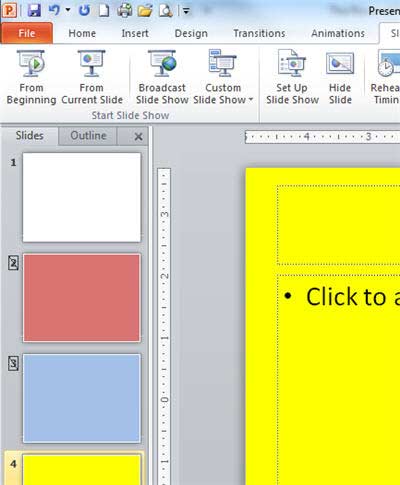
Figure 6: How slide thumbnails look after slides are hidden
Next, click the slide 1 thumbnail to select slide 1. Let’s start the slide show and scroll to see what happens. Notice that PowerPoint skips the red and blue slides entirely and immediately displays the yellow slide instead.
Now, we’ll add the hyperlinks. End the slide show and activate slide 1. Using the Insert menu, insert a shape onto its slide pane. Change the fill color of this shape to be red (we will link it to the red slide). Add a similar shape beside it and leave its fill color blue (we will link it to the blue slide). Right-click the red shape and choose Hyperlink from the options. Next, click the Place in This Document tab so that the four slides available in this show are listed under Select a place in this document.
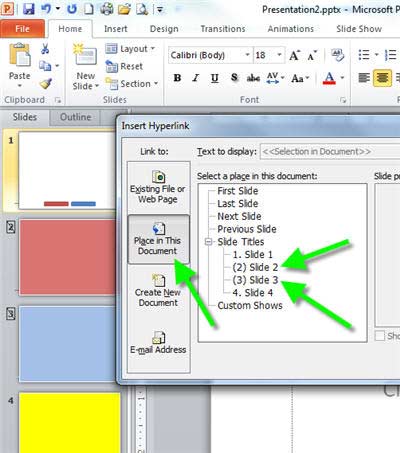
Figure 7: Hyperlinking shapes on slide 1 to the hidden slides
Click the slide 2 name and then click the OK button to close the dialog box, as shown in Figure 7, above. Great! You just linked the red shape on slide 1 to the hidden red slide (slide 2). Do the same with the blue shape, linking it to slide 3, the hidden blue slide.
Let’s see what happens now when running the slide show. Go back to slide 1 and start the show. Keep in mind that hyperlinks only work while the slide show is running. Click the red shape. The red slide should be displayed immediately. If it doesn’t go back and make sure your hyperlink is properly in place. Now scroll through the show like normal. Notice PowerPoint shows the blue slide next, as it is the next hidden slide in the presentation. Once you click a hidden slide, the remaining hidden slides will be displayed.
We’re almost done but let’s add one more classy touch to improve these hidden slide techniques even more. Go to the red slide, add a new shape, and then change the shape fill color to white. We’re going to give this shape a special kind of hyperlink called an Action Setting.
Click the shape to make sure it is selected and then click the Insert tab on the Ribbon. Next, click the Action button. In the Action Settings dialogue box that appears, select the Hyperlink to option and from its drop-down menu, select Last Slide Viewed. Then, click the OK button.
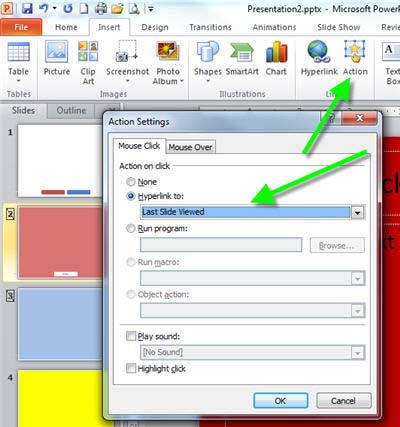
Figure 8: Adding the “Last Slide Viewed” Action Setting
Clicking this shape during a slide show returns you to whatever slide you were on when accessing the red slide in the first place. In other words, you potentially could add 50 more slides to this show and put a link to the red slide on all 50 slides. In that case, during the performance, you might click the red slide link while on slide 32. When finished viewing the slide, clicking the red slide’s Last Slide Viewed link returns you to slide 32 automatically. It’s a graceful way of jumping out to show extra detail at any time and then returning exactly to where you left off in your presentation track to carry on.
Copy the new white shape and paste it onto the blue slide as well. Now, you can start the slide show from the beginning and access either the red slide or the blue slide, and then return to the white slide to select another option or scroll to continue with the rest of your talk as usual.
Apply these same techniques now to your own slide shows. Here’s an important suggestion. You’ll gain even more flexibility and control if you spread topic details across multiple slides, rather than packing them all onto single slides. Having separate pieces of information lets you jump to those points individually.




Microsoft and the Office logo are trademarks or registered trademarks of Microsoft Corporation in the United States and/or other countries.
