
This is the print version of this page. All content is copyright Indezine.com 2000-2026.
Learn about the Research Pane in PowerPoint.
Author: Geetesh Bajaj
Product/Version: PowerPoint
OS: Microsoft Windows XP and higher
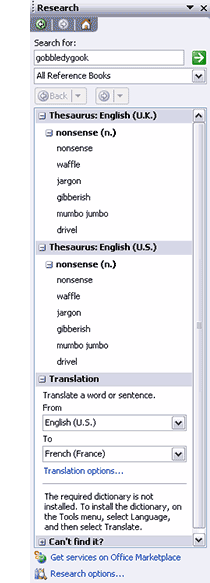 The Research pane is available in PowerPoint 2003 and 2007. This article was written for PowerPoint 2003 for Windows.
Microsoft's PowerPoint includes several new features, but one feature we found ourself using all the time is the Research pane. Imagine looking for a definition, seeking alternate words in a thesaurus, searching the web, or translating from one language to another, all inside PowerPoint. For this article, we asked many users about their experiences with the Research pane and responses ranged from wows to ‘I-never-knew.'
One user said she utilized the Research pane mainly for the thesaurus, so that she did not have to use the same old words over and over again. Another user, who works in medicine found the Research pane handy for looking up medical terms and abbreviations that are not always familiar.
Whatever you opine, the Research pane is actually one of those things that grows on you. And, unless you make a concerted effort to discover its virtues, you won't even know what amazing stuff you are missing. Having put across a proclamation like that right in the beginning of this article means that we are getting straight to the point since there's so much to discuss. And yes, the Research pane works from within Word, Excel and PowerPoint (all 2003 versions) in almost the same way. So, if you've learned it in one application, you can use it across the Office suite. The Research pane is also available from within the new 2003 versions of Outlook, Visio, OneNote, and Publisher.
Task panes made their debut with PowerPoint XP (aka 2002) allowing users to access often-used commands and procedures through a clean unobtrusive interface. With Office System 2003, Microsoft has allowed the pane metaphor to spawn new abilities within the suite. The Research pane is one of the new task panes that are part of the Office 2003 improvements. By default, this pane already includes access to reference books and research sites, and many more can be added for free or on a paid subscription basis. Also, some research options like the thesaurus work locally but for access to online resources like search engines and stock quotes, you need to be connected to the Internet.
Probably more people use this pane as a source of definitions than any other use. Right-click any word and choose the Look Up option to bring up the Research pane if it is not already visible. The Encarta Dictionary (North America) showed us six detailed definitions of the word ‘visible' along with a pronunciation key for the word (not the actual voice pronunciation). The Encarta Dictionary (UK) was even better with seven definitions for the same word. A search for ‘technology' got us three definitions with sample sentences using the word ‘technology' in all the three contexts. Several adjective, noun, and adverb forms of the word were also displayed. Unfortunately, there is no audio component where a word can be heard pronounced, and that would have been a great feature.
The Research pane also has several thesauri. When we last checked, we could find three English, two French and two Spanish thesauri available for looking into. The thesauri results are first-rate. Again, we found more than ten options for the word ‘visible' in the US English thesaurus. There were six options for the word ‘gobbledygook'. When you find a thesaurus search result that you want to use, click the word within the Research pane and you'll be provided with an option to insert it within the active PowerPoint slide.
Perhaps, the most promising implementation of the Research pane is the translation option. You can translate English text to and from twelve languages. In fact, you can also translate between any of the other languages. All these translation algorithms are included as part of your PowerPoint/Office 2003 license.
Before you get too excited about the translation feature, hear what one user has to say: …the translation service could be helpful, but it only translates individual words. That doesn't help much for phrase-based work, especially when the translation is very literal. For example, try translating "thank you." It translates thank and you, giving the wrong answer in both languages.
The Research pane also provides you with access to the Encarta Encyclopedia, an indispensable source if you are doing any sort of research. A search on ‘India' got us results on everything Indian from history and geography to architecture and languages. This type of reference stuff can be very helpful, if you suddenly need more information about something, or you find yourself against the wall because you don't know anything about a particular subject. Again, this is a free service.
If the dictionary, thesaurus, encyclopedia, or translation stuff do provide a logical extension to presentation outline workflows, the stock quotes do just that for figures. Enter a unique stock quote and you'll find amazing content like the day's highs and lows, change and percentage of change, trading volume, detailed quotes, and even charts that show how the stock has been faring for the last 5 years. The stock quotes presently are supplied by Standard & Poor's ComStock.
Access to the dictionary, thesaurus, encyclopedia, translation, and stock quotes is free but several other paid services integrate within the Research pane to bring you specialized content. One of them is Factiva Search, promoted by Dow Jones and Reuters which allows you to search over 9000 global news and content sources on a paid subscription basis. Other third-party research services include HighBeam Research's extensive eLibrary service which does have a free trial period. Gale Company Profiles brings you extensive financial info like revenue, employees, contact details, and more on companies all over the world. While the basic info is available free, you can avail access to detailed reports for a subscription fee.
Several medical and legal content sources are available. For example, you can explore LexisNexis, a complete research system for legal professionals, and Journals@Ovid, a research service that allows you to search hundreds of leading medical journals.
Apart from being extensible, the Research pane can also be customized. You can choose the research sources you want to use often. For example, you could remove options you don't want to see like the French and Spanish thesauri. The Research pane's online sources are also continuously updated, so you might see new sources of content available all the time.
The Research pane also enables you to do an online search through MSN Search. If you would like to search Google rather than MSN, you can do that by extending your Research pane through an extension. In fact, you can download several free third-party extensions that allow the Research pane to integrate with Google, Amazon, Yahoo, eBay, and so much more. While these are not available for download from the Microsoft site, an online search for them should provide many results.
The freedom of choosing what we want integrated within our Office Research pane is one of our favorite features. All put together, we found that the new Research pane alone justifies our upgrading decision to the new version of Microsoft PowerPoint and Office.
You May Also Like: Sports PowerPoint Templates | Leadership Storytelling: Conversation with Ronan Dunne


Microsoft and the Office logo are trademarks or registered trademarks of Microsoft Corporation in the United States and/or other countries.
