
This is the print version of this page. All content is copyright Indezine.com 2000-2026.
Explore essential tips to ensure smooth cross platform PowerPoint compatibility between Windows and Mac. Learn about file formats, version differences, and common pitfalls.
Author: Geetesh Bajaj
Product/Version: PowerPoint
PowerPoint users often work across both Windows and Mac, but ensuring presentations look and function consistently on each platform can be challenging. Differences in operating systems, media handling, and version capabilities frequently lead to unexpected hiccups. This guide helps you navigate those issues with clarity—explaining file formats, version compatibility, and common pitfalls—so your presentations remain reliable wherever they’re opened.
Introduction
The Essentials You Should Know
Content on this page is not recent and has been retained for historical reasons.
This is an updated version of a previous article.
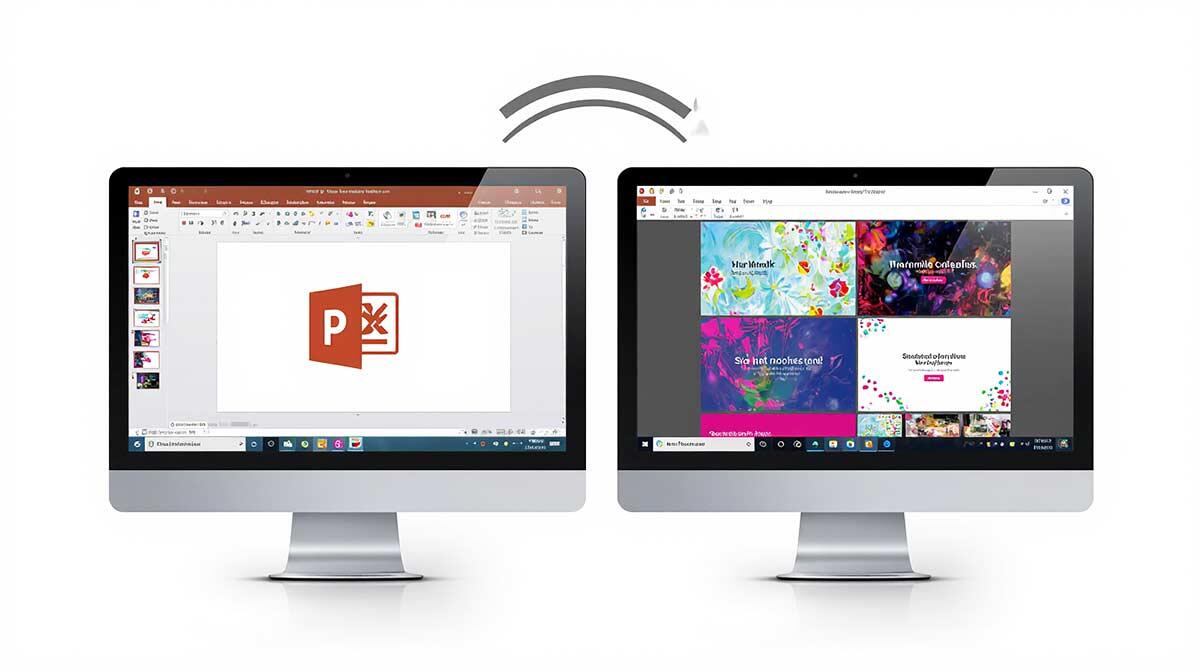
Do you work on PowerPoint for Windows and often need to share presentations with someone who uses a Mac? Or do you work in a cross-platform environment where both Windows and Mac machines exist? Or maybe, you have one of those new Macs that allow you to boot to both Windows and Mac OSs—and you want your PowerPoint presentations to look, play, and print the same all the time—irrespective of whether you are using a computer running Windows or a Mac.
Cross-platform hiccups happen for more than one reason—it's not unusual for the same company to have both Windows and Mac machines, or there might be a requirement to create an important presentation that needs to be compatible with whatever platform a client has. It might be that the designer hired to create a presentation or a template might use a Mac when the presenter is using a Windows machine—or even vice versa. Regardless, the differences between the Windows and Mac versions of PowerPoint have been giving presenters several problems.
Whatever your requirement for cross-platform compatibility may be, let us first share some good news with you: the file formats for PowerPoint files are the same on computers using Windows and Mac OSs. Here's more info on the file formats:
Most of the incompatibilities between Windows and Mac versions of PowerPoint emanate from the way the program is built inside the OS. While PowerPoint for Windows takes advantage of all the media abilities built inside Windows, such as media play-lists, PowerPoint for the Mac similarly uses features like QuickTime built at the Mac OS level. This does mean that there are some incompatibilities that cannot be overcome. Fortunately, these incompatibilities can be easily avoided in the first place with a better understanding of prospective problem areas that we shall explore in the rest of this article.
Most of the problem areas for compatibility reasons can be sorted category-wise—go ahead and refer to a particular category if you need a quick solution, or read the information provided in all categories if you want to be aware and prepared to tackle any incompatibilities you may encounter in the future.
BackFirst, we suggest that you stop thinking presentations and start thinking folders. Whichever platform you use, the first thing you need to do is create an empty folder for every presentation you create. Then copy all linked content into that folder, including pictures, sounds, and movie files—even before the item is inserted as a link within PowerPoint. If you need to link to Word documents, Excel sheets, PDFs, or other documents—copy them all to this folder before you create links to them from your PowerPoint slides.
Keep your PowerPoint updated: Make sure you have the latest service packs for Microsoft Office installed. Several compatibility issues are resolved in these updates. For Windows, check out here and Mac users can look at this page.
Always consider moving up to a more current version of PowerPoint. Versions 2007 for Windows and 2008 for Mac are the current versions at the time of writing—and have fewer compatibility issues than previous versions.
PowerPoint 2008 for the Mac includes the Compatibility Report option (View | Compatibility Report). This option checks the open presentation for compatibility issues with profiles of all versions of PowerPoint on Windows and Mac—right back to PowerPoint 97 and 98—it then tells you exactly what features may be compromised, and what will not work.
PowerPoint 2007 has a similar Compatibility Checker that can be accessed from Office Button | Prepare | Run Compatibility Checker—but this option only looks at compatibility issues with older versions of PowerPoint on Windows—there's no reporting on problems with Mac versions of PowerPoint.
While many PowerPoint creators try to keep cross-platform presentations simple to avoid compatibility issues, keep in mind this isn't as restrictive as it sounds. Newer versions of PowerPoint on both platforms may not allow the editing of certain features, but will allow these features to be viewed in slideshow mode. A good example of this is the Motion Path animations in PowerPoint for Windows—while PowerPoint 2004 and 2008 on the Mac will not allow you to add or edit motion path animations, they will still play them.
You May Also Like: Shining Online During Your Next Live Webinar | Video for Communication: Conversation with Haydn Rushworth


Microsoft and the Office logo are trademarks or registered trademarks of Microsoft Corporation in the United States and/or other countries.
