
This is the print version of this page. All content is copyright Indezine.com 2000-2026.
This article was authored in 2002, and Wildform no longer creates the Flix product. They sold it to On2 Technologies.
Author: Geetesh Bajaj
Product/Version: PowerPoint
PowerPoint and Video
Beyond Codecs
Introducing Wildform
Download and Installation
A Flix Session
Inserting Flash
More about Flix
Flix Advantages & Feedback
Pricing & Support
Pros and Cons
Like time, evolution never stops. Not so long ago, incorporating video content into PowerPoint was a task good enough for geeks alone. You needed to insert a Media Player object, make sure the MCI drivers (whatever that meant) were properly configured and then change settings for the inserted content. PowerPoint 97 changed all that. You could now insert video within PowerPoint at the click of a menu option.
Around the same time came Flash from Macromedia as a new standard in animation (and video) that wowed everyone. Ways were being found to insert Flash content into PowerPoint. Ever since Macromedia decided to open up the Flash SWF format, there has been a deluge of fine programs that output everything from animations and video to the Flash SWF format. Our subject of discussion today is Flix from Wildform, a program that converts video formats to Flash SWF.

Our first thoughts on using Flix were concerned neither about Microsoft nor Macromedia, but rather about Apple QuickTime. Let us explain.
Most digital cameras output fairly good quality video clips in the QuickTime MOV format, and PowerPoint offers no support to insert any QuickTime MOVs within a presentation. True, MOV is listed as a video format that PowerPoint can insert. Unfortunately, that's limited to QuickTime 1 and 2 movies. The current QuickTime version is 6. You can read more about the entire gamut here:
As a regular contributor on the Microsoft PowerPoint forum, we know that there is a huge level of frustration among users who cannot insert QuickTime content into PowerPoint.
Wildform, Inc. is based in Venice, California, USA. They develop and distribute Flash and video solutions. Among its products are Flix, a program that encodes almost every type of video, audio and image file into the Flash SWF format. Wildform also creates SWfX, an easy-to-use Flash text animation software.
The Wildform Video Library is a repository of royalty free video clips that features content in categories as diverse as space, animals, people and sports. All content can be previewed onsite.
Colby Devitt, President of Wildform, Inc. has been our contact for this article. We wish to thank her for all the support and collaboration.
You might want to visit the Wildform web site (link no longer exists).
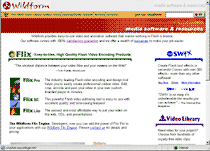
Flix is available as an ESD product you can download from the Wildform site. We'll discuss pricing later in this review.
In addition, you can download a fully functioning demo version of Wildform Flix, which places a watermark on any output video. Also, the audio output would contain a "Flix demo" audio mark.
Fix itself comes in three flavours: Flix Pro, Flix SE and Flix Lite. All three versions are different in their capabilities with Flix Pro, the subject of this article leading the pack.
Installation is a quick affair. You need to be connected online to complete an installation.
Now, we shall be using Flix to convert a simple QuickTime movie to SWF (on the Microsoft Windows platform). As such Flix is loaded with options and understanding and implementing all possibilities may involve a slight learning curve unless you use readymade presets. To keep matters simple, we'll use an easy step-by-step technique―something you can replicate while converting your own movies to SWF using Flix.
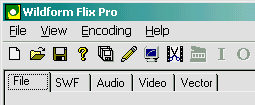
Launching Flix actually opens a dialog box with five tabs: File, SWF, Audio, Video and Vector. The File tab contains basic input and output options.
Within the Input option, we chose a QuickTime MOV file. Flix automatically saves a SWF file of the same name within the same folder, but you can change that within the Output option box. Usually, Flix encodes the resultant SWF at the same fps (frame per seconds) rate as the source file. However, since our source video was from a non-standard origin, Flix displayed a warning box suggesting we find out the original fps. Luckily, we knew that the source QuickTime movies were all 20 fps.
The File tab also has many more options, including encoding presets and export options that range from SWF (for Flash 3-6 or Flash MX), FLV (Flash MX Video), HTML, Windows and Mac projectors, etc. Finally, you can provide the finished SWF with a hyperlink to a web page or another SWF.
As such, you may actually proceed with the encoding straightaway. However, it might be a good idea to explore the four other tabs before you do so.
Once you've chosen all options, you can start encoding. This process is quite a fast considering that video by itself can be so processor sensitive. Our 902 kb QuickTime movie (encoded originally using the super-efficient Sorenson codec) ended up as a 546 kb SWF file (using a quality factor of 65) within a minute. The output was indistinguishable from the original!
PowerPoint offers no native support to inserting Flash SWFs. Fortunately, there are several add-ins that help you achieve the task at a click of a button. It is also possible to manually insert a Flash SWF into PowerPoint using the Control toolbox. All options, including those involving add-ins are explained elsewhere on this site:
Inserting Flash into PowerPoint
In addition, if you want to learn more about the subject, or need links to other sites which explain the procedure, look here:
Flix accepts almost all common video formats for conversion to SWF. Wildform recommends an installation of both the QuickTime Player and Windows Media Player on a system with Flix. This allows Flix to accept many more video formats and compression codecs. With both QuickTime and Windows Media players present on a system, Flix can access video (AVI, DV, MOV, QT, MPG, ASF, WMV), audio (WAV, MP3, WMA, ASF) and still image (JPG, GIF, PNG, BMP, PSD, TIF, TGA, PIC) formats.
Output options include the ubiquitous SWF as well as the new Flash MX FLV movie format. You can also export to SWFs contained within HTML and email formats - as also both Windows and Mac standalone projectors. In addition, the audio stream can be exported individually to WAV and MP3 formats.
Flix also offers a convenient batch processing function to convert multiple video sources to individual SWFs.
Flix offers many advantages over using normal video files. You can forget about format and codec problems. Distribution is more compact and easier—being suitable for both web and offline usage.
Needless to add, these benefits extend to using Flix output content within PowerPoint. As we have already discussed, Flix provides a great solution to incorporating QuickTime content within PowerPoint. In addition, PowerPoint does not natively support other video formats like RealMedia. Converting original source files to Flix SWF rather than RealMedia resolves that problem.
You might want to read some authentic user feedback at the Wildform site:
Flix Testimonials (link no longer exists)
As discussed earlier, Flix comes in three incarnations: Flix Pro, Flix SE and Flix Lite. While the Pro version is priced at US$149, the SE and Lite versions are priced at US$69 and US$29 respectively. All purchases are made through online secure server.
Support options include FAQs at the Wildform site. They also provide a detailed 'walkthrough' of the product, which in essence is a detailed look at all features.
There is also an online forum dedicated to Flix at the Flash Kit site:
Flash Kit Community Forums (link no longer exists)
The forum is often populated by support personnel from Wildform, and you can expect to receive responses to posts within 24 hours.
First, let us tackle the cons. Although Flix is not a very complicated product, we wish there was a wizard-based interface available which led the user through a series of questions to determine the best preset suitable for a particular job. Also, Flix has problems ascertaining the fps rate of some file formats.
Now the pros of the product. Flix in itself is a one-trick pony that converts video formats to the Flash SWF format. Having said that, its scope is amazing since it covers and caters to every imaginable option.
By doing so, it brings the Flash SWF format into the open fray of web video formats like WindowsMedia, QuickTime and RealMedia without the hassle of downloading yet another browser plugin, since the Shockwave Flash plugin is already installed on 98% of the world's browsers.
Flix also comes in various flavors like Pro, SE and Lite, which in turn are placed at separate price points. This varied range ensures that there is a version of Flix available for you at the feature and price level that is commensurate with your requirements.
You May Also Like: Presentation Design and Instagram | Taxes PowerPoint Templates



Microsoft and the Office logo are trademarks or registered trademarks of Microsoft Corporation in the United States and/or other countries.
