
This is the print version of this page. All content is copyright Indezine.com 2000-2026.
Learn how to align shapes in PowerPoint 2010 for Windows. Placing slide objects properly-aligned will help create an aesthetic slide.
Author: Geetesh Bajaj
Product/Version: PowerPoint 2010 for Windows
OS: Microsoft Windows XP and higher
Creative freedom may require no aligning of objects on a slide geometrically. Indeed, you may want everything placed in an organic, non-aligned manner. Ultimately, the decision to align can differ on a case-by-case basis. Sometimes, alignment works, and at other times, an unaligned bunch of shapes looks perfectly natural and organic, as you can see in the two different examples shown in Figure 1, below.

Figure 1: Alignment works great many times, but is better not done at other times
Look closely again at Figure 1, and you'll tend to agree that the bunch of circles on the right seems to follow a natural S curve and aligning them all in the same straight line would not benefit at all. On the other hand, the bunch of rectangles on the left certainly benefits from being aligned in a straight line.
Also, remember that alignment works with more than just shapes, and you can also combine shapes with other slide objects and align them all together. Now for those times when you place shapes on a PowerPoint slide anywhere you want, and then you need these shapes to be arranged in a straight line.
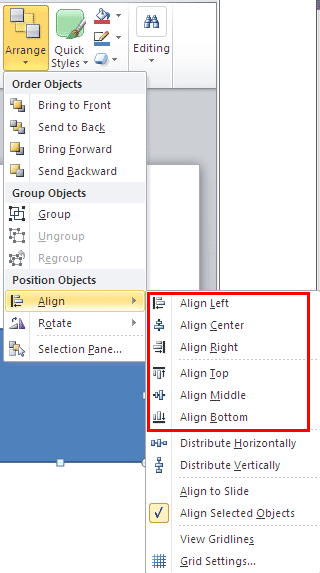
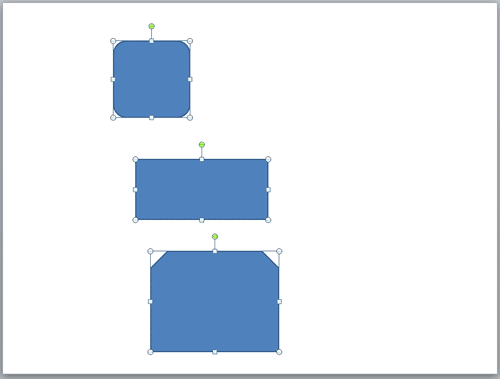
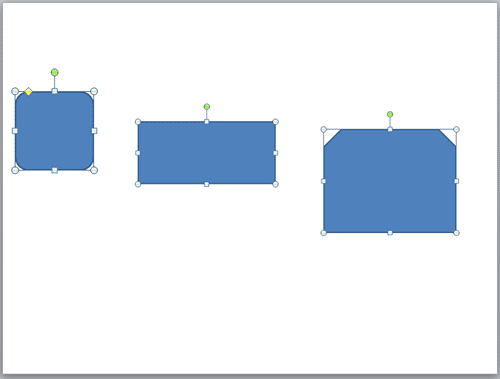
Follow these steps to align shapes and other slide objects in PowerPoint 2010 for Windows:






06 05 02 - Aligning and Distributing Shapes: Align Shapes in PowerPoint (Glossary Page)
Align Shapes in PowerPoint 2016 for Windows
Align Shapes in PowerPoint 2013 for Windows
Align Shapes in PowerPoint 2011 for Mac
You May Also Like: Presentation Hero Academy: Conversation with Matteo Cassese | Bicycle PowerPoint Templates


Microsoft and the Office logo are trademarks or registered trademarks of Microsoft Corporation in the United States and/or other countries.
