This is the print version of this page. All content is copyright Indezine.com 2000-2026.
Learn to remove bookmarks from video clips in PowerPoint 2010 for Windows. You may want to remove bookmarks no longer needed.
Author: Geetesh Bajaj
Product/Version: PowerPoint 2010 for Windows
OS: Microsoft Windows XP and higher
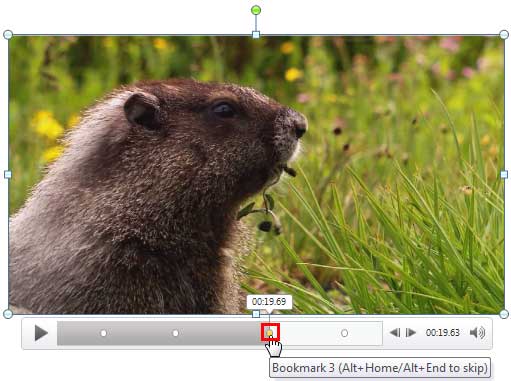
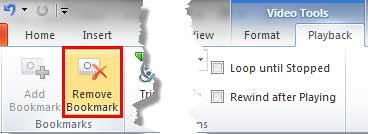
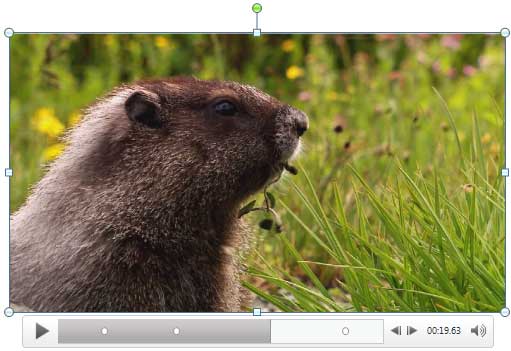
Now that you know how you can add Bookmarks to video clips in PowerPoint 2010, you may want to know how you can edit and remove those Bookmarks. At this point in time, we have bad news and good news. The bad news is that PowerPoint does not let you edit the inserted Bookmarks. For instance, you cannot change the time of the Bookmark from 25 seconds to 28 seconds. You will have to remove the Bookmark you wanted to edit, and add a new Bookmark all over again! On the other hand, removing a Bookmark is easy, and that is the good news!
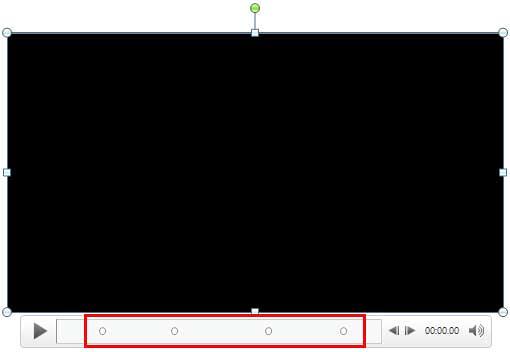
A Bookmark for a video clip is a saved time position within the Player Control bar of the clip.
In this tutorial, we'll show how you can remove a Bookmark from a video clip in PowerPoint 2010 for Windows:

Do you want more keyboard shortcuts?
Explore our PowerPoint Keyboard Shortcuts and Sequences Ebook that is updated for all PowerPoint versions.
14 03 02 - Bookmarks in Video Clips: Remove Bookmarks from Video Clips in PowerPoint (Glossary Page)
Remove Bookmarks from Video Clips in PowerPoint 2016 for Windows
Remove Bookmarks from Video Clips in PowerPoint 2013 for Windows
You May Also Like: How to Pitch and Win People Round | Loans PowerPoint Templates


Microsoft and the Office logo are trademarks or registered trademarks of Microsoft Corporation in the United States and/or other countries.