When you start creating a new presentation, many users just launch PowerPoint and start creating their slides. Actually, there are three common ways in which you can create slides. Yet, the best way to start creating presentation slides is not from within PowerPoint but by creating an outline in another program. Many purists say that you should not even launch PowerPoint until you have an outline in place.
We already showed how you can create outlines in Notepad if you are using Windows versions of Microsoft PowerPoint. However, we have many readers who use PowerPoint on the Mac. In this tutorial, we'll show you how you can easily create outlines for your presentation using TextEdit on the Mac. TextEdit is a simple text editing application that has always been included with Mac OS X.
Do the outlines you create in TextEdit not import into PowerPoint, or do you end up with all the text on one slide?
Look at this note.
Follow these steps to create an outline for your PowerPoint presentation on the Mac:
- Launch Finder (just click the Mac HD icon on your desktop) and go to your Applications folder, where you will find an icon for TextEdit. Double-click to run this application.
- Important: In TextEdit, choose the Format | Make Plain Text option, as shown in Figure 1, below.
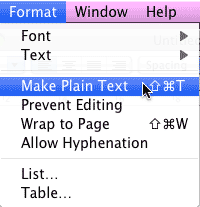
Figure 1: Make Plain Text option- You now see the TextEdit interface, as shown in Figure 2, below.

Figure 2: TextEdit document- Now, type in all the text content you want within your slide titles and text placeholders on separate lines, as shown in Figure 3, below. If you don't know what a text placeholder in PowerPoint is, look here.
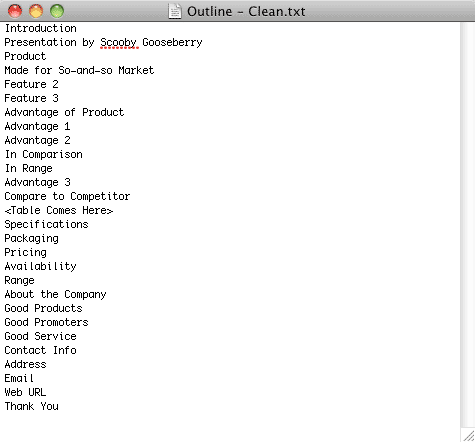
Figure 3: Text content for your slides- Now this outline needs to be formatted so that PowerPoint can understand which line of text is a slide title, the first level bullet, the second level bullet, etc. To do that you need to follow these guidelines:
- For slide titles, leave the text unchanged.
- For first level bullets (or subtitles in a title slide), place your cursor right in front of the line of text that you want to format, and press the Tab key once on your keyboard.
- For the second level bullets, place your cursor right in front of the line of text that you want to format, and press the Tab key twice on your keyboard.
- For any subsequent levels of bullets (third, fourth, etc.), place your cursor right in front of the line of text that you want to format, and press the Tab key that many times (three times, four times, etc.) on your keyboard.
- Once you are done adding tabs, your outline may look like what you see in Figure 4, below. Compare with Figure 3.
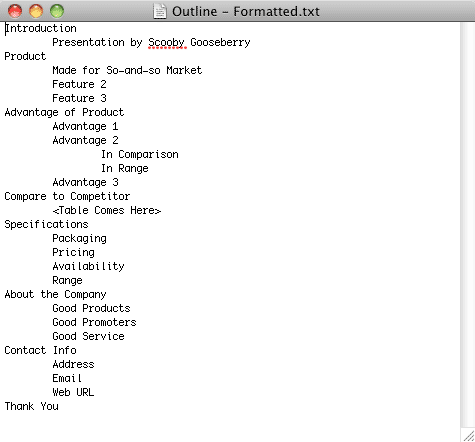
Figure 4: Text content for your slides after adding tabs- One aspect that we want to draw your attention to is that you can only add the text content for a presentation within an outline. However at times, there is some very important info in a presentation that is not text: it could be a picture, a chart, a table, or something else. In that case, you can mention so within the outline; make it stand out a little different, as shown in Figure 5, below. You'll notice that we added some text to indicate that a table has to be added to a particular slide, and it is indicated within parentheses.
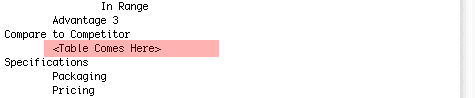
Figure 5: Indicating non-textual content within parentheses- Save your outline. TextEdit typically saves files with a TXT extension. This outline is now in a format that PowerPoint can import, and create new slides.
Import Outline into PowerPoint
- To learn how to import this outline into various versions of PowerPoint, look at our Outlines: Import page.