Home     PowerPoint     Photoshop     Photos     Other     Studio     Info

Bookmark and Share  


Add Picture Fills to AutoShapes

Author: Geetesh Bajaj

Product/Version: PowerPoint 2002 and 2003

Date Created: January 7th 2009
Last Updated: February 25th 2009


Excerpt/Capsule:


Product Showcase


In previous tutorials, we have covered solid, gradient, texture and pattern fills for AutoShapes in PowerPoint 2003 or earlier versions. In this tutorial, we finish this series by showing you how you can use picture fills. If you need pictures to use as fills for this tutorial, you can get free pictures from the listing on our Free Images page -- or you can buy high quality pictures from our Indezine Photos section.

Scroll down this page to see a sample presentation that contains AutoShapes with picture fills.

Follow these steps to change or apply a picture fill to an AutoShape:

  1. Select the AutoShape that you want to change the fill for. Alternatively, if you just want to follow this tutorial step-by-step, launch PowerPoint. Most of the time, PowerPoint will open with a new slide in a presentation -- users can change the slide layout to Blank by selecting Format | Slide Layout, and then choose the Blank layout in the resultant task pane.

  2. You will find the rectangle AutoShape option in the Drawing toolbar located below the PowerPoint interface. Select this option, and click once on the blank slide to place a rectangle AutoShape.

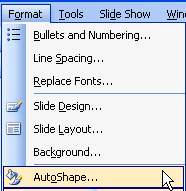
  3. Select the AutoShape, and choose Format | AutoShape, as shown in Figure 1. Or double click the AutoShape.

    AutoShape
    Figure 1: AutoShape

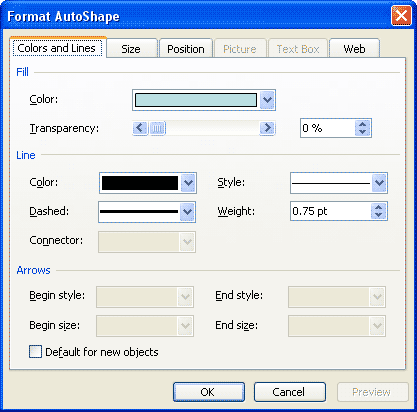
  4. Either way, this opens the Format AutoShape dialog box that you can see in Figure 2. Note that this is a multi-tabbed dialog box, and all the options we need can be found in the Colors and Lines tab (again, see Figure 2).

    Format AutoShape
    Figure 2: Format AutoShape

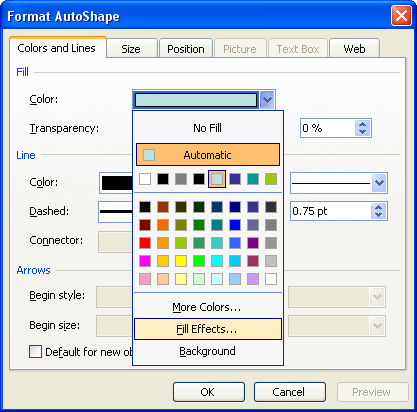
  5. In the Fill area, click the downward arrow next to the Color option, and choose Fill Effects, as shown in Figure 3.

    Fill Effects
    Figure 3: Fill Effects

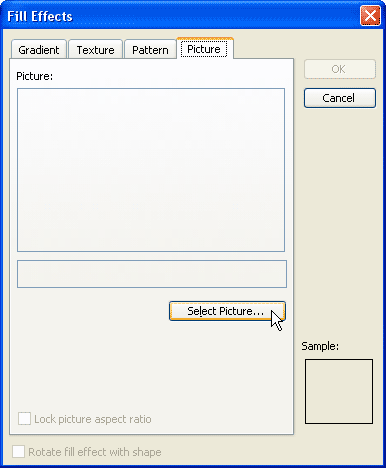
  6. This summons the Fill Effects dialog box that you can see in Figure 4. This dialog box has four tabs: Gradient, Texture, Pattern and Picture -- select the Picture tab (again, refer to Figure 4).

    Picture tab of the Fill Effects dialog box
    Figure 4: Picture tab of the Fill Effects dialog box

  7. Click the Select Picture button (refer to Figure 4 above).

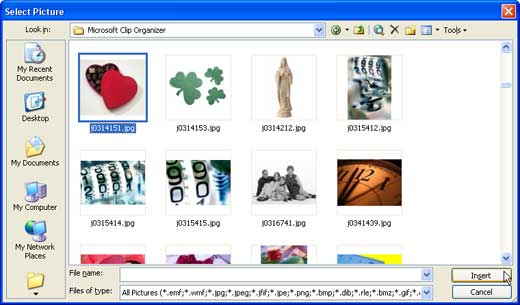
  8. This opens Select Picture dialog box as shown in Figure 5. Navigate to where you have saved pictures to be used as fills, select a picture, and click the Insert button.

    Select picture dialog box
    Figure 5:
    Select picture dialog box.

  9. This will take you back to the Fill Effects dialog box. In the Fill Effects dialog box, there are two options that you should be aware of:

    The Lock Picture Aspect Ratio check box, when selected locks the height to width aspect ratio of your picture so that their proportion doesn't change when used as a fill.

    The Rotate Fill Effect with Shape check box, when selected makes sure that the picture used as a fill rotates when the container AutoShape is rotated.

  10. Click OK to apply the picture to the AutoShape, and get back to the Format AutoShape dialog box. Thereafter, click OK again to get back to your slide and AutoShape.

  11. Remember to save your presentation often.


    Related Link: Learn how to do more with AutoShapes in this free excerpt from my book: Cutting Edge PowerPoint For Dummies -- read a free chapter called AutoShape Magic here...

Sample Picture Fill in AutoShape Presentation


Click above to view on AuthorStream


Featured Story

Adobe Captivate's Edit View

In an earlier post last week, I discussed Adobe Captivate's views and compared them to PowerPoint's deafult views. I also explained about the Storyboard View. In this post, I'll look at Captivate's Edit view, which in many ways is similar to PowerPoint's Normal view. If you are not already in Edit view within Captivate, choose the View drop-down in the toolbar, and select Edit View.

Learn more here...


Featured Book

PowerPoint 2007 Complete Makeover Kit

PowerPoint 2007 Complete Makeover Kit
PowerPoint 2007 Complete Makeover Kit is out! Check the book on Amazon.com...

And here are some free excerpts...


Home |  PowerPoint |  Photoshop |  Templates |  Blog |  Notes |  Ezine |  Studio |  Advertise |  Feedback |  Info |  Site Map
Store  |  RSS |  Privacy |  Testimonials
Free PowerPoint Backgrounds | Free PowerPoint Templates | Free Christian PowerPoint Backgrounds
Page copy protected against web site content infringement by Copyscape
  Page copy protected against web site content infringement by Copyscape


  ©2000-2009, Geetesh Bajaj. All rights reserved.

    since November 02, 2000