Home     PowerPoint     Photoshop     Photos     Other     Studio     Info

Bookmark and Share  


Animation Speed

Author: Geetesh Bajaj

Product/Version: PowerPoint 2002, 2003, and 2007

Date Created: March 30th 2009
Last Updated: March 30th 2009


Excerpt/Capsule: Explore speed presets in PowerPoint that determine how long an animation takes to complete.


Product Showcase


When you add animation to any slide object, and set the animation event for it to occur, the next thing to do is set the speed of the animation.

There are five speed presets available in PowerPoint:

  1. Very Slow: This animation speed plays for 5 seconds.
  2. Slow: This animation speed plays for 3 seconds.
  3. Medium: This animation speed plays for 2 seconds.
  4. Fast: This animation speed plays for 1 seconds.
  5. Very Fast: This animation speed plays for 0.5 seconds

Note: If you want to change the timing or speed of any animation beyond these available presets, you do that by using the Advanced Timeline that we will explore in a future tutorial in this series.

Follow these steps to change the animation speed for any animation:

  1. Select the object that has an animation applied to it. If you don't know how to add an animation to a slide object, refer to the Adding an Animation tutorial.

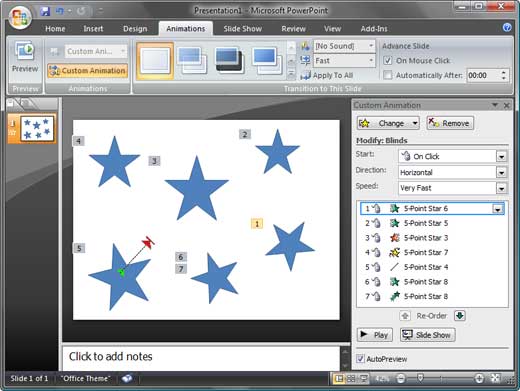
  2. Now make sure that the Custom Animation task pane is visible as shown in Figure 1. If this task pane is not visible, you won't be able to see or select any animations.

    For PowerPoint 2007 users, make sure that the shape is still selected, then activate the Animations tab of the Ribbon -- next click the Custom Animation button to bring up a task pane of the same name that you can see in Figure 1. Remember, this is a toggle option: click once to show the Custom Animation task pane, and click again to hide it!

    Users of earlier PowerPoint versions (PowerPoint 2002 and 2003) can again make sure that their shape is selected. Then they should choose Slide Show | Custom Animation to access a similar task pane (see Figure 1).

    Custom Animation
    Figure 1: Custom Animation

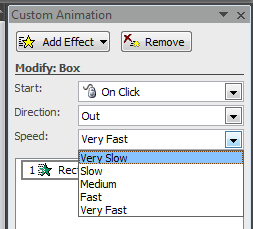
  3. Now access the Speed drop down list, as shown in Figure 2. Select the animation speed you want to use for the selected animation.

    Animation Speed
    Figure 2: Animation Speed

  4. Save your presentation.

The following presentation shows you five preset animation speeds in PowerPoint:


Featured Story

Adobe Captivate's Edit View

In an earlier post last week, I discussed Adobe Captivate's views and compared them to PowerPoint's deafult views. I also explained about the Storyboard View. In this post, I'll look at Captivate's Edit view, which in many ways is similar to PowerPoint's Normal view. If you are not already in Edit view within Captivate, choose the View drop-down in the toolbar, and select Edit View.

Learn more here...


Featured Book

PowerPoint 2007 Complete Makeover Kit

PowerPoint 2007 Complete Makeover Kit
PowerPoint 2007 Complete Makeover Kit is out! Check the book on Amazon.com...

And here are some free excerpts...


Home |  PowerPoint |  Photoshop |  Templates |  Blog |  Notes |  Ezine |  Studio |  Advertise |  Feedback |  Info |  Site Map
Store  |  RSS |  Privacy |  Testimonials
Free PowerPoint Backgrounds | Free PowerPoint Templates | Free Christian PowerPoint Backgrounds
Page copy protected against web site content infringement by Copyscape
  Page copy protected against web site content infringement by Copyscape


  ©2000-2009, Geetesh Bajaj. All rights reserved.

    since November 02, 2000