
This is the print version of this page. All content is copyright Indezine.com 2000-2026.
Read an exclusive book excerpt from Visual Quickstart Guide: Microsoft Office PowerPoint 2003 for Windows.
Author: Rick and Rebecca Altman
Product/Version: PowerPoint
 This book extract from Visual Quickstart Guide: Microsoft Office PowerPoint 2003 is an Indezine exclusive with permission from Peachpit Press.
The book takes an easy, visual approach to teaching PowerPoint, using pictures to guide you through the software and show you what to do.
Authored by Rick and Rebecca Altman, the book has been completely updated for the new PowerPoint 2003. Rick Altman is host of the acclaimed PowerPoint Live user conference, an annual event that's evolved into an amazing international learning symposium.
I wish to thank Rick Altman, Damon Hampson, Kim Lombardi and Peg Dolan for facilitating the permission to extract.
Introduction
Selecting a Printer
Previewing Slides in Grayscale
In most cases, the screen is a presentation's final output device. You create your presentation, show it on a computer or projector screen, and then you're done. Often, a presentation never actually makes its way to paper.
Nevertheless, when you need to print a presentation, you need to do it correctly, and that is the focus of this chapter. Little is more frustrating than creating a presentation that looks great onscreen…and watching it come out looking like mud from your laser printer.
You use the Print dialog box (Figure 19.1) to send output to a printer or file. Here, you select what to print: slides, handouts, speaker notes, or an outline of the presentation. We'll cover all four types of output in this chapter.
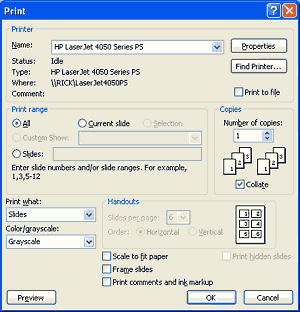
Figure 19.1 The standard Print dialog box looks a bit different in PowerPoint, due to the many choices of output.
PowerPoint offers a Print Preview option (Figure 19.2), which lets you see how different types of output will look when complete. Good thing, too: In this case, we discovered that the dark bar with black text looks pretty awful and we were able to fix it before printing.
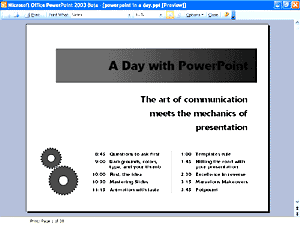
Figure 19.2 Print Preview is handy for warning you of impending disaster.
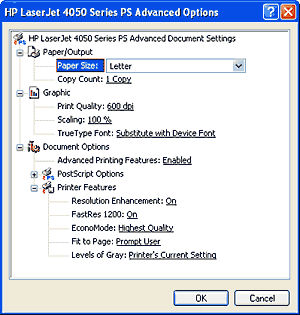
The Print dialog box initially indicates the current printer. If you are connected to more than one printer and want to specify a different one, follow these steps.
To select a different printer:
Tips
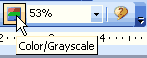
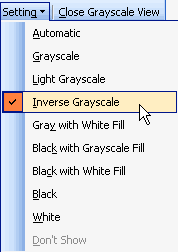
If you plan to print your slides on a monochrome printer, you may want to preview them in grayscale beforehand. PowerPoint offers an easy way to do this.
To preview slides in grayscale:
Tips
Altman/Altman, MICROSFT OFFICE POWERPT 2003 WIN: VISUAL QUICKSTART, ©2003 Reproduced by permission of Pearson Education, Inc. Publishing as Peachpit Press. ALL RIGHTS RESERVED.
You May Also Like: Presentation Skills: Conversation with Payam Bahrampoor | Costa Rica Flags and Maps PowerPoint Templates


Microsoft and the Office logo are trademarks or registered trademarks of Microsoft Corporation in the United States and/or other countries.
