
This is the print version of this page. All content is copyright Indezine.com 2000-2025.
Read the Indezine review of PowerTalk, Page 1 of 2.
Author: Geetesh Bajaj
Product/Version: PowerPoint
Introduction
Steve, Simon and Speechmakers
Download and Installation
Getting Started
Surprises can add value to so many things in life. PowerTalk is one such surprise - imagine a free program that adds speech abilities to PowerPoint. What's even more surprising is the fact that it is so less publicized. Few people know about this program, so the best way to begin this review would probably be to start with how it evolved.
BackSteve Lee, a software developer based in the UK explains that he got to the stage where he wanted to give something to the accessibility cause. He further adds that he likes the concept of Open Source Software (OSS) where a community of people work together to develop solutions and ensure that software can be modified freely.
Steve wanted to put the accessibility and OSS concepts together and when he discovered Simon Judge of Speechmakers, they both found that they were thinking along similar lines. Around this time, a letter appeared in the BCS Disability Group's Ability magazine requesting help in presenting PowerPoint content to an audience including blind and visually impaired people. Also, this was to be presented by some one with aphasia. As Steve explains "This letter was an ‘ahah’ moment for me and all the threads came together. I could use a little Python (an OSS developer language) code to glue together PowerPoint and SAPI (Microsoft's Speech API) to solve the person’s problem and provide some starting code for Speechmakers. The code would simply hook up to PowerPoint events and grab slide text, squirting it at SAPI to narrate."
Steve further adds: "The reality was not so simple. All the hard COM automation work for Python had been done by Python Window ’s Guru Mark Hammond. PowerPoint, however, worked in strange ways and I could not get the simplest thing to work. The great power of OSS development is that people help each other and Mark soon sorted out the problem via email and the result is the very little code that makes PowerTalk tick."
BackPowerTalk is available for download from the Speechmaker's site (link no longer exists).
Find a download link on the page. Installation is easy - after the setup is complete, you'll find a new PowerTalk group in your Windows' Start menu.
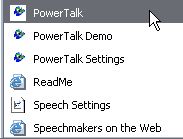
During installation, you are prompted if you want PPS and PPT files to automatically be associated with PowerTalk. Unless you want to open PowerPoint files all the time with PowerTalk, you will want this feature turned off. After installation, it is easy to enable or disable this feature anytime through the PowerTalk Settings option in the PowerTalk menu in the Windows' Start menu.
The installation also includes a sample PowerPoint file called Power Talk.ppt that includes special tags that the Microsoft Speech API can understand.
PowerTalk requires PowerPoint 2000 or later to be installed on Windows 2000, XP, 2003 Server or newer.
BackFor a start, just click the PowerTalk icon in your Start menu - this will result in a dialog box that prompts you to open a PowerPoint presentation. Navigate to the folder where you installed the Power Talk program and open the sample file.
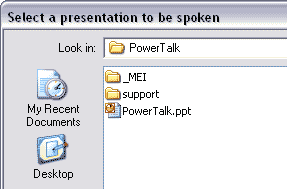
The sample presentation should automatically load in show mode and start playing - while it is being presented, you'll hear a computer generated narration that reads out text that's either visible on screen or not. This sample presentation also describes the PowerTalk concept and showcases the narration capabilities. Let's explore how this works.
BackYou May Also Like: Lesotho Flags and Maps PowerPoint Templates | Image Importer Wizard 2.x



Microsoft and the Office logo are trademarks or registered trademarks of Microsoft Corporation in the United States and/or other countries.
