Home     PowerPoint     Photoshop     Photos     Other     Studio     Info

Bookmark and Share  


AKVIS LightShop 2

Reviewed: Geetesh Bajaj

Date Created: December 10th 2007
Last Updated: February 27th 2009


Product Showcase


Introduction

AKVIS LightShop 2 is a Photoshop compatible plug-in that allows you to create fascinating light effects such as lightning, fireworks, halos, glows, flares, etc. The settings and tweaks within LightShop provide an infinite number of light effects. AKVIS LightShop 2 is available as a stand-alone application and as a Photoshop plug-in.

LightShop 2 is from AKVIS, a company based in Russia that specializes in graphics programs. Apart from Frame Suite, AKVIS also creates other Photoshop compatible plug-ins like Retoucher, Chameleon, Stamp, Sketch, Enhancer, Decorator and Coloriage.

You can download a free 10 day trial version of LightShop 2 from the AKVIS site...

My contact at AKVIS for this review was Kat Kharina, thank you Kat.

Back


How To Use

Here’s how you can use LightShop 2:
  1. Open any image in an image editor such as Adobe Photoshop (or create a new image). LightShop also works with a transparent layer.

  2. Choose Filter | AKVIS | LightShop, as shown in Figure 1.

    Akvis LightShop
    Figure 1: AKVIS LightShop

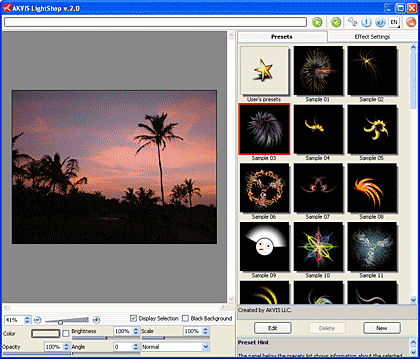
  3. This will open the LightShop 2 interface that you can see in the Figure 2 below.

    AKVIS LightShop Interface
    Figure 2: AKVIS LightShop Interface

  4. The interface is divided into two parts the left side is the preview window where you can see the picture and the changes made, the right side of the interface has the presets and effect settings.

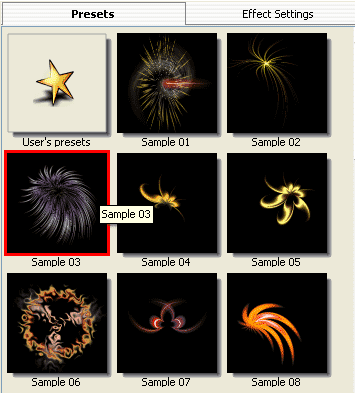
  5. Select any of the ready to use light effects from the preset list provided as shown in Figure 3.

    Light Presets
    Figure 3: Light Presets

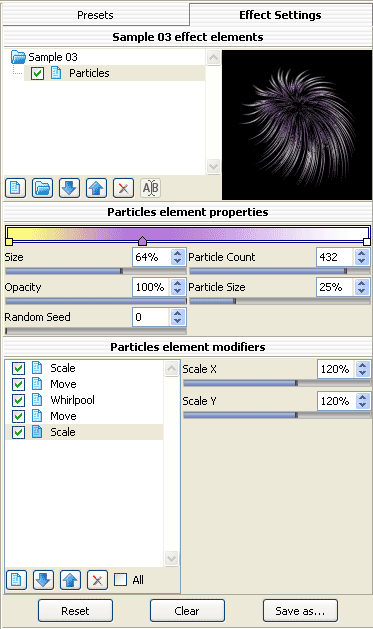
  6. Once the light is selected, double click to open Effect Settings - where you can change the properties of the light as required (see Figure 4).

    Light properties

    Figure 4: Light properties

  7. After all the changes are made, click the Run icon (see icon below).


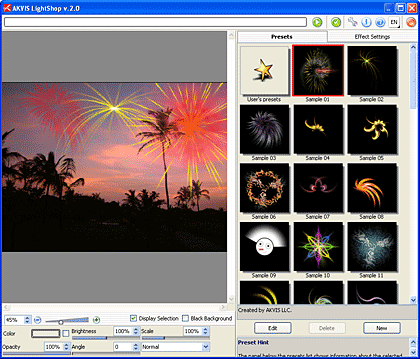
  8. This applies and creates a preview of the image. You can anytime make changes or apply more lights as required. You can preview the changed image in the After tab, as shown in Figure 5.

    The Before and After Tabs
    Figure 5: The Before and After tabs

    For this picture I have applied three different light effects.

  9. Once you’re done with the applying the light effects, apply the result to the image by pressing the Apply icon (see icon below) to return to the image editor.


Note: Although the instructions above showed how you can use AKVIS LightShop as a Photoshop plug-in, the product also works in the same way in standalone mode -- just launch the application through its icon in the AKVIS LightShop group in your Windows Start Menu.

Back


Specifications


Photoshop Versions:

5+

Platforms:

Windows, Mac

Site:

AKVIS

Price:

US$117 and above

Trial Version:

10 days

Back


Featured Story

Adobe Captivate's Storyboard View: Similarity for PowerPoint Users

Let me imagine that you started your e Learning project with a PowerPoint presentation -- and then you imported that presentation into Adobe Captivate. Worth noting here that Captivate 4 includes this great PowerPoint roundtrip workflow that I discussed in an earlier blog post. OK -- now that you have imported your PowerPoint presentation into Captivate, it's time to get working. First of all, let me tell you that at least two of the three views in Captivate look and work exactly like PowerPoint's own views although they are called different names.

Learn more here...


Featured Book

PowerPoint 2007 Complete Makeover Kit

PowerPoint 2007 Complete Makeover Kit
PowerPoint 2007 Complete Makeover Kit is out! Check the book on Amazon.com...

And here are some free excerpts...


Home |  PowerPoint |  Photoshop |  Templates |  Blog |  Notes |  Ezine |  Studio |  Advertise |  Feedback |  Info |  Site Map
Store  |  RSS |  Privacy |  Testimonials
Free PowerPoint Backgrounds | Free PowerPoint Templates | Free Christian PowerPoint Backgrounds
Page copy protected against web site content infringement by Copyscape
  Page copy protected against web site content infringement by Copyscape


  ©2000-2009, Geetesh Bajaj. All rights reserved.

    since November 02, 2000