Home     PowerPoint     Photoshop     Photos     Other     Studio     Info

Bookmark and Share  


Reframe For Mac

Reviewed: Geetesh Bajaj

Date Created: October 30th 2009
Last Updated: October 30th 2009


Product Showcase


Introduction
About Reframe
Working with Reframe
Pricing and Support
Conclusion


Introduction

Let us imagine that you have some video that you want to show within a PowerPoint presentation -- and the format is not something PowerPoint can accept. Looking at another example, what do you do if you want to create some video for display on a web site or mobile applications. I won't go into technical terms like frame rates or aspect ratios that video geeks use all the time -- but I do agree that there's still the need to convert videos between formats and other definitions all the time. Luckily, Reframe from Miraizon is one application that keeps things simple for me.

Back


About Reframe

Reframe is from Miraizon, a company based in California, USA. You can learn more about their products from their site...

Reframe is a video standards converter -- in simple terms, it is a program that lets you convert audio and video from one standard to another. Just so that you don't have to get worried about these standards, the application includes some pre-defined settings that can help you decide what you want to do. With Reframe, you can convert your movie clips to make them suitable for presentations, posting on YouTube, or for viewing on iPods or iPhones.

My contact at Miraizon for this review was Naoko Miyazaki - thank you, Naoko.

Back


Working with Reframe

Download the installer, run the setup routine and follow the instructions. When installed, follow these steps to convert video/audio files using Reframe.
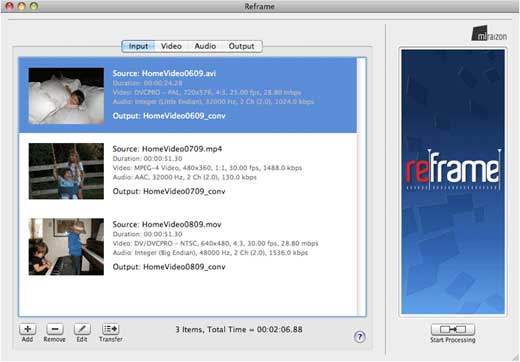
  1. Start Reframe. As shown in Figure 1, Reframe uses a tabbed interface. The first tab is Input.

    reframe interface
    Figure 1: Reframe interface

  2. Within the Input tab, you can import one or multiple video and audio clips, then edit the properties, and choose an output file name for each individual clip. You can also then save the Input List and load it again later for reuse. Figure 1 shows some movie clips imported within the Reframe interface.

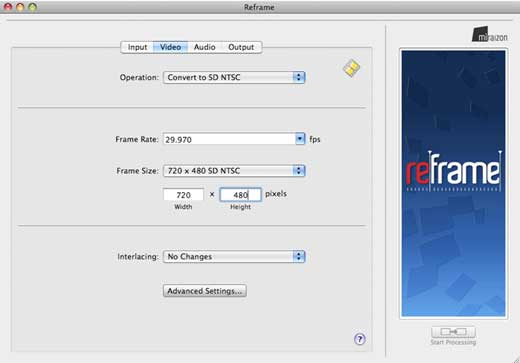
  3. The next tab, Video can be seen in Figure 2.

    Video tab
    Figure 2: Video tab

    Here you can select pre-defined video operations, or customize them if you want to. Customized settings can be saved if you want. Also, there's an Advanced Settings option that lets you tweak further as required.

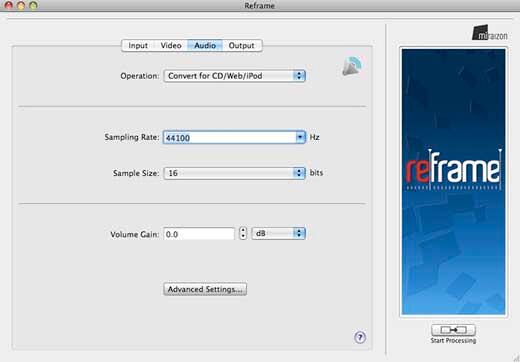
  4. For audio settings, select the Audio tab as shown in Figure 3.

    Audio tab
    Figure 3: Audio tab

    Options here work in the same way as within the Video tab.

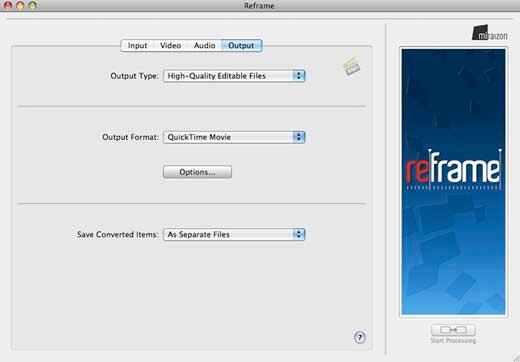
  5. The last tab within the Reframe interface is called Output, as shown in Figure 4.

    Output tab
    Figure 4: Output tab

  6. Here you can choose from several output types and file formats -- when done, click the Start Processing button. Depending upon the size of the input files and complexity involved, processing can take a while. Reframe is optimized to deliver high performance conversion, but the overall performance (speed) depends on the type of media files you are processing, the machine you are using, and the settings applied. Miraizon does recommend using a machine with multiple CPUs if available for a noticeable increase in performance.

Back


Pricing and Support

Reframe costs $129.95.

Support options include e-mail, phone support, and an online FAQ. The product also includes a User Guide PDF, and online Help that can be accessed from within the program.

Back


Conclusion

Reframe takes a complicated task, and then makes it easy for you with plain English terminology. Of course, if you want to dive deep, you can click the Advanced Settings and Options buttons -- and then explore the other options -- however most users will be happy with the preset options. With Reframe, Miraizon has created a simple, yet eminently usable product.

Back


Featured Story

Adobe Captivate's Edit View

In an earlier post last week, I discussed Adobe Captivate's views and compared them to PowerPoint's deafult views. I also explained about the Storyboard View. In this post, I'll look at Captivate's Edit view, which in many ways is similar to PowerPoint's Normal view. If you are not already in Edit view within Captivate, choose the View drop-down in the toolbar, and select Edit View.

Learn more here...


Featured Book

PowerPoint 2007 Complete Makeover Kit

PowerPoint 2007 Complete Makeover Kit
PowerPoint 2007 Complete Makeover Kit is out! Check the book on Amazon.com...

And here are some free excerpts...


Home |  PowerPoint |  Photoshop |  Templates |  Blog |  Notes |  Ezine |  Studio |  Advertise |  Feedback |  Info |  Site Map
Store  |  RSS |  Privacy |  Testimonials
Free PowerPoint Backgrounds | Free PowerPoint Templates | Free Christian PowerPoint Backgrounds
Page copy protected against web site content infringement by Copyscape
  Page copy protected against web site content infringement by Copyscape


  ©2000-2009, Geetesh Bajaj. All rights reserved.

    since November 02, 2000