
This is the print version of this page. All content is copyright Indezine.com 2000-2026.
Discover creative ways to design editable, visually rich charts in PowerPoint using textures and image fills.
Author: Jennifer Rotondo
Product/Version: PowerPoint
 Jennifer Rotondo is a Microsoft certified "PowerPoint Expert" who utilizes her abundance of knowledge in her Advanced PowerPoint Seminar and in several publications including Presentation Skills for Managers (McGraw-Hill), Point, Click & Wow! - (book with CDROM), PowerPoint 2000: Getting Professional Results (Microsoft) and Understanding Computers.
For Presentations magazine, she critiques subscribers' presentations and writes a creative techniques column. Her media design company, Creative Minds, Inc. specializes in presentation, multimedia design, website and print design. Creative Minds also designs PowerPoint presentation tools and add-ins to help users maximize the application.
We all get frustrated with the limitations we have with the look of charts creating using PowerPoint's charting tool. They tend to be flat and dull. That's why we started creating robust charts in Adobe Photoshop. Photoshop gives us the ability to manipulate and create the chart with minimal limitations. We can make them any color, shape, size, and opacity. We can also use Photoshop's layers to give depth to our charts and we can fill our charts with any images we want. This gave us the ability to create gorgeous charts for our clients.
But what began to happen is the client would need to edit the data in the chart. So, we would have to recreate the chart each time they needed to update the data. This became very time consuming and cumbersome. We decided we needed to come up with a happy medium between the creative flexibility that Photoshop provides and the functional flexibility that PowerPoint provides.
We decided that we needed to explore two avenues:
We found several 3rd party charting tools. Most would allow you to create a good-looking chart in PowerPoint. You could also edit the data, so this was a big plus. Then, once we distributed the presentation for others to use, we found the major downfall. The person had to have the software on their computer in order to edit the new chart that we thought was editable! So, this option was no better than Photoshop. We were not going to give up the ability to create great charts for the limited flexibility these pieces of software offered.
Our final resort was to really dig into PowerPoint's charting capability and see what we could come up with. Here's what we found:
By filling your chart with a picture, you can get a similar effect as a Photoshop-created chart. You still have a little pixelation on pie charts, but you have to sacrifice this for the ability to edit your data.
There are two different ways you can fill your charts. You can fill your whole chart with one image or you can fill each individual piece with its own image. No matter which option you choose, the key is the image you use. You cannot use an image of an object, person, place or anything that is recognizable. You must use some sort of a unique texture. Something that has no repeat pattern and can be scaled or skewed.
Let's start with filling a pie chart.
In our first example shown in Figure 1, below, the image we filled our pie with is on the left and it is 400 x 400 pixels. The image itself can be smaller or larger, but the graphic will scale to fit in each piece of the pie. So, the whole pie isn't filled with one image, each piece is filled with that same image.
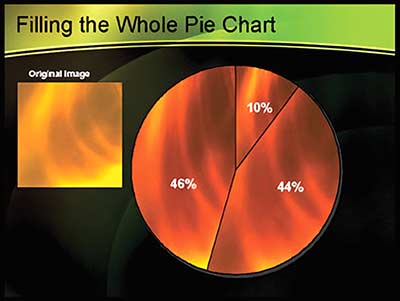
Figure 1: Pie segments filled with the same image
In our second example shown in Figure 2, below, we filled each piece with a different image. The images on the left are the three images we used to fill each of the three pieces of the pie. Follow the same directions as above to get into edit mode. Instead of just double-clicking the whole pie chart, continue to single-click on one of your pieces of the pie until you see the selection only around that one piece. Then, double-click to get your Format Data Point pop-up window. Select Fill Effects | Picture | Select Picture and locate your image. Click Insert | OK and OK again. Then, only that one piece of your pie is filled with the image. Follow the same steps to fill each piece of your pie.
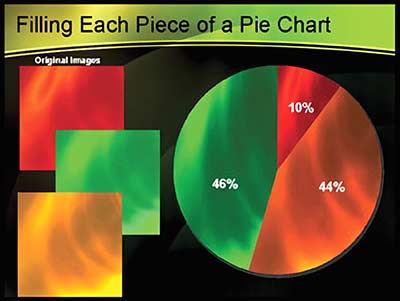
Figure 2: Filling each segment of a pie chart
In our third example shown in Figure 3, below, you can see why you shouldn't fill your chart with a recognizable image. Plus, it shows you how the image is scaled to fit into the piece of the pie. We created the tiny image on the left to fill the largest piece of the pie. As you can see, it scales the image size to make it fit the entire area and it also skews the image so it is not very recognizable. This is what you don't want your charts to look like!
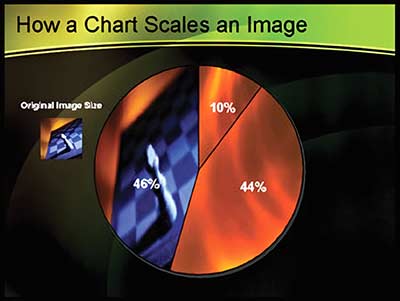
Figure 3: Picture me distorted
In our fourth example shown in Figure 4, below, is a bar chart. We filled the bars with the same image, just like we did with the pie #1, shown in Figure 1. Look at the image on the right of the slide. This is what the bars were filled with. Notice the pattern in this image. Now compare it to the way the three bars look. Each of the bars is filled with the entire image, but based upon the value of the bar, the image is scaled to fit in the bar. Bar 1 is the closest to the original image. That's because it's the closest to being a square. If we would have created our image as more of a rectangle, then there would be less need to scale the image to fit the bars. Either way, the bars still look better than filling them with normal PowerPoint fills. Plus, you still keep the benefit of the data being editable.
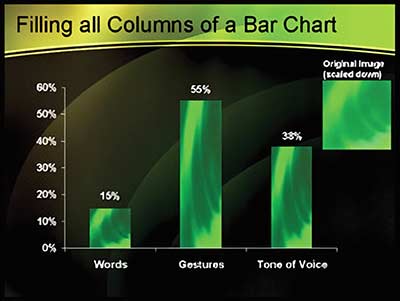
Figure 4: Fill effect in bar chart
In our fifth example shown in Figure 5, below, is the same bar chart, with each bar filled with a different image. You do this by taking the same steps as our pie #2, shown in Figure 2.
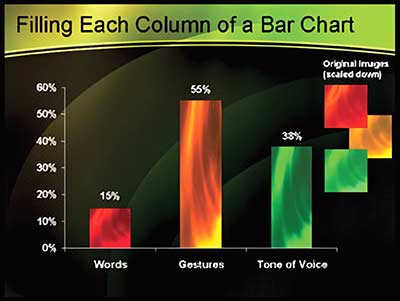
Figure 5: Fill each column of bar chart
Our sixth slide in Figure 6, below, shows you more details of the options you have to fill your bars. This gives you a little more control over how the image is displayed within the bar. You can tell it to stretch the image, stack the images on top of one another or you can specify how many images you may want to stack. The third option actually uses a combination of stretching and stacking.
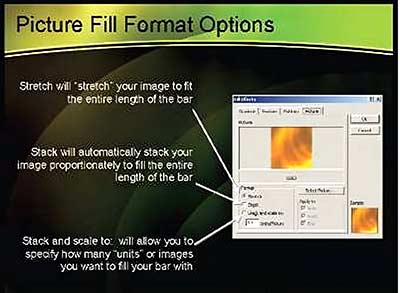
Figure 6: Other fill options for bar charts
Finally, our seventh slide in Figure 7, below, displays the three options on slide 6. The red bar on the left shows Stack and Scale to and we entered 0.70. You can see that the image is actually squeezed and stacked because our value is less than 1. The two bars under stack show you an effective stack vs. a non-effective stack. The image of our texture doesn't work when you want to stack, but the dollar bags do! The final bar is stretch. This is the most effective use of our textured image.
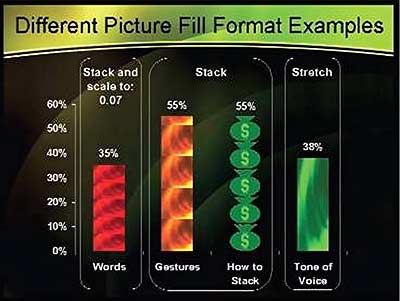
Figure 7: Different picture fill examples
We've only discussed filling 2D charts in this article. But, you also have the option of filling your 3D charts with an image. We do not recommend this! Generally, it doesn't look good!
You can test the scaling of your image by changing the values in your Datasheet. This will show you that your image scales within each of the pie pieces so the chart is beautiful and editable!
You May Also Like: 16 Design Tips for Beautiful Presentations | How to Use Fairy Stories to Boost Your Business


Microsoft and the Office logo are trademarks or registered trademarks of Microsoft Corporation in the United States and/or other countries.
