
This is the print version of this page. All content is copyright Indezine.com 2000-2025.
Understand PowerPoint’s motion paths effects and combine them with other effects.
Author: Julie Terberg
Product/Version: PowerPoint
 Julie Terberg has more than 15 years of presentation-design and computer-graphic experience.
She specializes in custom-designed presentations, including animation and multi-media applications.
This article appeared originally in Presentations magazine.
Adding animation to an object in Microsoft PowerPoint is simple: select an object, choose Add Effect (from the Custom Animation Task Pane), select one of the program's many preset effects and you're done. But what if you're looking to put a little spin on things, literally? To make visuals really move you need to understand PowerPoint's motion paths effects and how to combine them with other effects for dynamic results.
A motion path moves an object on a slide, from one position to another, following one of PowerPoint's 64 pre-defined paths. You can also draw a custom path. Each path is fully editable, making it easy to start with a preset path and edit the existing points to the desired motion.
On a slide, a motion path is represented with a dotted line indicating the path that the object will follow when animated. A green arrow signifies the start position and a red arrow shows the path's end. White dots form a box around each path, and these dots are sizing handles. You can click on any dot and stretch, shrink, rotate or reposition the path. A green handle indicates the ability to rotate a path, while a four-point arrow gives you the option to move the entire path (see Example 1).
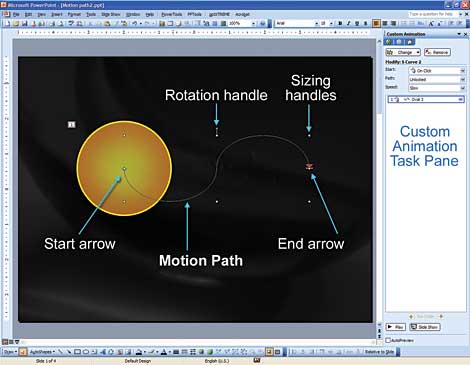
Example 1: A dotted line indicates the motion path, and the path the object take across the slide when animated. The larger white dots can be used for sizing and rotating paths.
Preset paths always "snap" the starting point to an object or group's center. This means that the path will begin at the object's current position on the slide. If you want the object to follow a path onto the slide, you can simply move the object off screen and the path will follow.
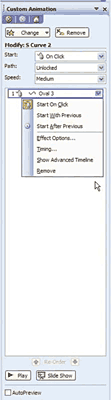
Example 2: PowerPoint 2003's Custom Animation task Pane provides many options for Motion Paths.
Once you have created a path, the Custom Animation task pane provides plenty of options for customizing the animation (see Example 2). You can control when the animation will start, its speed and the path itself. The path option allows you to change the path from the default Unlocked position to Locked. What does this mean? Essentially, an unlocked path is not locked in place on the slide and will move along with the object if you edit the object's position. A locked path will remain in its original position if you move the object. You may want to experiment with both options to grasp this concept and decide if it is useful for your animations.
In addition, the small black arrow to the right of every listed motion path opens a drop-down menu with the following options: Start Options, Effect Options, Timing, Show (or Hide) Advanced Timeline, and Remove (see Example 2).
The Effect Options choice in this menu opens the Custom Path dialog box which has more settings, some of them repeated in other menus. The Effect tab includes Smooth start and Smooth end, checked by default. These commands make the object travel a bit slower at the beginning and ending of the Motion Path.
The Timing tab offers adjustments to the animation's speed. Here, you can edit the start time, enter a delay, and type in a new speed to within a hundredth of a second.
One way to pack more punch into a motion paths is to take advantage of the fact that PowerPoint can add more than one effect to any object or group. There are so many combinations and possibilities: Fades, Spins, Zooms, Grow/Shrink, Collapse, etc.
To demonstrate this, say you want an animation that flips a company logo on to the slides.
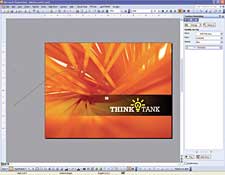
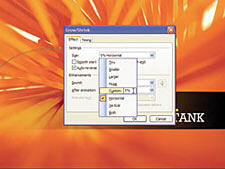
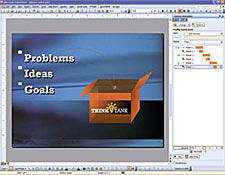
The next animation uses motion paths to create a faded zoom effect that make text seem to disappear into a box. In this slide, the Think Tank box represent the repository for problems, ideas, and goals (see Example 5). Here's how it's done.
These are just a couple of examples of how to get more out of your animations by combining Motion Paths with other effects. Experiment on your own to create custom animations with push the limits of what you might expect from PowerPoint.
You May Also Like: 30 Million PowerPoint Presentations? | 30 Million or a Billion PowerPoint Slides?



Microsoft and the Office logo are trademarks or registered trademarks of Microsoft Corporation in the United States and/or other countries.
