
This is the print version of this page. All content is copyright Indezine.com 2000-2026.
Patrice-Anne Rutledge looks at controlling inserted Flash movies in PowerPoint with macros.
Author: Patrice-Anne Rutledge
Product/Version: PowerPoint
Controlling Your Flash Movie with Macros
Controlling Macros with Action Buttons
Making Action Buttons Invisible
Importing a PowerPoint into Flash
The Final Step
Of course, you may not want your movie to play as soon as you open the slide that contains it. To control the start and finish of a Flash movie in your PowerPoint presentation, you can create macros and access them via action buttons. Let's say that you want to introduce the concept behind the Flash movie first, play the movie, replay a portion for emphasis, and then stop. You can create macros for each action (play, rewind, and stop) and then assign these actions to action buttons that you click during your presentation.
To create the macros, click the View Code button on the Control Toolbox to open the Microsoft Visual Basic Editor. Don't worry if you're not a Visual Basic expert. The modules you create are very straightforward. If you do have VBA experience, you can design an even more customized solution. In the editor, choose Insert, Module; a module window appears. In this window, enter the following code:
Sub ShockPlay()
Slide1.ShockwaveFlash1.Play
End Sub
Type Sub ShockPlay() on the first line and then press Enter. The editor moves you to a blank line and then automatically enters the text End Sub on the third line. On the blank line in between, indent and type Slide1.ShockwaveFlash1.Play, substituting the appropriate numbers if the Flash movie isn't on the first slide or isn't the first Flash object you embedded. Drop-down lists appear after you enter each period to assist in your selections.
You can create a similar module to rewind the movie using the following code:
Sub ShockRewind()
Slide1.ShockwaveFlash1.Rewind
End Sub
The code for stopping the movie would be:
Sub ShockStop()
Slide1.ShockwaveFlash1.Stop
End Sub
Again, remember to modify the slide and ShockwaveFlash numbers, if necessary. Click the Save button and then choose File | Close and Return to Microsoft PowerPoint to exit Microsoft Visual Basic Editor.
BackNow you need to add action buttons to your slide in order to access the macros you created. To do so, choose View, Toolbars, and Drawing to display the Drawing toolbar. On the toolbar, choose AutoShapes, Action Buttons and click one of the action button shapes. Either Custom to design your own button or one of the existing buttons such as Forward or Back. Drag to place the button on the slide in the appropriate location. The Action Settings dialog box appears.
Click Run Macro on the Mouse Click or Mouse Over tab (depending on how you want to control your action), select the macro from the drop-down list (ShockPlay, for example), and click the OK button.
From here, you can customize the fill color and line color of the button with the options on the Drawing toolbar, add text, or resize. Use this same technique to add actions buttons to control your other macros (ShockRewind and ShockStop), if desired.
When you're done, check your movie's properties and verify that Playing is set to False. Now press F5 to preview your show. When you reach the slide with the embedded Flash movie, nothing happens until you click the Play button. You can also rewind, play again, stop to discuss a segment of your movie, and then continue playing it.
BackIf you prefer, you can make an action button invisible, yet still active. To do so, right-click the button, and choose Format AutoShape from the menu that appears. In the Format AutoShape dialog box, select No Fill as the Fill Color and No Line and the Line Color, and then click the OK button. You still see selection handles if you select the now invisible button in Normal view, but the button is invisible on the slide when you run your presentation. Having invisible buttons is a good idea if you don't want your audience distracted by Play, Rewind, or Stop buttons, and enables you to create a more polished presentation. To use this technique effectively, however, you need to remember exactly where you place your invisible buttons so that you click the appropriate location. Placing the action buttons along the bottom left, center, and right of the slide, for example, is one option.
BackUp to this point, we've focused on using Flash movies in PowerPoint. But you can also do the opposite - import a PowerPoint presentation into Flash. For example, you may have an existing PowerPoint presentation you'd like to convert to a Flash movie or want to reuse a portion of your presentation in Flash.
First, you need to save your PowerPoint presentation in a Windows Metafile Format (*.WMF). To do so, choose File | Save As; select Windows Metafile in the Save As Type drop-down list; and click the Save button. A prompt box asks if you want to export every slide in the presentation; click Yes if you do. This process creates a folder with the same name as your presentation (such as Company Meeting) and breaks each slide into a separate file (named Slide1.wmf, Slide2.wmf, and so forth).
Now, open the Flash document into which you want to import your PowerPoint presentation. Select the keyframe where you want to place the first slide. Choose File | Import and select Slide1.wmf in the folder you created when you saved in the Windows metafile format. Click the Open button; click the Yes button when the prompt box asks whether you want to import the entire sequence of images. Each slide in the sequence now appears on a consecutive frame in your Flash movie, as illustrated in Figure 4, below.
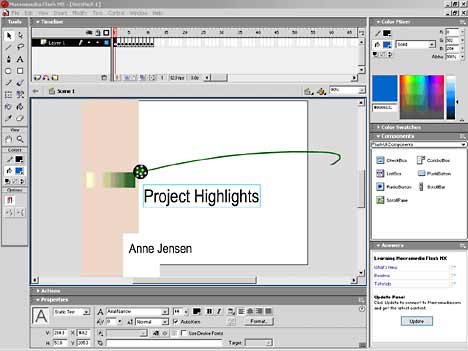
Figure 4: You can edit text and images when you import a PowerPoint presentation into Flash.
One thing to note is that certain backgrounds don't convert well to Flash. If your PowerPoint presentation contains a dark background with white text, for example, you could end up with white text on a white background in Flash. If your first attempt to import a PowerPoint presentation into Flash doesn't look right, modify your background and text colors in the Color Scheme dialog box (Format, Color Scheme). A text color other than white works best. One of the nice things about importing a PowerPoint presentation into Flash is that you can still edit text and images because they're in a vector format.
BackFrom here, you can get creative in inventing ways to bring the interaction between PowerPoint and Flash to its full potential. For example, consider publishing PowerPoint presentations with embedded Flash movies to the Web. Or try out some of the new features of Flash MX to further enhance the level of interactivity and animation you can incorporate into your presentation. By combining the individual strengths of PowerPoint and Flash as presentation tools, the possibilities for creating state-of-the-art interactive presentations are limited only to your imagination.
BackYou May Also Like: Australasia Travel PowerPoint Templates | 6 Reasons Why Your PowerPoint Presentations (Still) Look Boring




Microsoft and the Office logo are trademarks or registered trademarks of Microsoft Corporation in the United States and/or other countries.
