
This is the print version of this page. All content is copyright Indezine.com 2000-2026.
Explore playing media playlists on a slide within PowerPoint 2003.
Author: Geetesh Bajaj
Product/Version: PowerPoint 2003 for Windows
OS: Windows XP and higher
If you use Windows Media Player or any other player to create playlists of your favorite songs, you'll love the new PowerPoint 2003 feature that allows PowerPoint to play your entire playlist. Actually, you can also design a cool presentation that makes your slideshow look like a jukebox - or if you are less adventurous or corporate, you could always use the playlist feature to play a series of musical clips in sequence.
In this tutorial, we are using Windows Media Player playlists, but PowerPoint 2003 can also accept standard M3U playlists - most players can create and edit M3U playlists. If you want to learn more about how Windows Media Player manages playlists, look here.
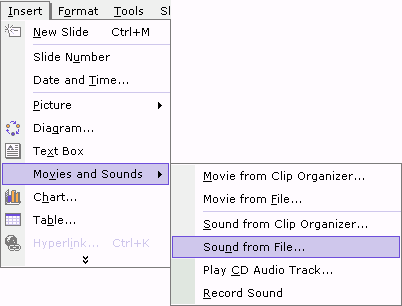
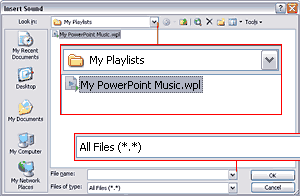
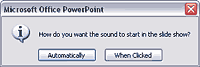
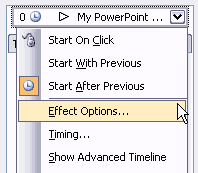
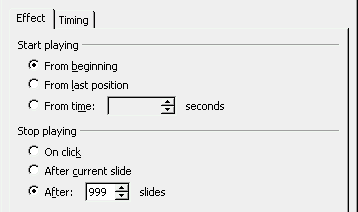
It is a great idea to combine playlists and PowerPoint's Photo Album feature, especially if your playlist comprises only audio media (no video clips).
Since a playlist can include either audio or video, the playlist object will appear and behave like a Movie object in PowerPoint for video. For sounds, it will appear as a black rectangle on the slide (where Windows Media visualizations will appear for audio). There's a current bug where the "hide while not playing" setting does not work. However, if that matters a lot, you can always drag the rectangle off the slide area in editing mode.
Description of Windows Media Audio/Video Playlist Files
How to Create a Personal Playlist for Use in Windows Media Player
How to Import a Playlist File into Windows Media Player
How to Export a Playlist in Windows Media Player

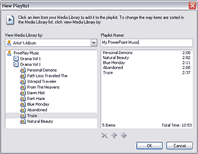
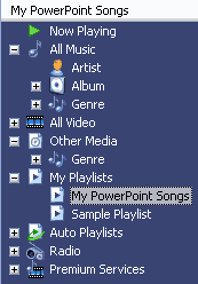
More info about playlists is available at the Microsoft site.
Microsoft and the Office logo are trademarks or registered trademarks of Microsoft Corporation in the United States and/or other countries.
