
This is the print version of this page. All content is copyright Indezine.com 2000-2026.
Easily place your image within a star or another shape in PowerPoint.
Author: Geetesh Bajaj
Product/Version: PowerPoint 2007 and later
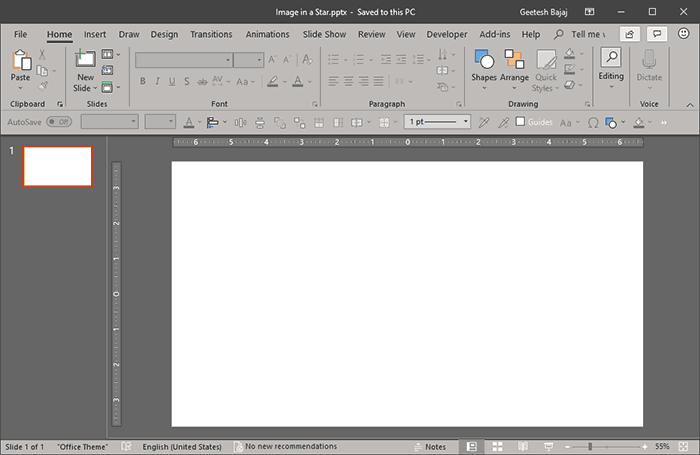
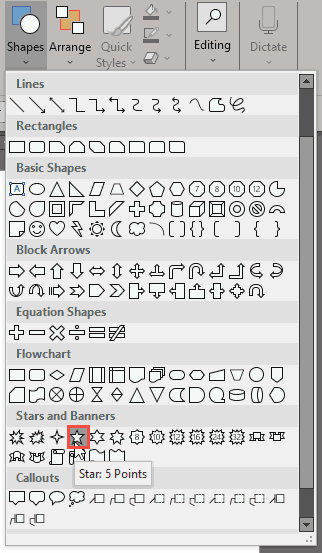
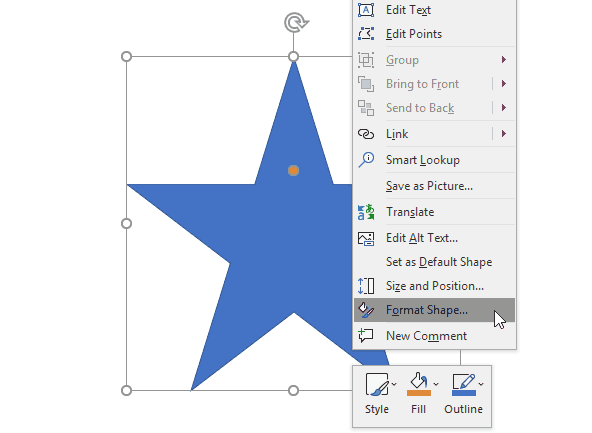
Many times, you may want to add an image within a star shaped container, or any other container shape, such as a diamond, a teardrop, or even a triangle. This is quite easy to achieve, and involves two basic PowerPoint techniques. The first technique is to add a shape, and the second is to fill the shape with an image. Here's how you do it in almost any version of PowerPoint, since PowerPoint 2007 until the recent versions.
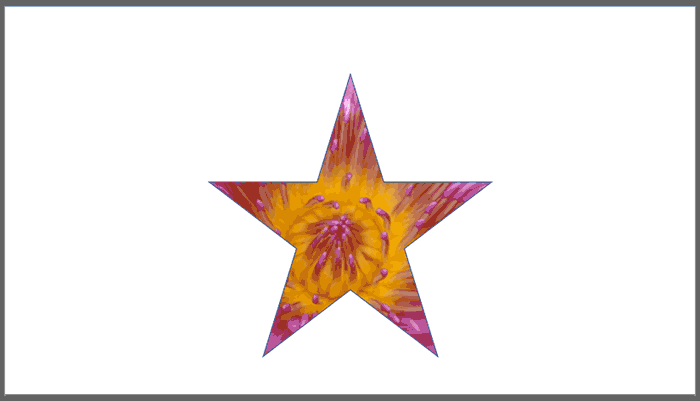
You might want an eight-pointed star rather than a five-pointed star. Or, you might want to choose a conventional square or circle instead. If you already have a picture fill in a shape, you can change the shape without the fill being effected, as shown in the result you see in Figure 5, below.
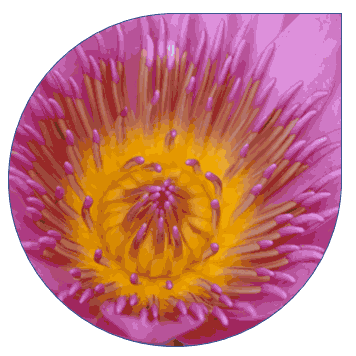
Figure 5: Shape changed
Microsoft and the Office logo are trademarks or registered trademarks of Microsoft Corporation in the United States and/or other countries.
