
This is the print version of this page. All content is copyright Indezine.com 2000-2026.
Create a product development timeline quickly in PowerPoint 365 for Windows. This timeline comprises basic PowerPoint shapes and text
Author: Geetesh Bajaj
Product/Version: PowerPoint 365 for Windows
OS: Microsoft Windows 10 and higher
Thinking about creating a product development timeline in PowerPoint? Let's break it down for you. But first, what is a product development timeline anyway?
Think of a product development timeline as your handy-dandy guide to bringing a new product from the "lightbulb moment" to its grand debut on the market shelves. It's like a road map that shows you all the essential stops along the way — from coming up with a brilliant idea to putting that idea into shoppers' hands. This timeline is super important because it helps you keep everything on track, make sure you're not forgetting any key steps, and keep all the moving parts of creating something new in perfect harmony. Whether you're a seasoned pro or just starting out, sticking to this timeline can make the difference between a product flop and a marketplace smash!
You can see a sample timeline created using PowerPoint in Figure 1, below.
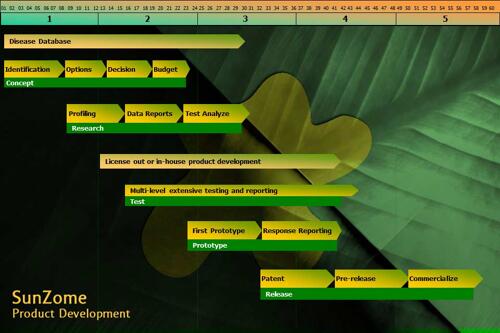
Figure 1: Timeline created in PowerPoint
The timeline isn't just a straight, point-to-point line, though. Along the way, you'll spot all sorts of pit stops for research, various tests, and the creation of prototypes. It's your product's story, with all the twists and turns, presented in a neat, easy-to-follow PowerPoint slide. Trust us, it’s worth the effort!
Most of these terms: concept, prototype, and launch, are classified as tasks. Each task needs to be represented within a timeline.
Ever noticed how some tasks feel like déjà vu? Well, when mapping out a product development timeline in PowerPoint, you'll find:
But there's more to it than just task management. Real-world scenarios throw in their own twists—like shifting time schedules and reshuffling responsibilities. That's why any PowerPoint slide you create for your product development needs to be flexible. It should be simple to update, tweak, and expand whenever necessary.
Hey there, design enthusiasts! Ever heard someone call a timeline an "infographic"? Well, they're not wrong! Crafting a slick timeline for a presentation might seem a bit intimidating at first, but fear not—it's totally doable. In this handy dandy guide, we're going to walk you through the ins and outs of creating a product-development timeline. We’ll use a make-believe scenario with Comitu Inc., a fictional pharmaceutical company. They're all geared up to develop and launch their latest wonder drug, SunZome. So, grab your designer hats, and let's dive into making a timeline that not only informs but impresses!
To follow the techniques explained here, you can download the sample PowerPoint presentation here. You will need an unzipping utility such as WinZip or Stuff it to extract the archive file.
We begin our creation with a simple, uncluttered PowerPoint template that uses the company's corporate color scheme, based on green. The company logo is also incorporated into the slide, as shown in Figure 2, below.

Figure 2: Starting with a clean background is important
The first thing you need to create is a sense of time. This can be achieved by placing a time bar on the top portion of the slide. To create the time bar, draw a narrow, ruler-style rectangle from edge to edge on the slide. Within this rectangle, draw four vertical lines to create five equal sections. Then, type a number, centered in each of these sections, as shown in Figure 3, below.
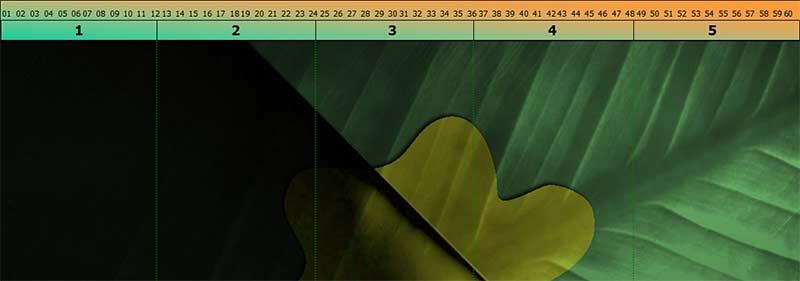
Figure 3: The segmented bar at the top of the slide represents time
Dashed, vertical lines emanate from this time bar to visually divide the onscreen area, as shown in Figure 3, above.
If you want to use a nice, graduated color fill within the time bar, select the rectangle, and add a gradient fill.
Just below the time bar and perpendicular to it, create four dashed lines that span most of the slide from top to bottom.
Once you have formatted your first line, select it with your mouse and then press Ctrl + D to duplicate it for as many other lines as you need.

Do you want more keyboard shortcuts?
Explore our PowerPoint Keyboard Shortcuts and Sequences Ebook that is updated for all PowerPoint versions.
Now, you need to create shapes that will represent the actual tasks within the timeline. Use a regular shape for this purpose. For our example, we'll use the Pentagon shape. Bring up the Shapes gallery, and locate the Block Arrows section, as shown in Figure 4, below. Here, you will find the Pentagon shape, highlighted in red within Figure 4.
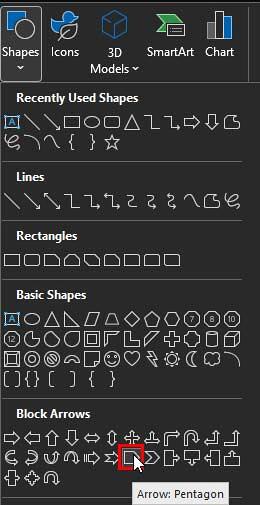
Figure 4: Select the Pentagon shape
Simply choose this shape and draw a long arrow onscreen. Next, use the arrow's resize handles to size and shape it. Change the tapered end of the arrow by locating and adjusting the image's diamond-shaped handle, as shown in Figure 5, below.
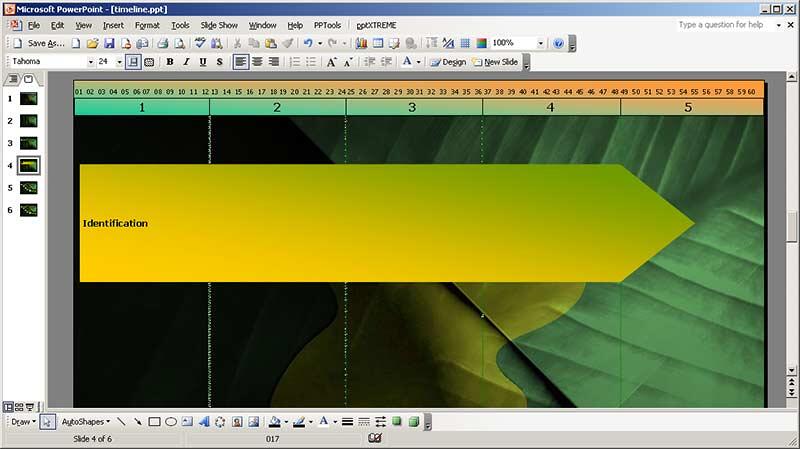
Figure 5: Change shape size as required
Once the arrow is properly sized, choose a graduated shaded fill that complements the slide's colors. Use the same techniques and menus you used to create color in your time bar, even repeating the color options. Be sure to choose the No Line option for the line attribute of the shape.
To save time creating and coloring individual shapes, duplicate this first shape (Ctrl + D) as often as necessary and place the copies where they're needed, as shown in Figure 6, below.

Figure 6: More shapes added
By duplicating the original shape multiple times, it's easy to create various parts of the timeline quickly. You may need to resize some shapes horizontally after placing them, to make them wide or narrow.
To ensure all shapes are aligned, you can create guides on your slides, as necessary.
All shapes are essentially text boxes. Select the shape and start typing. If you want more control, use the Text tool to add text boxes over each shape. Keep in mind while labeling the shapes that some may require additional scaling. Be sure to scale width-wise, and never height-wise, to maintain design consistency.
As you add shapes, along with text labels for the timeline, you may wish to identify several as a group using a larger block. This can be accomplished by adding another shape. In our example, a long, narrow bar visually groups the task arrows above it, as shown in Figure 7, below. This is essentially a Rectangle shape.
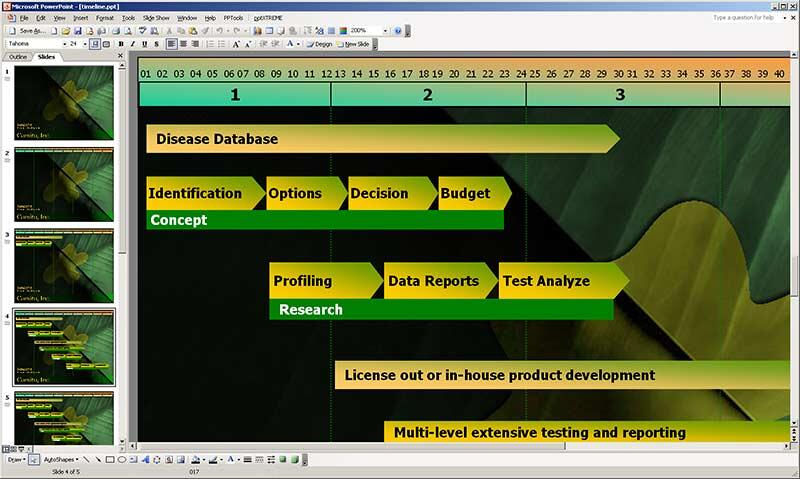
Figure 7: Longer rectangles below task shapes
These longer rectangle shapes provide another layer of grouping, by task, within the timeline.
These rectangles are created the same way you made the pentagon shaped arrows. To save time, create and format the shape you need, then duplicate it, placing each copy so that it roughly creates other groupings.
Once all the elements have been put into place, you can rearrange them to achieve their relative position under the time bar according to the product's development schedule, as shown in Figure 8, below.
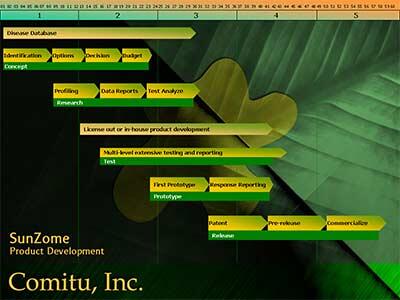
Figure 8: All elements within the finished timeline
The final steps will create and place custom animation on the slide. Usually, it is a good idea to use a simple wipe animation that moves from left to right (the direction of the arrows) in sequence. Using a complex animation or an entry-exit animation may spoil the simplicity of the timeline as well as distract your audience. For this example, we have only used wipe animation effects. Each shape appears, animated, in sequence. The time bar is animated to appear first, followed by the vertical dashed lines. Finally, all the tasks and their grouping rectangles complete the animation sequence.
And remember, this isn't the only way to use a timeline. It is possible to adapt this method for historical timelines, progressive project status, event planning, training, and any other concept that can evolve within a timeline frame.
19 04 02 - Cool Shape Ideas: Product Development Timeline in PowerPoint (Glossary Page)
Product Development Timeline in PowerPoint
You May Also Like: Possibilities 01: Static PowerPoint vs. Dynamic PowerPoint | Computers PowerPoint Templates




Microsoft and the Office logo are trademarks or registered trademarks of Microsoft Corporation in the United States and/or other countries.
