
This is the print version of this page. All content is copyright Indezine.com 2000-2026.
Read an exclusive book excerpt from Powerful PowerPoint for Educators.
Author: David Marcovitz
Product/Version: PowerPoint
In Chapter 4 you learned how to access the VBA Editor and write a simple script. In this chapter you will begin to learn a few more basic scripts, including some scripts that allow you to get input from the user. In the process, you will learn a little bit about variables, which are used to store information, so you can use it when you give feedback. What good would it be to ask for the user's name, if you don't use it as part of the feedback? You will get a preview of how to use some of the same scripts to get other kinds of input, such as answers to short-answer questions. Finally, in this chapter you will learn some details about running your scripts and associating them with buttons, including how to associate a button with more than one script.
Earlier, you used a MsgBox to pop up a message on the screen. You can use a similar box to get input from your students. The only difference is that the new dialogue box will have a space for your students to type something. We'll start with something simple: asking for the student's name.
Sub YourName()
End Sub
There are a few important things about this simple procedure. First, pay attention to the space and underscore at the end of the line. The last three characters on the second line are comma, space, and underscore. Without the space, the computer won't recognize the underscore that follows. The underscore is a special VBA character that tells VBA that what is on the next line is part of this line. Therefore that entire line could have been written on one line without the underscore:
userName = InputBox(Prompt:="Type your name", Title:="Input Name")
The underscore simply allows you to divide long lines so you don't have to scroll to the right to see what is on each line. Feel free to write long lines on one line or divide them up among several lines as you see fit.
The next thing that is important about this small piece of code is that it uses a variable: userName. Since we don't do anything with the variable at this point, it is not terribly interesting, but we should note a few things about variables. Variables are places to store information. You can think of them as boxes in the computer's memory. Unlike algebraic variables, which represent one (or more than one) specific, unchanging value in an equation or series of equations, computer variables change values. That is, you can take something out of a box and put something else into the box. In algebra, the equation
x = x + 1
would not make any sense. In the computer, it makes perfect sense for two reasons:
In the YourName procedure, we have used the variable userName. What we have said is: Take whatever the user types in the InputBox and put it into a variable called userName. Later, we will want to use the name (to say, for example, "Good job, Ella") so we will get it out of the userName box when we are ready.
Now, we are ready to put it all together with a Dim statement and two procedures:
Dim userName As String
Sub YourName()
End Sub
Sub DoingWell()
End Sub
The first procedure could be associated with a button on the first slide, and the second procedure could be associated with a button on a later slide. The result would be that when the first button was pressed, the student would be asked to "Type your name." If the student types "Ada," when the second button is pressed, a message would pop up on the screen saying, "You are doing well, Ada." The & (ampersand) character used in the MsgBox procedure is for concatenation of strings; i.e., the two strings "You are doing well," and whatever is stored in the variable userName (in this case "Ada") are joined together to make one string, "You are doing well, Ada," which is displayed in the box on the screen.
Of course this is a simple example, but it is really easy to turn it into a multiple-choice quiz with feedback that uses the student's name. Figure 5.3 shows the VBA script and slides for a short quiz. The arrows show which button should be connected to which procedure. The Next buttons and Quit button do not use VBA; they use traditional hyperlinks (see Chapter 2) for Next Slide and End Show. If you have forgotten how to tie your buttons to a procedure, look back in Chapter 4.
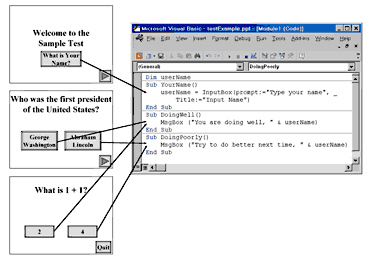
Figure 5.3: Simple Quiz - click here to view a larger picture.
You May Also Like: New Features in SlideSource: Conversation with Robert Befus | Cameroon Flags and Maps PowerPoint Templates




Microsoft and the Office logo are trademarks or registered trademarks of Microsoft Corporation in the United States and/or other countries.
