
This is the print version of this page. All content is copyright Indezine.com 2000-2026.
Read an exclusive book excerpt from Advanced PowerPoint 2007.
Author: Wayne Kao and Jeff Huang
Product/Version: PowerPoint

This exclusive book extract from Advanced PowerPoint 2007 is presented here with permission from Pearson Education.
The book, authored by Wayne Kao and Jeff Huang will help an intermediate PowerPoint user improve their skills to an advanced level. The book goes into deep technical detail about the Office 2007 theme engine. It shows how color schemes, effect schemes, and font schemes as well as the new PowerPoint XML file format work. It also shows how to edit PowerPoint files without using PowerPoint at all.
I wish to thank Lisa Jacobson-Brown for facilitating the permission to extract.
Reusing a Slide from Another Presentation
Reusing Slides with Slide Library
In today's world, we are all about recycling and reusing. In PowerPoint, you can do the same thing. Why re-create the same material, or even similar material, over and over again when you can simply reuse it from another source, such as an existing presentation that you or someone else has created?
Say that you remember having this great slide in another presentation that you want to reuse today. You might open that other presentation, find the slide, copy it, switch back to today's presentation, and then paste.
In PowerPoint 2007, there's an easier way. On the Home tab, in the New Slide group, click Reuse Slides at the bottom.Then click the Open a PowerPoint File link on the workpane.
After you select a file, it shows you thumbnails from the selected presentation, and you can quickly grab just the slides you want.
If you work for a rich corporation that's deployed Microsoft Office SharePoint Server 2007, you can alternatively choose the Open a Slide Library link. This lets you grab slides from a Slide Library where others from your company might have saved slides that you can grab and reuse.
Slide Library is a brand new feature added to PowerPoint 2007 that integrates with Microsoft Office SharePoint Server (also known as MOSS).
It’s an excellent way to reuse slides from various presentations and will help you collaborate with others without having to email around entire presentation files.
A slide library is exactly what it sounds like, a collection of individual slides that sit on a SharePoint server and can be added to by anybody with access to your site. After the library is populated with slides, creating a presentation using existing slides is extremely easy, as you can mix and match slides that other people have created without doing all the work. Say goodbye to the old-fashioned days when you were emailing presentations around, finding your way to the right slide you wanted, selecting all the content, pasting it, and realizing that something was lost in the copy and paste or that you need to do this for dozens of slides and begin to feel overwhelmed.
Setting Up The Slide Library
First things first: You must have Microsoft Office SharePoint Server 2007 installed to use with Microsoft Office PowerPoint 2007 Ultimate or Enterprise.
After this is all set up and you are able to create your own site content, click on Site Actions and select Create as shown in Figure 9.5.
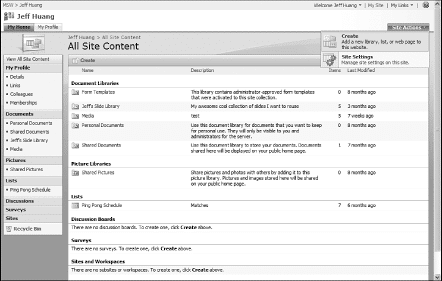
Figure 9.5: From the main SharePoint site, click on Site Actions and then Create in order to get to the option of inserting a Slide Library.
Now you will find yourself with a lot of options for content that you can create, and one of them happens to be a slide library, as shown in Figure 9.6.
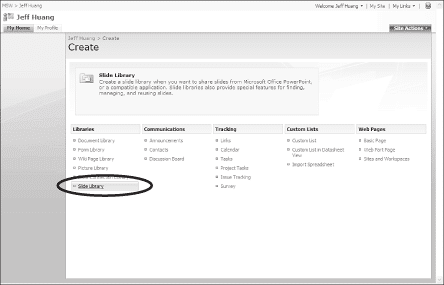
Figure 9.6: Under the Libraries section, select Slide Library. This must be enabled by an administrator.
You will be asked for a name and description of the slide library in addition to whether you want a shortcut made for it and whether you want to create versions of the library.
Now you should have something that looks like a blank slide library waiting for you to fill it with excellent slides.
You May Also Like: Presentation Design Pack: Conversation with Simon Raybould | Prison PowerPoint Templates


Microsoft and the Office logo are trademarks or registered trademarks of Microsoft Corporation in the United States and/or other countries.
