Introduction
Working with Flash Slide Show Maker
Pricing and Support
Conclusion
Introduction
Sharing pictures is a great way to show visual content like digicam pictures. These pictures can be sent as e-mail attachments, photo albums, slide shows, etc. Or you could use Flash Slide Show Maker, a free software that creates Flash-based photo slide shows with ease.
Flash Slide Show Maker provides several pre-built templates and built-in transition effects. It even allows you to add sound to your slide show.
A simple interface enables you to create slide shows even if you have no Flash skills. And it is a freeware product. Download it from their site.
Back
Working with Flash Slide Show Maker
Assuming that you have downloaded the installer from the link given above, run the setup routine and follow instructions. You'll end up with a Flash Slide Show Maker program group in your Windows Start menu, as shown in Figure 1, below.

Figure 1: Flash Slide Show Maker Start menu Group
Follow these steps to use Flash Slide Show Maker:
- Go to your Windows Start menu and choose All Programs | Flash Slide Show Maker | Flash Slide Show Maker, as shown in Figure 1, above.
- Doing so opens Flash Slide Show Maker Interface. Choose the Create New Project option, as shown in Figure 2, below.
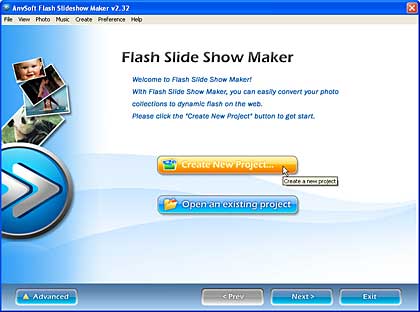
Figure 2: Create a new project - Doing so opens the screen, as shown in Figure 3, below. Here, you can add pictures.
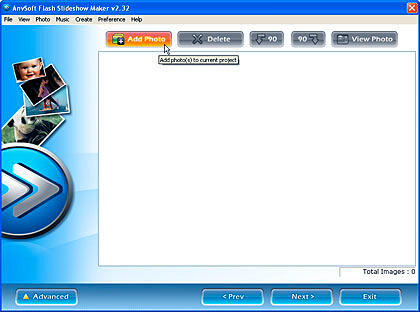
Figure 3: Add pictures (photo)- Doing so brings up the Open window. Browse to choose your pictures and click Open.
- This action will add the selected pictures. You can now see them as thumbnails, as shown in Figure 4, below. Click the thumbnail to activate other buttons.
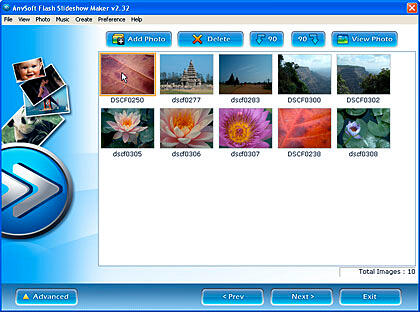
Figure 4: Added Photo- Choose Delete to remove a picture, the other two buttons allow you to rotate the selected images clock-wise and counter clock-wise. View Photo opens the Edit dialog box, as shown in Figure 5, below.
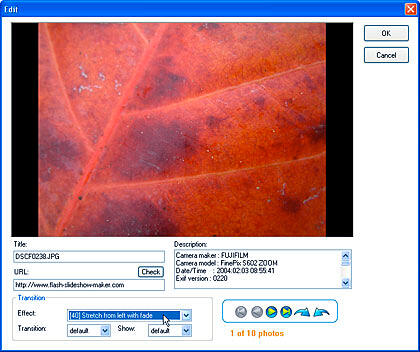
Figure 5: Edit- This window shows the title and description of the picture, and allows you to apply a transition effect. Use the navigation button to go to the next picture, and make edits as required. Click the OK button. Also, you might want to change the URL here. This is the URL that opens in your browser whenever a viewer clicks the picture.
- This action will take back you to the interface, as shown in Figure 4, previously on this page. Click the Next button to go to the subsequent window of the interface, as shown in Figure 6, below.
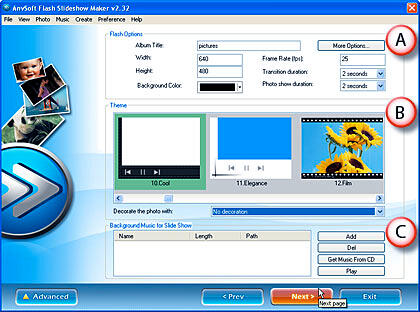
Figure 6: Flash Slide Show Maker- This window has following options:
A. Flash Options
- This option allows you to add an album title, and set the dimensions of the Flash SWF output file, background color, frame rate, transition duration, etc. The More Options button provides advanced settings for Flash.
B. Theme
- This option provides in-built themes which add interest to the slide show. Decorate the photo allows to apply animated elements to the slide show, such as lines, snowflakes, etc.
C. Background Music for Slide Show
- Use this option to add a sound file from your system, or an audio CD to the slide show.
- Once all options are selected, click the Next button to see the interface window, as shown in Figure 7, below.
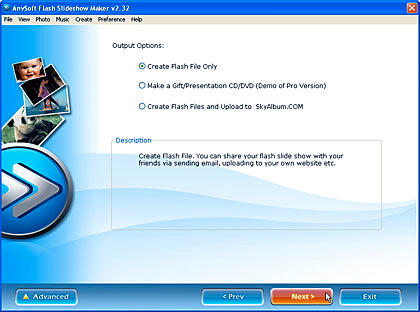
Figure 7: Output Options- This window has three output options:
- Flash SWF file,
- Flash SWF file within a CD or a DVD, and
- Flash SWF file which can be uploaded straight way to the SkyAlbum.com.
- Choose the first option and click Next. Doing so brings up the final window of the interface, as shown in Figure 8, below. Here, you can select the output folder, and give names to the Flash output and HTML container files.
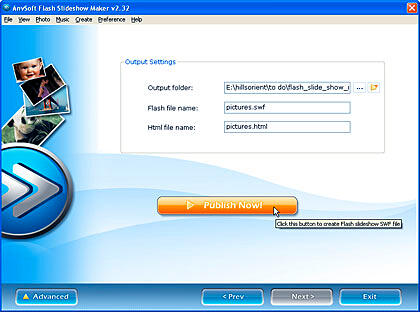
Figure 8: Output Settings - Thereafter, click the large Publish Now button. Publishing may take a while.
The published output includes a last screen that mentions that this slide show was created by Flash Slideshow Maker. There's a Professional version of this program that allows you to disable this screen.
Back
Pricing and Support
The basic version is freeware and is advertiser-supported to some extent. There's a screen in the output that provides a link to the program site. The Professional version, which allows you to disable this screen costs $29.95 and can be purchased online.
Support is through an online FAQ and a forum.
Back
Conclusion
For what it does, Flash Slide Show Maker is a great program. It's simple to use, and the basic version costs nothing.
Back




